Generating Reports with WALLy


© 2026 Sonrai Security. All rights reserved.
Overview
WALLy can assist with many tasks - but being able to quickly analyze and understand protections deployed across your cloud environment makes WALLy ideal for creating descriptive reports.
Prepared Reports
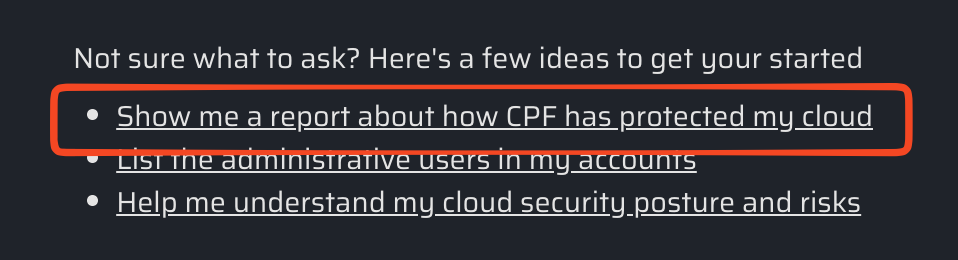
Sonrai has designed and tested reports that you may find helpful - both as reporting tools for your own use, and as samples that you can modify when building your own reports.
Use suggested prompts in WALLy to learn more:
Custom Reports
Create your own custom reports to better understand your cloud environment, or to share with key stakeholders in your organization.
Give WALLy a prompt that describes the information you want, and a downloadable file will be built on your behalf summarizing that information.
Use the sample prompts below to help get started, or read about some other considerations you may want to be aware of when generating custom reports.
Don't forget, like most Generative AI, WALLy can make mistakes when answering your questions. Be sure to check the accuracy of your reports.
Sample Prompts
To help you start building custom reports with WALLy, a few sample prompts are provided below. Each sample includes a brief description of desired result, and a rough prompt that generates a report file you can download.
- Privilege Permission Controls Report
- 3rd Party Controls Report
- Region Controls Report
- JIT Report
- Zombie Report
These reports generally work well from the root scope of an AWS Organization. Always check your selected scope, or specify the scope you want to report on directly in your prompt, because WALLy will use that information when building a response.
Some of WALLy's tools have limits that may affect the total amount of data and numbers shown. Be cautious if reports list exactly 100 or 500 results, for example, as that might indicate you've bumped into a limitation on how many results are returned instead of an actual count.
Privilege Permission Controls Report
Use Case:
Generate a comprehensive view of privileged permissions protections across AWS accounts, showing which services are protected, disabled, or actively used without protection, and presenting the results in a shareable, visually appealing report for stakeholders.
Suggested WALLy Prompt:
Generate an HTML report called SonraiCPFProtections.html on the Privileged Permissions Protections in place in my AWS organization.

Use a visually appealingly format so I can present it in a meeting. I need to show the Positive progress in deploying controls and what is left to be done.

Build a summary for each account that shows the Account name and number.
- Number of Services that are Protected
- Number of Services that are Disabled
- Number of Services with usage that have sensitive permissions and are not protected
- Detailed list of Protected Services

Show a list of All Exemptions and What Scopes they are deployed at.

Appendix: Show all exemptions in place for Protected Services and Disabled Services.
3rd Party Controls Report
Use Case:
Provide a consolidated view of third-party access across the AWS organization, showing where external vendors have access, whether that access is privileged or includes direct resource permissions, and where deny-first controls or explicit blocks are applied.
Suggested WALLy Prompt:
Generate an HTML report called SonraiCPF3rdParty.html that summarizes the status of 3rd-party access in my AWS organization.

Use a visually appealingly format so I can present it in a meeting.

Show a table of all 3rd Parties with access. The table should include these columns:
- 3rd Party Name,
- How many accounts they have access to,
- If access is Privileged,
- If they have direct resources access

Show a list on any scopes where 3rd Party is in Deny First Mode.

Show a list of any 3rd Party Blocks.
Region Controls Report
Use Case:
Summarize AWS region access across all accounts to validate which regions are globally enabled or disabled, and clearly identify any account-level or scope-level exceptions to the standard region policy.
Suggested WALLy Prompt:
Generate an HTML report called SonraiRegionControls.html that summarizes the status of region access in my AWS organization.

Use a visually appealingly format so I can present it in a meeting.

Show a summary of which regions are enabled across all accounts and which are disabled across all accounts.

Next detail any exceptions to the above summary.
JIT Controls Report
Use Case:
Report on JIT configuration and usage across AWS accounts, highlighting adoption levels, recent JIT activity, and identifying privileged permission sets that are not yet enrolled in JIT.
Suggested WALLy Prompt:
Generate an HTML report called SonraiJITSummary.html that summarizes the JIT configuration and activity in my AWS organization.

Use a visually appealingly format so I can present it in a meeting.

Build a summary for each account that shows the Account name and number
- Number of Permission Sets enrolled in JIT
- Number of Permission Sets enrolled with auto-pod
- Number of JIT Sessions over the last 30 Days

Summary of the most active JIT Sessions

Sections for Recommendations:
Show a list of all Permission Sets that are Admin or Privileged, and which Accounts do NOT have them enrolled in JIT.
Zombie Controls Report
Use Case:
Provide visibility into zombie identities across AWS accounts by comparing the number of identities in quarantine versus those not quarantined, while accounting for approved exemption patterns.
Suggested WALLy Prompt:
I need a visually appealing report, zombies_status.html, to present our current state of quarantining zombies at a meeting.

Start using the get quarantine summary tool to count the number of zombies in quarantine for each AWS account, then add them up to give a total for the AWS Organization, showing how many identities are in quarantine.

Next, compare that to the total number of Zombies that are not in Quarantine.

Finally, show any exempted patterns that would not be counted as zombies.

Under the summary, build a table for each account that shows rows with the Account name and number, and the following columns:
- the number of identities in quarantine,
- the number of zombies,
- any exempted patterns not covered by the global summary

Ignore the Management account and do not sum the totals at the bottom of the table.
Other Considerations
Scope and Access
Remember that WALLy defaults to the currently selected scope when answering questions, and that WALLy only has the same level of access as the current CPF user. If your report isn't giving the expected results:
- try defining the scope you want considered as part of your prompt
- ensure that you are logged in as a user with sufficient permissions
Think Before Acting
It's always a good idea to look before you leap - and that goes for WALLy too!
While the sample prompts above were kept very simple to get you started, you will get more consistent results by breaking the request down into detailed steps. WALLy does a better job following your instructions when they offer clear, step-by-step guidance for how to proceed.
For example, you might use a template like the one below to help create a prompt for your custom report:
Generate an HTML report called [MyReport.html].
The report should [high-level summary of what you are trying to achieve].
DO THE FOLLOWING TASKS STEP-BY-STEP:
- Planning the Report
- [What scope should WALLy report on?]
- [What is the high-level purpose of this report?]
- [Who is the target audience?]
- Collecting Data
- [What fields should be included in your results?]
- [What date range should the report cover? (if applicable)]
- Summarizing Key Information
- [How much additional summary detail should be provided?]
- [What sections should the report contain? (Executive summary, content, appendicies...)]
- Generating the Report
- [What format should the report use?]
- [Do you want to add any custom syling?]
- [Are there any final instructions before creating output?]
Once your prompt describes all details you want included, give WALLy the OK to get started and then confirm the resulting output!
Style Your Reports
WALLy is happy to build visual reports without much guidance - however, without any guidance WALLy might pick colors or styles that don't match your vision. If you share reports inside your company, or just want more consistent output, then giving WALLy a custom style guide will help!
For example, Sonrai-styled reports might add the following guidelines as part of their prompt:
Apply the styling from the <style_guide> below to create visual appeal:

<style_guide>
Purple background cards/headers:

border-radius: 0.5rem;
background: #7554A3;
box-shadow: 0 0 34px 0 rgba(0, 0, 0, 0.15) inset;
Purple gradient elements:

border-radius: 0.5rem;
border: 1px solid #7B5EA3;
background: linear-gradient(180deg, #896AB6 0%, #6C5290 100%);
box-shadow: 0 2px 4px 0 rgba(0, 0, 0, 0.10);
White background cards:

border-radius: 0.5rem;
background: #FFF;
box-shadow: 0 2px 4px 0 rgba(0, 0, 0, 0.10);
Table header text:

color: #FFF;
font-family: Saira;
font-size: 0.875rem;
font-weight: 600;
All text:

font-family: Saira;
</style_guide>
Copy that snippet and included it with to some of the sample prompts above, then compare the resulting output. You can see how a little style advice goes a long way.
Re-Running Favorite Reports
Don't forget that WALLy keeps a list of recent conversations that you can revist in the future. Once you have a favorite report, use the star option to pin it to the top of your list and rename the conversation so that you can easily pick it out for re-use!