Intro: Who is WALLy?

© 2026 Sonrai Security. All rights reserved.
Overview
Getting started with Cloud Permissions Firewall can seem daunting - even with powerful tools at your fingertips, knowing exactly what to do first and where to find answers can be stressful.
That's where WALLy comes in!
WALLy is a custom-built, AI-assisted chatbot who will help you quickly identify and fix privilege risk. WALLy works directly with Sonrai’s Cloud Permissions Firewall (CPF), using native IAM controls (AWS SCPs and GCP org policies) to enforce decisions safely and transparently.
Read our policy on AI usage in CPF for more information about how Sonrai leverages AI-supported features.
What Can WALLy Do For You?
WALLy uses a broad range of tools to get insight into your CPF deployment. WALLy is an expert in the following areas:
Service Management: Protect or disable services, manage exemptions, and quarantine unused identities to reduce risk.
Identity & Permission Governance: Discover, audit, and analyze cloud identities and privilege levels to prevent over-permissioned or unused access.
Administration: Review pending changes, audit history of CPF actions, threat vector remediation, and enable rapid protection across entire scopes.
Visibility & Analysis: Provide insight into service usage, protection status, threat vectors, and historical cloud and third-party activity.
Access Control: Manage Just-in-Time and Permission on Demand access, enabled regions, scope ownership, and tracks deployment of controls.
All of this knowledge makes WALLy a perfect resource when you have questions:
- Do you want to understand what protections are already in place?
- Are you curious about what protections should be applied next?
- Staging controls across your organization, but want to avoid adding them all manually?
- Trying to summarize how CPF has made your organization more secure since being deployed?
- Looking for patterns in how your cloud users are accessing resources?
For all of these tasks and many more, WALLy is ready to help!
Limitations and Guardrails
While WALLy is capable of helping you with many things, it has been designed with specific limitations and guardrails to keep your cloud safe. Each new tool that expands WALLy's functionality is built and tested with this safety in mind.
Scope
Scope is assumed to be the value currently selected in the dropdown on top of the page, unless specified as part of your prompt. When there is uncertainty, WALLy will ask for clarification.
Access and Permissions
WALLy only has the same level of access to CPF as you do. This might limit its ability to check some types of information or stage changes.
Available Topics
WALLy only answers cybersecurity, cloud security, and CPF-related questions.
Making Changes
WALLy does not make changes without your explicit approval. You can have WALLy propose or stage changes in CPF... but actually deploying those changes to your cloud environment requires manual approval from the Pending Changes screen.
Tools
Some tools limit the number of results that can be returned in a single request, which might cause reporting results to be truncated. Be sure to verify your results - especially with round numbers like 100 or 500 are reported.
Data Accuracy
WALLy attempts to prioritize technical accuracy at all times, and should request clarification if prompts are unclear. However, like all LLM-supported tools it's important to review and confirm results that WALLy gives you.
Frequently Asked Questions
Is my data secure when using WALLy?
At Sonrai, your security is always our top priority! Check our AI usage policy to learn more about how we handle Data Privacy & Security.
I'm curious, what specific tools does WALLy include?
To ensure you have the most capable and efficient assistant possible, we are constantly evolving the tools that WALLy has access to.
If you ever need a list of specific tools that WALLy currently has access to, categorized by purpose and with a brief description of what they do, just ask WALLy directly!
Can I get access to the same tools that WALLy works with, to automate some of my processes?
Yes!
- If you want to get support from your own MCP client, you can enable the Sonrai Remote MCP Server.
- You can also work with Sonrai's GraphQL API Library directly to make updates and configuration changes.
Does WALLy learn from the conversations we have?
No - WALLy remembers your current conversation, but does not train on your organization data or learn from past discussions.
However, WALLy is constantly improving thanks to refinement and additions to underlying tools. If WALLy can't answer your questions today, leave some feedback so that WALLy can continue to grow!
Can WALLy deploy controls for me?
No. WALLy is limited to actions within CPF. It can look at your environment, provide reports and suggestions, and even stage controls in Pending Changes... but the final approval and update relies on your action.
Using WALLy
Where's WALLy?
To talk with WALLy, visit the chat page in your CPF application.
As part of your Permissions Firewall, WALLy has its own link in the sidebar.
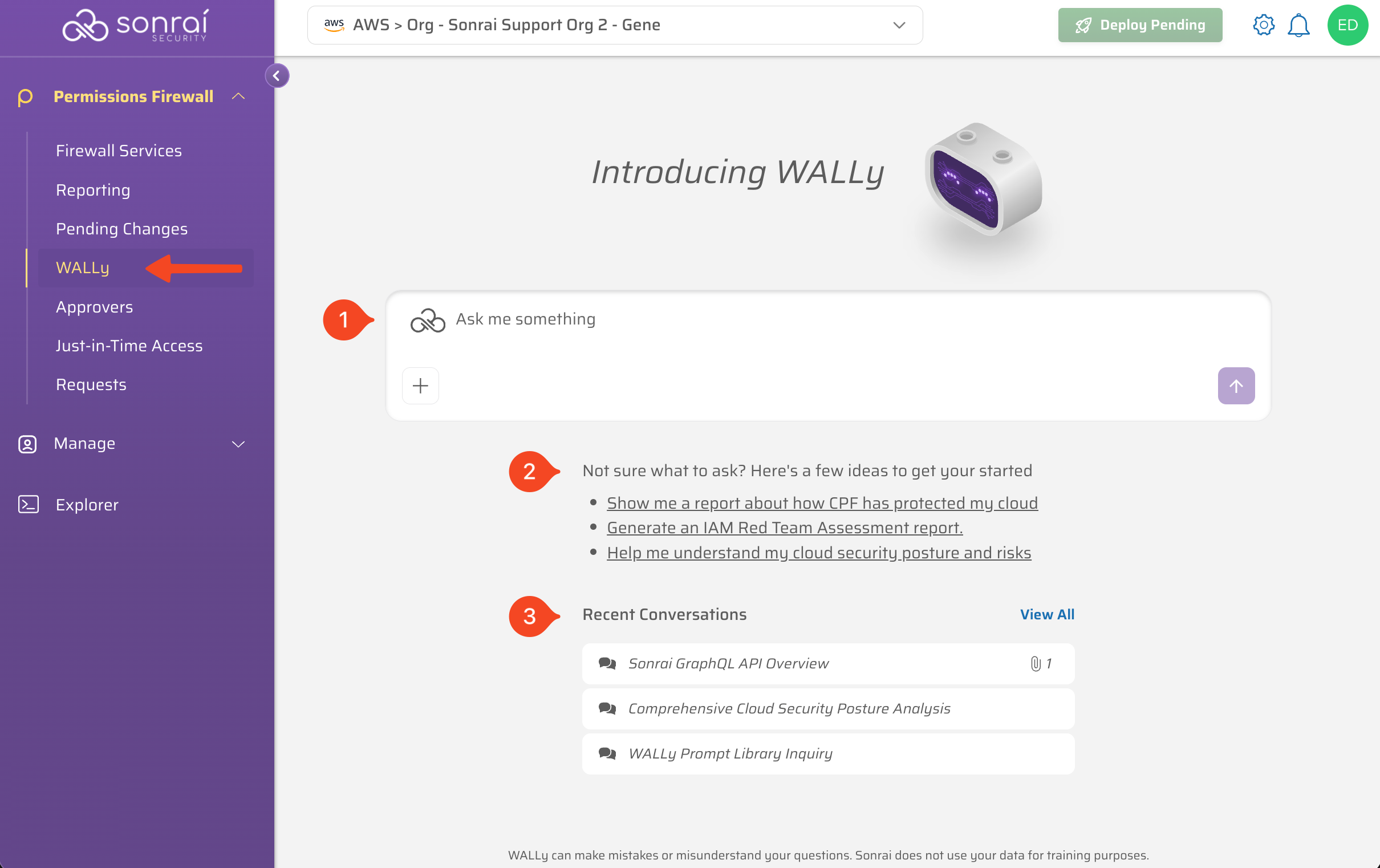
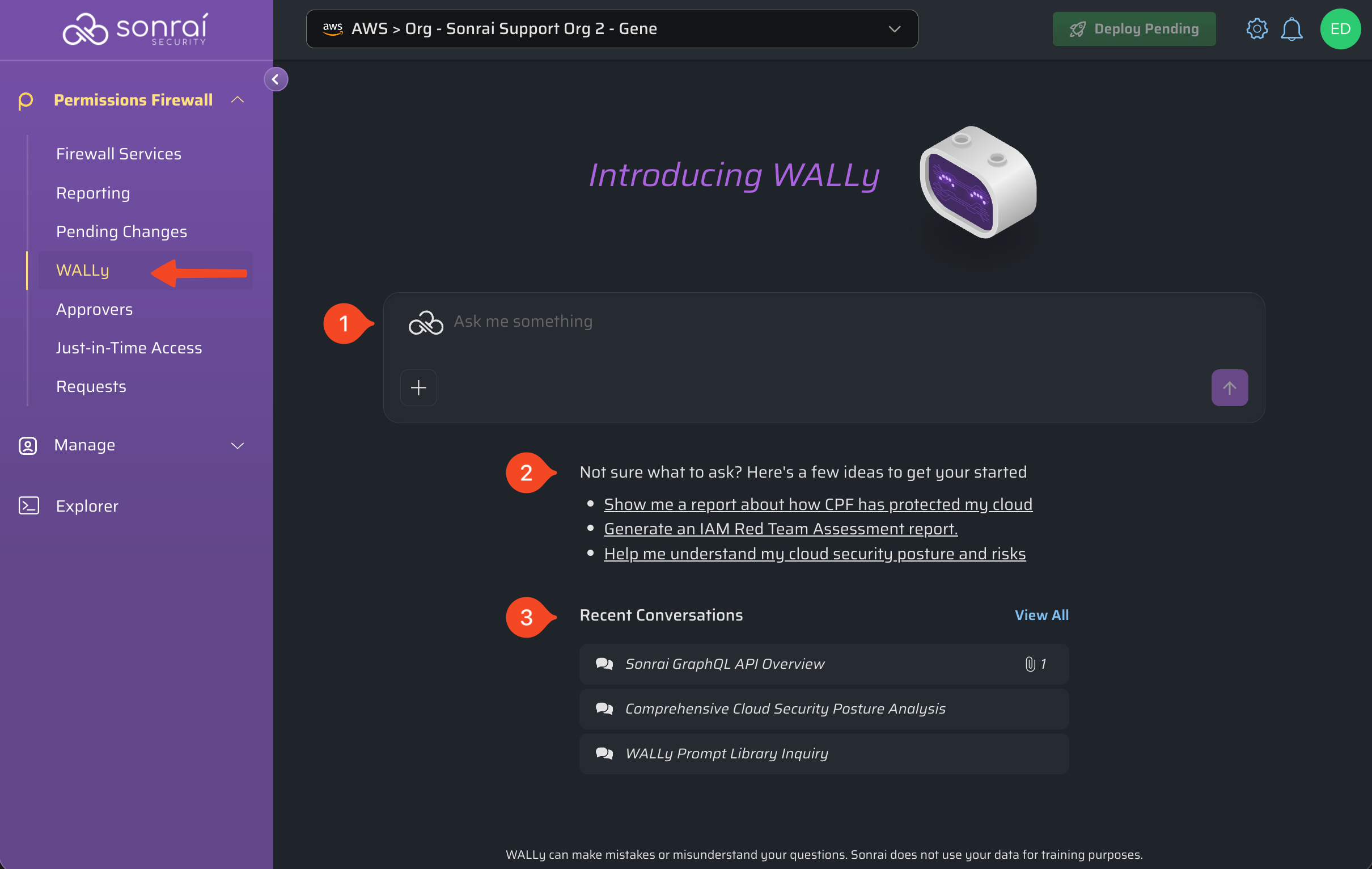
Most elements here are similar to other chat applications:
- A prompt window, where you can ask questions or give instructions that WALLy should follow.
- Suggested questions provided by Sonrai, with sample prompts that can help get your conversation started.
- Recent conversations, so that you can quickly pick up with conversations you've already started without missing a beat or see a full history of your discussions.
Although access to WALLy is limited to the dedicated chat page right now, in the future you will be able to ask questions from other locations - ensuring that WALLy is always available when you need to find out more information or act quickly.
Talk to WALLy
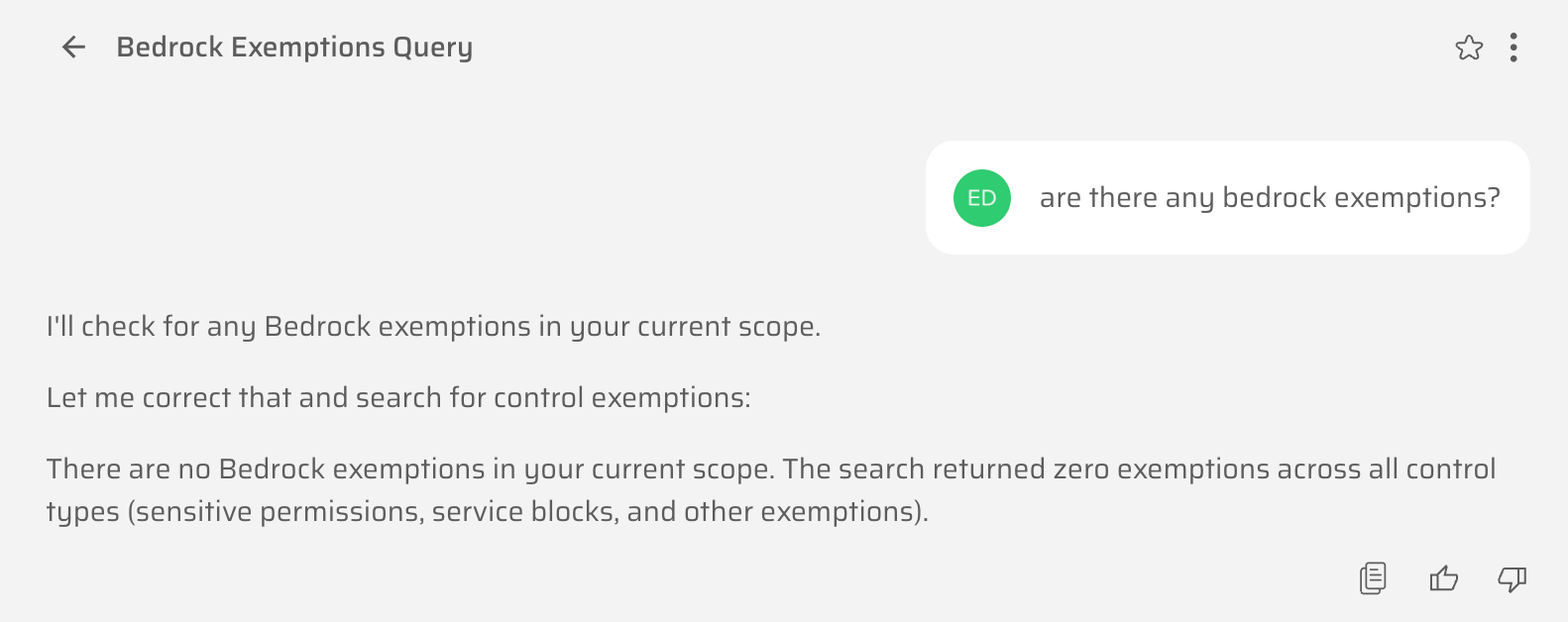
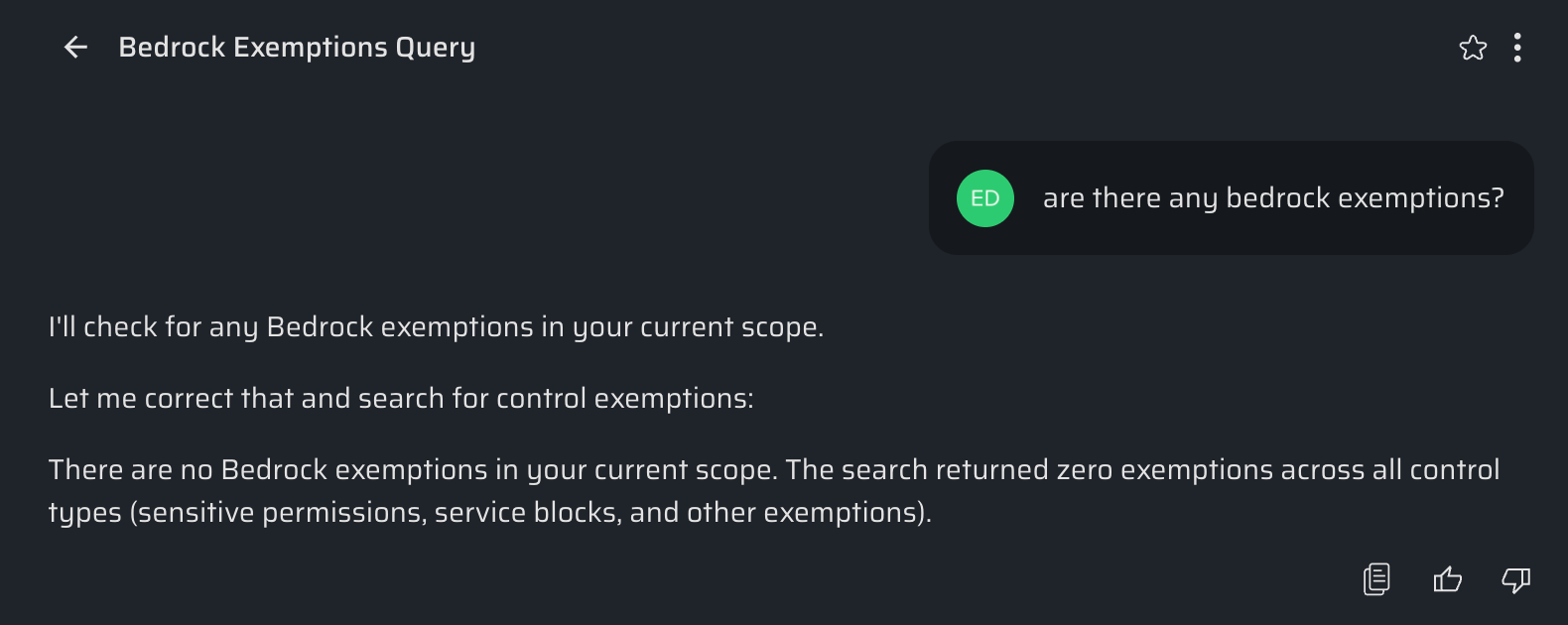
On the chat page, talk to WALLy just like you would any other chat application!
Write a question in the prompt window, hit enter, and a new chat session starts by showing your WALLy's response. Every response is automatically given a name (based on your initial prompt), and assigned a unique chat session ID that is visible in the URL.
It's important to note that each chat session is a distinct conversation. Context and information provided in one chat doesn't carry over to other discussions. You can add additional details inside your existing chat, however, and have to get more specific results.
Prompt:


Response:
Asked a question before you were ready, or changed your mind after submitting a request?
Interrupt WALLy's current thought process by clicking the purple button in the prompt window.
File Attachments
Another way to add context to your request is by using the + button to attach a file for WALLy to reference. Adding a file to your chat will allow WALLy to read, summarize, and extract data from that source.
WALLy supports text-based file attachments, including:
- text/plain - Plain text files
- application/json - JSON files
- text/html - HTML files
- text/csv - CSV files
- text/yaml - YAML configuration files
- text/xml or application/xml - XML files
- application/javascript - JavaScript files
- text/markdown - Markdown files
Each attachment has a maximum size of 100KB.
Conversation Options
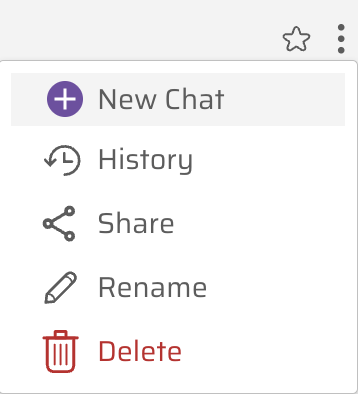
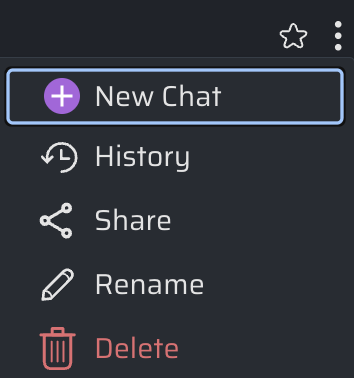
While chatting with WALLy, you can use the conversation options in the upper right corner to perform a variety of actions.
| Action | Description |
|---|---|
| New Chat | Leave the current chat session, and return to the main chat window so you can begin a new conversation. |
| History | Leave the current chat session, and view your history of previous chat sessions. |
| Share | Allow the current chat session to be shared with others. A shared session URL is provided that you can copy. |
| Rename | Change the assigned name for the current chat session. |
| Delete | Leave the current chat session and remove it from the chat history. |
In addition to the menu actions, you can also add a star to this chat session so that it is easier to revisit in your chat history.
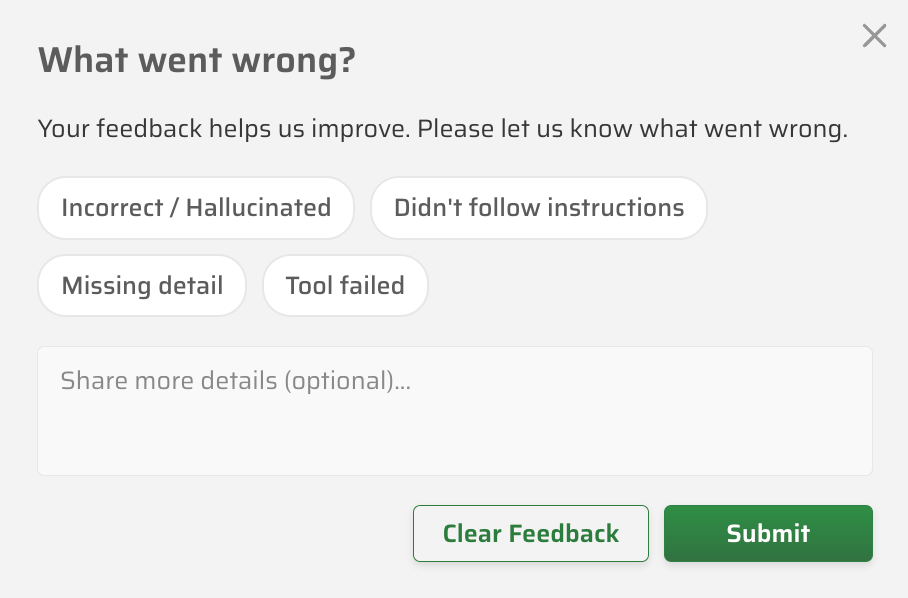
Give Feedback
Although WALLy provides expert advice and support on many topics around security and CPF, its ability to react is only as good as the underlying tools that are available.
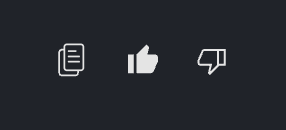
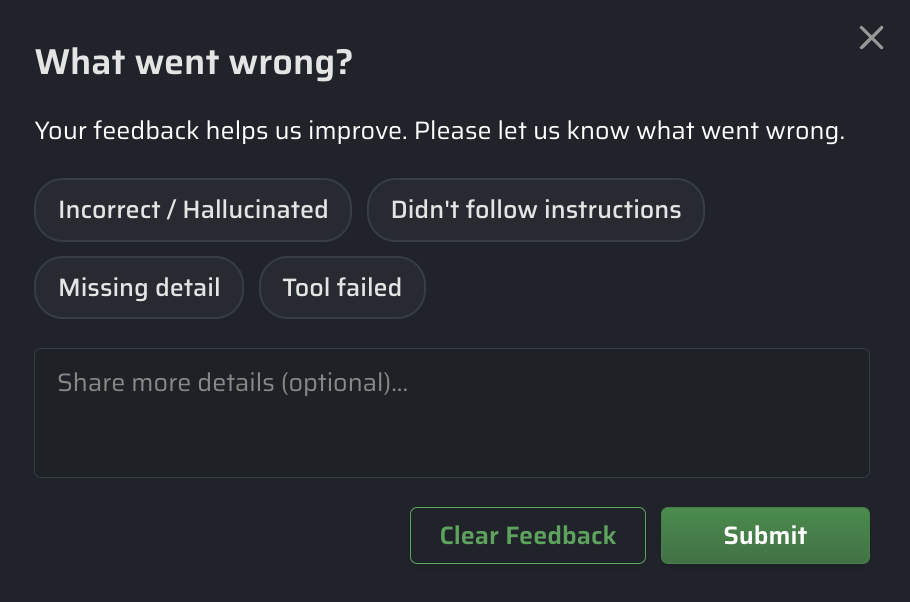
Use the feedback buttons, underneath each response, when you find an answer that is particularly helpful or misses the mark!

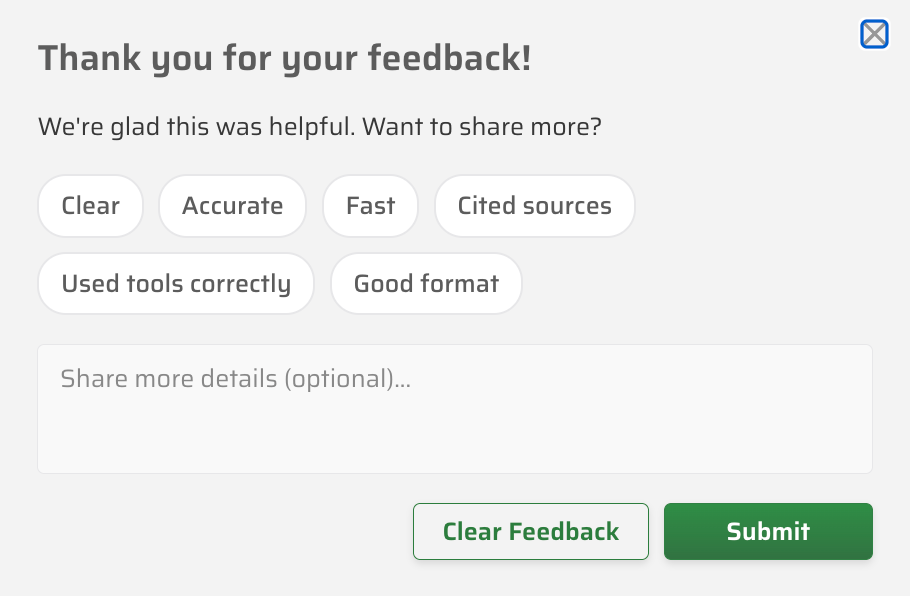
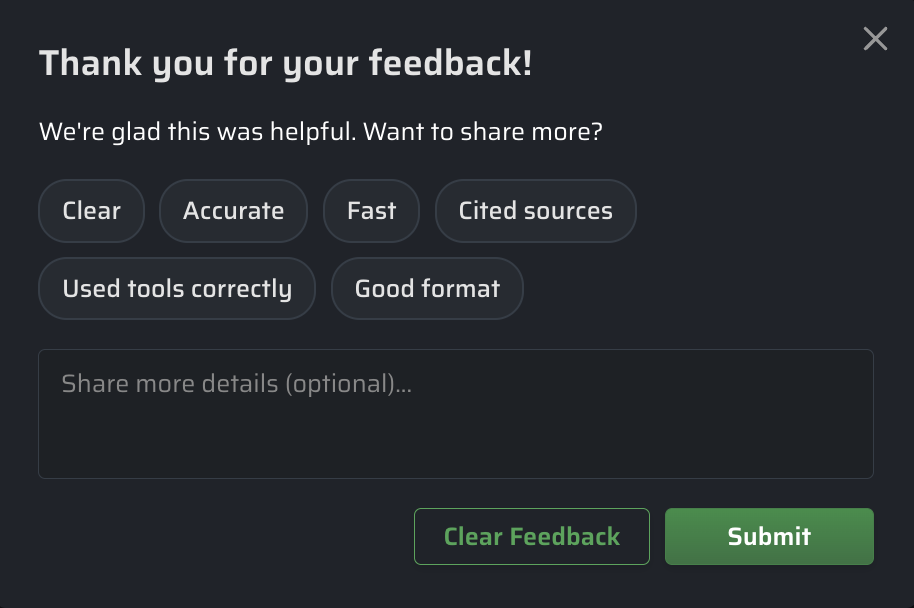
Select from a set available buttons to describe your reaction, or add a detailed description of your experience, and click Submit. You can also clear previously submitted feedback if your opinions have changed.
With your help, WALLy will continue to grow by sharing when this feature is useful and where it needs improvement.
Suggested Questions
Using WALLy for the first time can be daunting - what should you ask about? What does a good prompt look like?
To make getting started easier, WALLy has some suggested questions that with prompts designed by Sonrai staff to get your started:
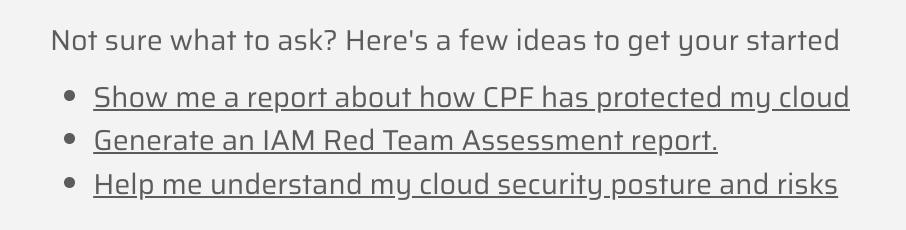
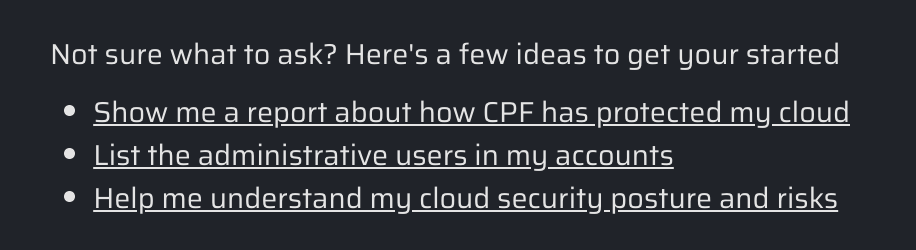
Just click on one of these questions to see a full sample prompt - some are short, others much longer as they ask WALLy to generate a full report - and see how WALLy responds.
Recent Conversations
The recent conversations section shows the name of your most recent chat sessions, and includes an icon if any files were created or attached to that session. This allows you to quickly return to a recent chat session and continue that discussion.
You can also select View ALL, which opens an expanded chat history page that lists your previous chat sessions.
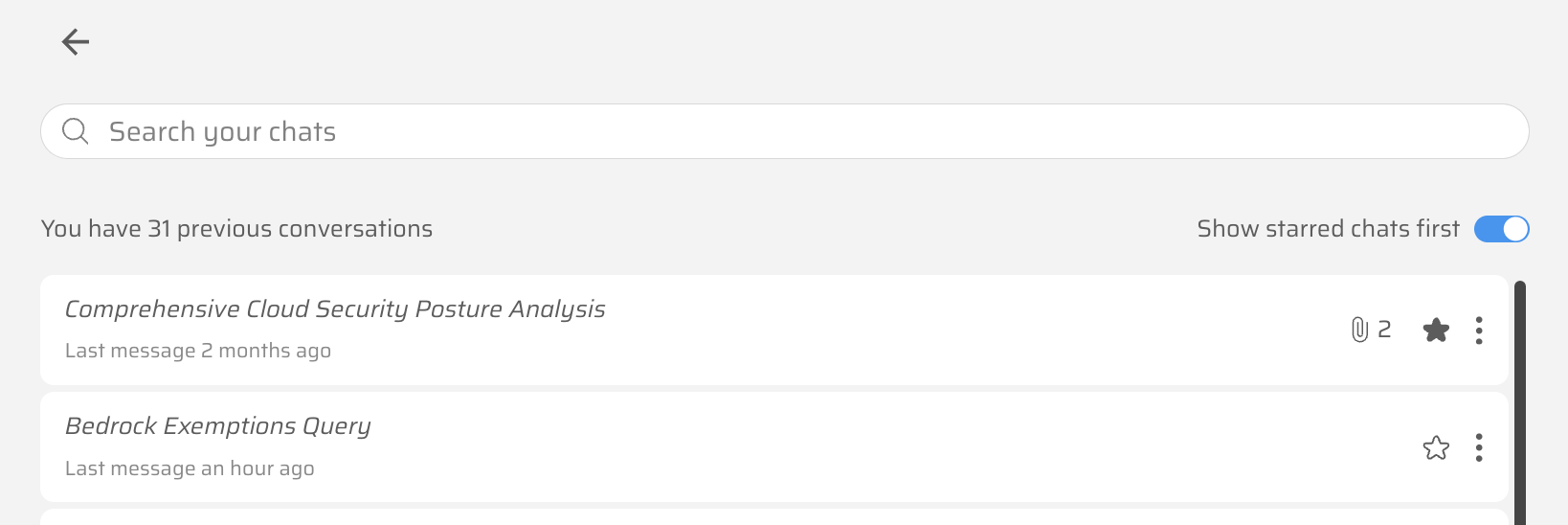
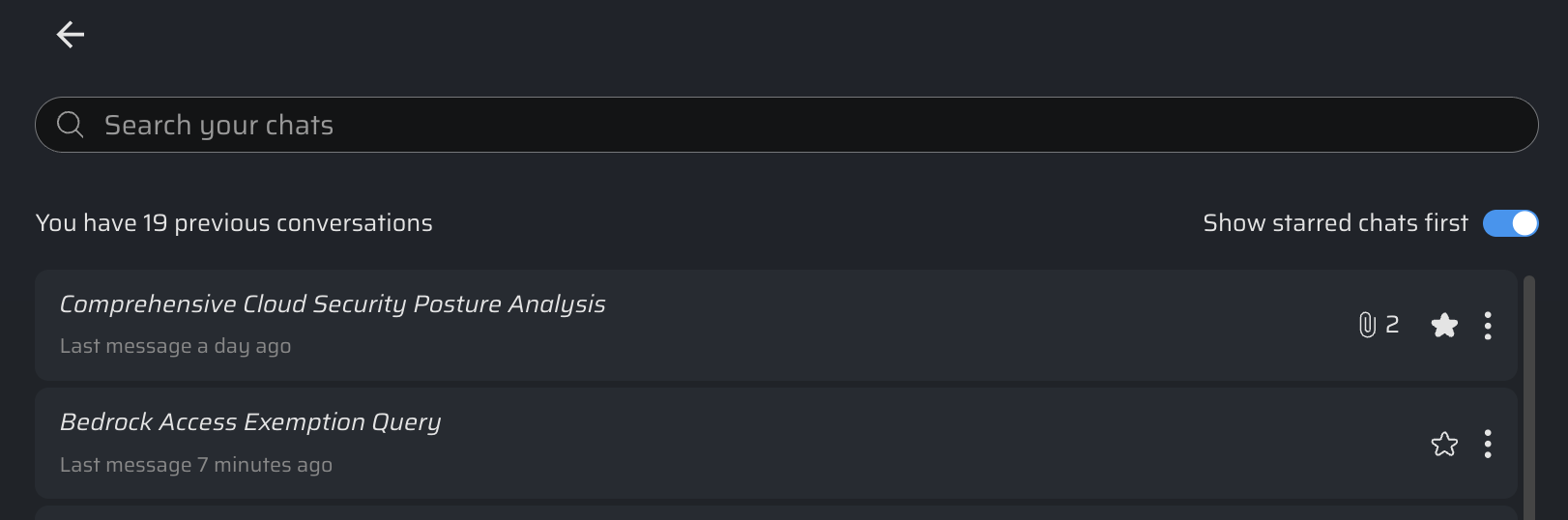
This page allows you to:
- search through the content of existing chat sessions, reviewing what you've done in the past
- list starred chats first, bringing your most important prompts to the top of the list
- modify saved chat sessions by adding a star, or using the menu to share, rename, or delete sessions