Managing Permissions on Demand Request Approvers


© 2026 Sonrai Security. All rights reserved.
Overview
Permissions on Demand requires a defined listing of Approvers. This list provides a means to allow your organization to extend permission approval to those who have suitable authority and knowledge to authorize usage.
The list of Approvers defined within the Cloud Permissions Firewall are not required to have any associated privileges within your cloud estate to mutate the respective Cloud Controls or change any cloud access, this is simply about change management!
Prerequisites
The "Administrator" RBAC role is required for assigning/removing Approvers.
Adding Approvers
You can add Approvers at any scope within your cloud hierarchy — from the organization level down to individual accounts or projects. From the Approvers page, select the pencil icon on any scope row to open the Manage Approvers modal for that scope.
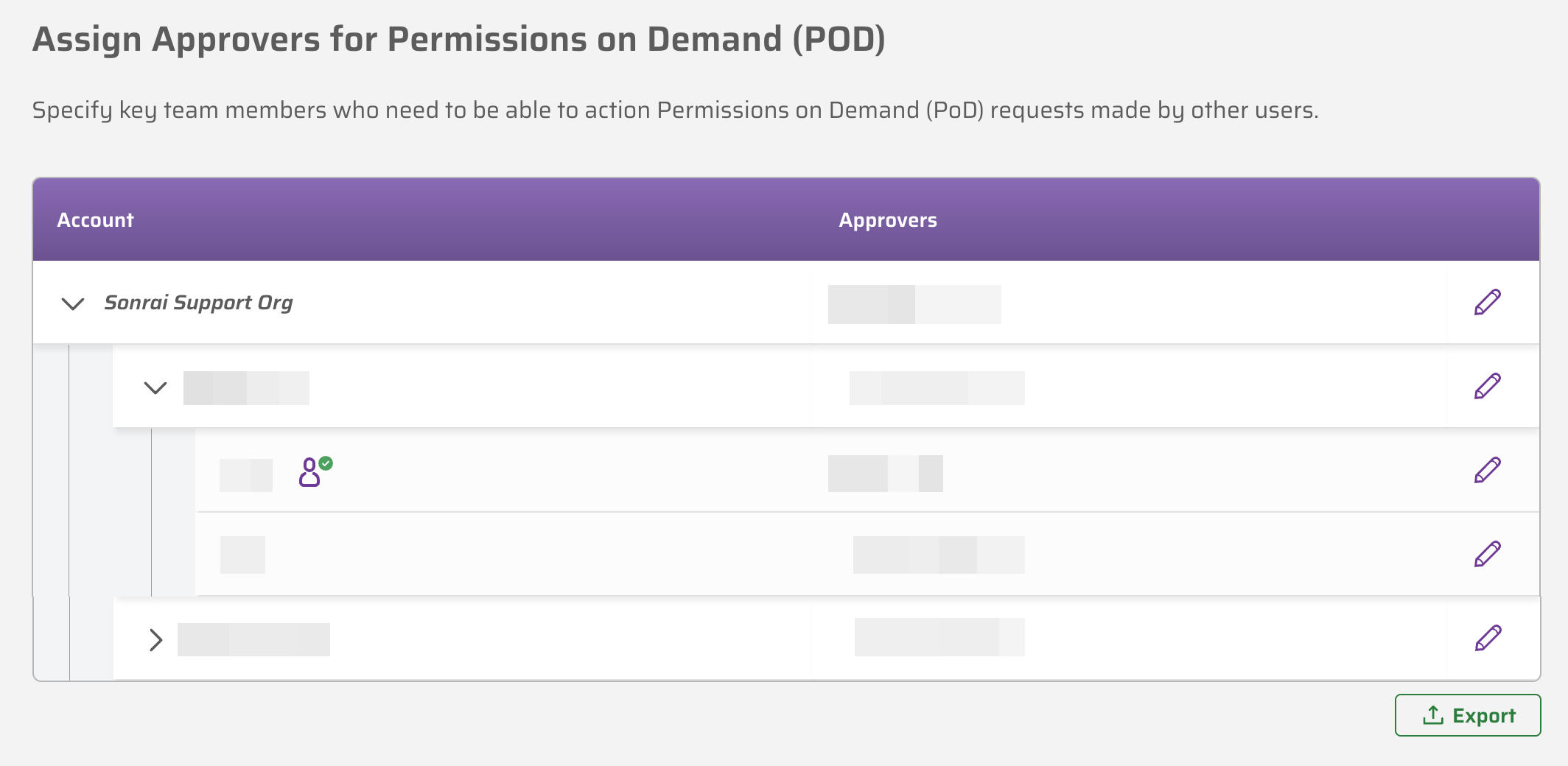
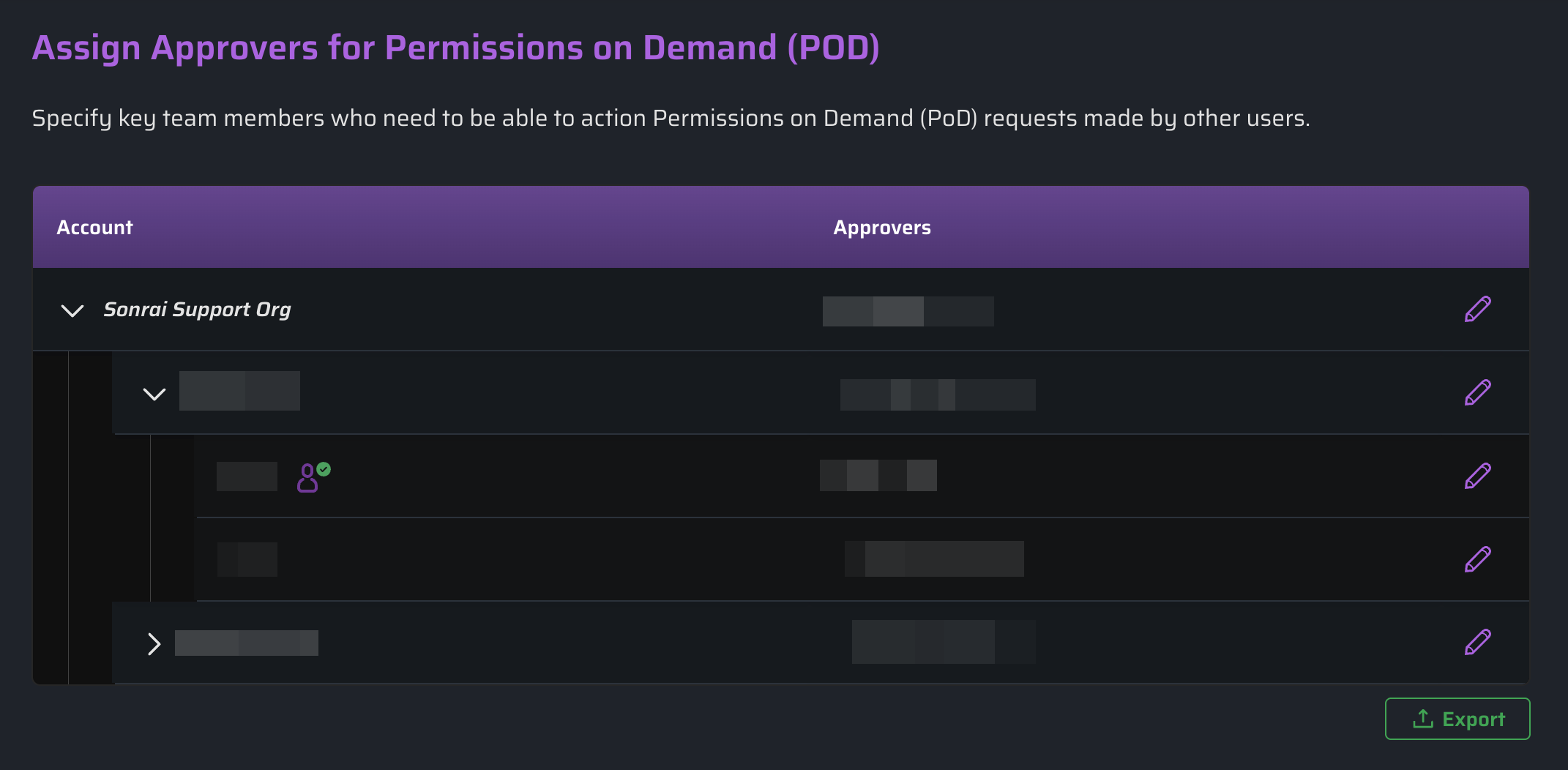
From the Manage Approvers modal, you can add or remove users from the approver list for the selected scope.
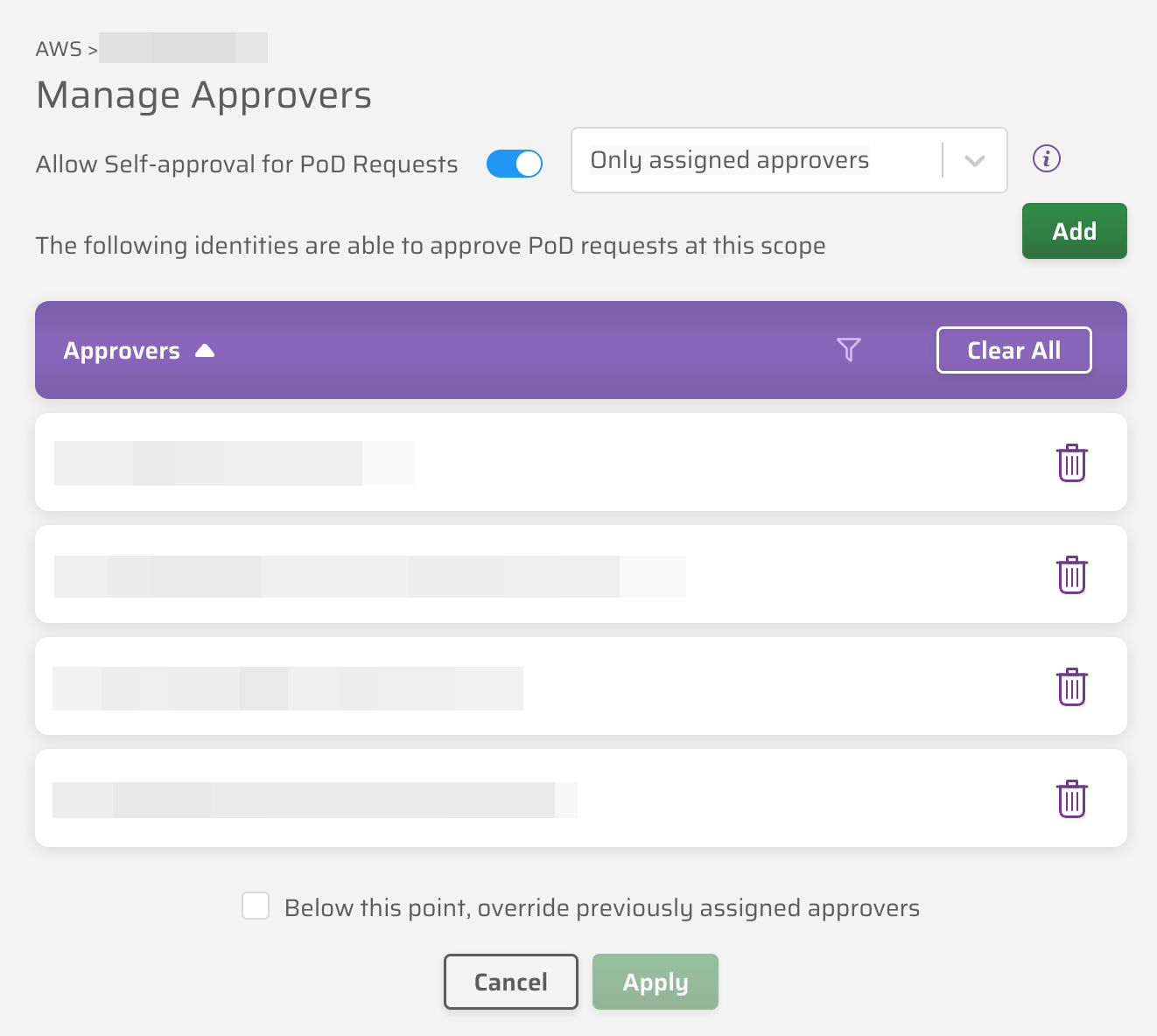
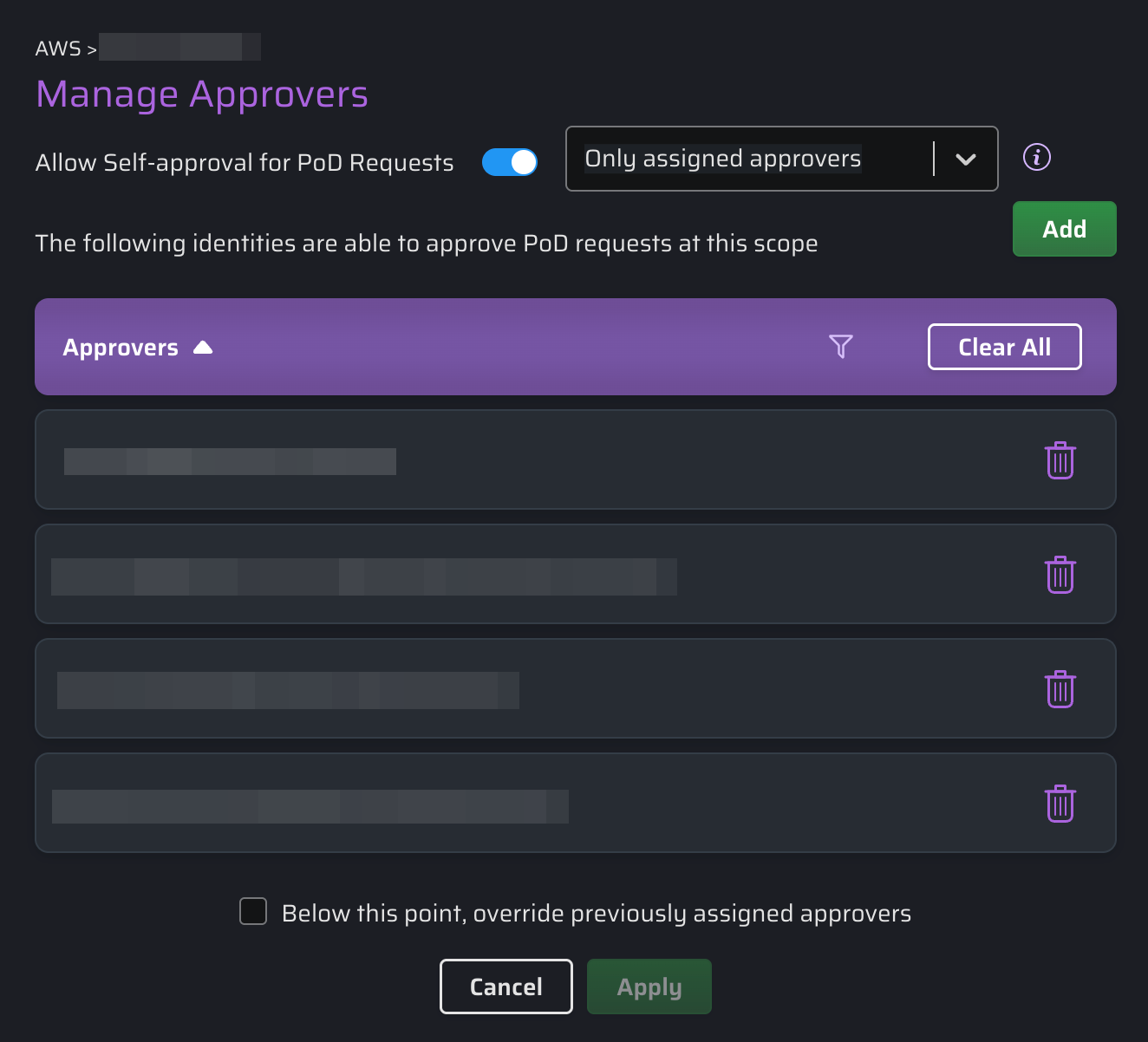
Click to open the Add Approver modal. Start typing to search for matching users in your CPF system — results appear automatically.
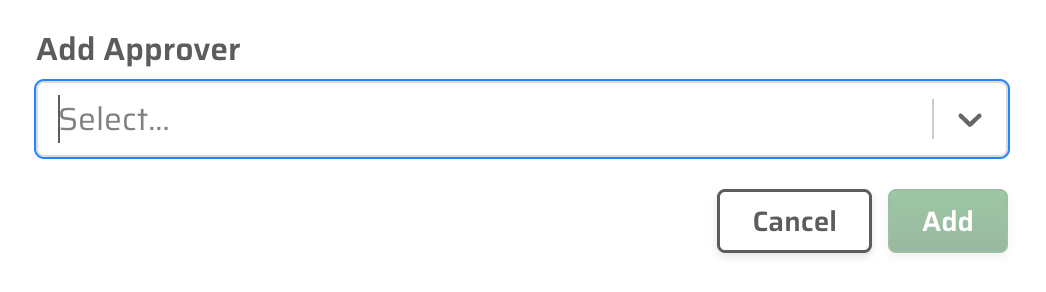
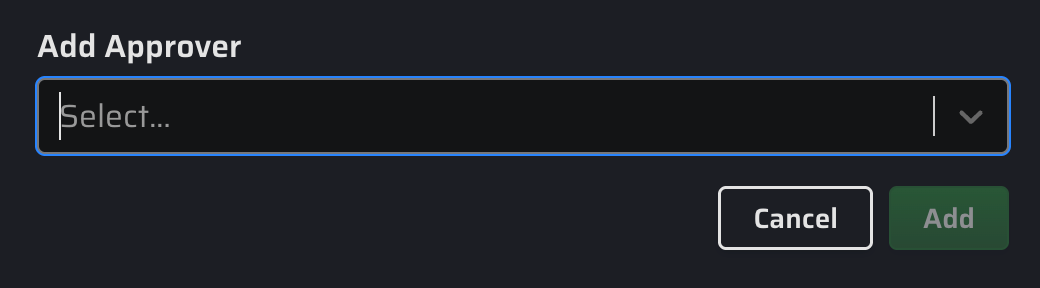
Approvers added at a higher scope are inherited by all nested scopes below it. To remove an approver, click the delete icon beside their name in the Manage Approvers modal.
Overriding Inherited Approvers
Selecting the "Below this point, override previously assigned approvers" checkbox forces the currently specified approver settings to all underlying OUs (AWS) or folders (GCP), replacing any approvers previously assigned at those scopes.


Allowing Self-Approval
By default, users cannot approve their own PoD or JIT access requests. Self-approval allows you to change this behaviour on a scope-by-scope basis, reducing friction for trusted users while preserving full audit visibility.
When self-approval is enabled at a scope, the self-approval icon ( ) appears beside that scope in the Approvers list.
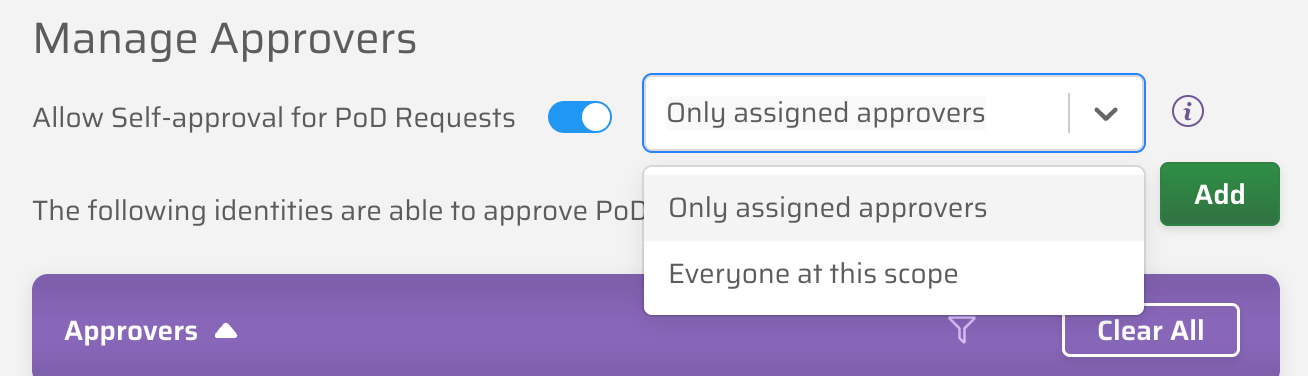
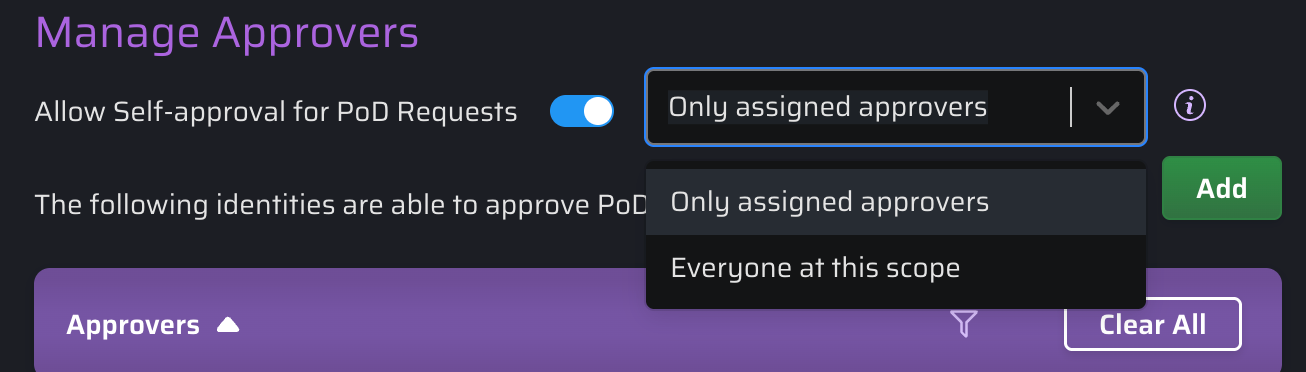
Self-approval is configured from the Manage Approvers modal using the Allow Self-approval for PoD Requests toggle. Settings are inherited down the scope hierarchy from the level at which they are applied.
The self-approval setting is checked at the moment a request is created, based on the originating scope. Self-approval status then applies to that request for its lifetime.
If a request escalates to a higher scope, the self-approval mode from the originating scope applies — escalation does not change the self-approval status for this request.
Self-Approval Modes
When the Allow Self-approval for PoD Requests toggle is enabled, a dropdown appears with two modes:
- Only assigned approvers
- Everyone at this scope
| Self-Approval Mode | Who Can Self-Approve? |
|---|---|
| Self-approval OFF | No one. Approvers are excluded from approving their own requests. (Default) |
| Only assigned Approvers | Only users who are already named approvers at the originating scope can self-approve their own requests. |
| Everyone at this scope | Any user who submits a JIT or PoD request at this scope can self-approve — the approver role is not required. |
Notifications
When a request is self-approved or self-denied, email and ChatOps notifications reflect the action accordingly:
| Event | Requester receives | Approvers receive |
|---|---|---|
| Approved by another | You were approved access… | Approved by [approver] |
| Self-approved | You self-approved access… | Self-Approved by [requester] |
| Denied by another | You were denied access… | Denied by [approver] |
| Self-denied | You denied access… | Self-Denied by [requester] |
You can also check the Detailed Audit Log tab from the Reporting page to see when requests were self-approved:

