System Settings

© 2026 Sonrai Security. All rights reserved.
Overview
Cloud Permissions Firewall (CPF) supports many global settings that apply to all of your cloud environments and deployments. Adjust these settings to customize your CPF deployment to fit your needs.
If you have multiple Organizations onboarded, these settings apply to all of them!
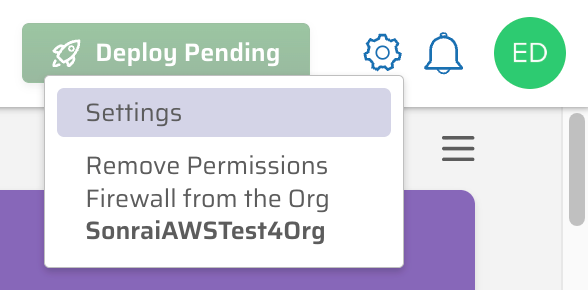
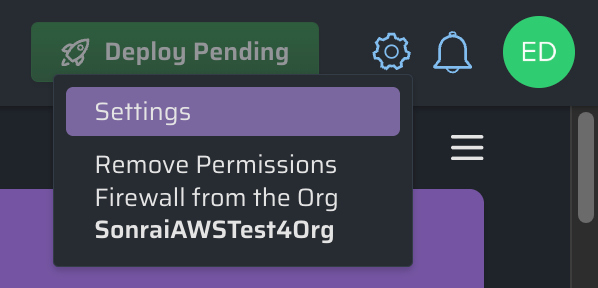
To view the settings, click on the cog icon in the top right-hand corner then click the settings menu option:
Inside the settings window, options are sorted into several tabs based on the features you might want to adjust:
After adjusting settings, you can click to save your changes - resulting in a Settings updated successfully message:

The settings screen will remain open, allowing you to review or update other tabs, until you close the screen with the X in the upper-right corner.
General Settings
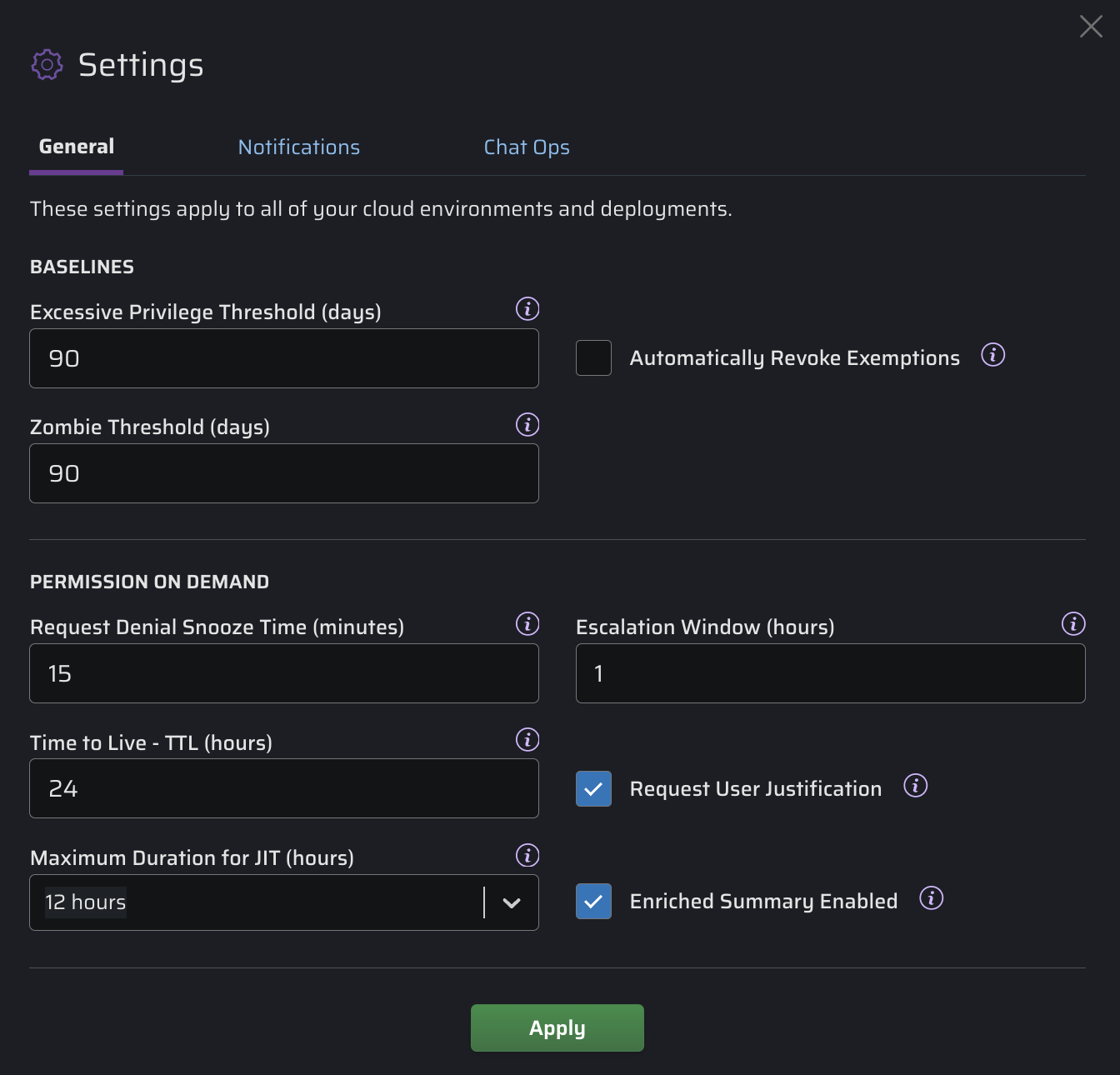
Baselines
-
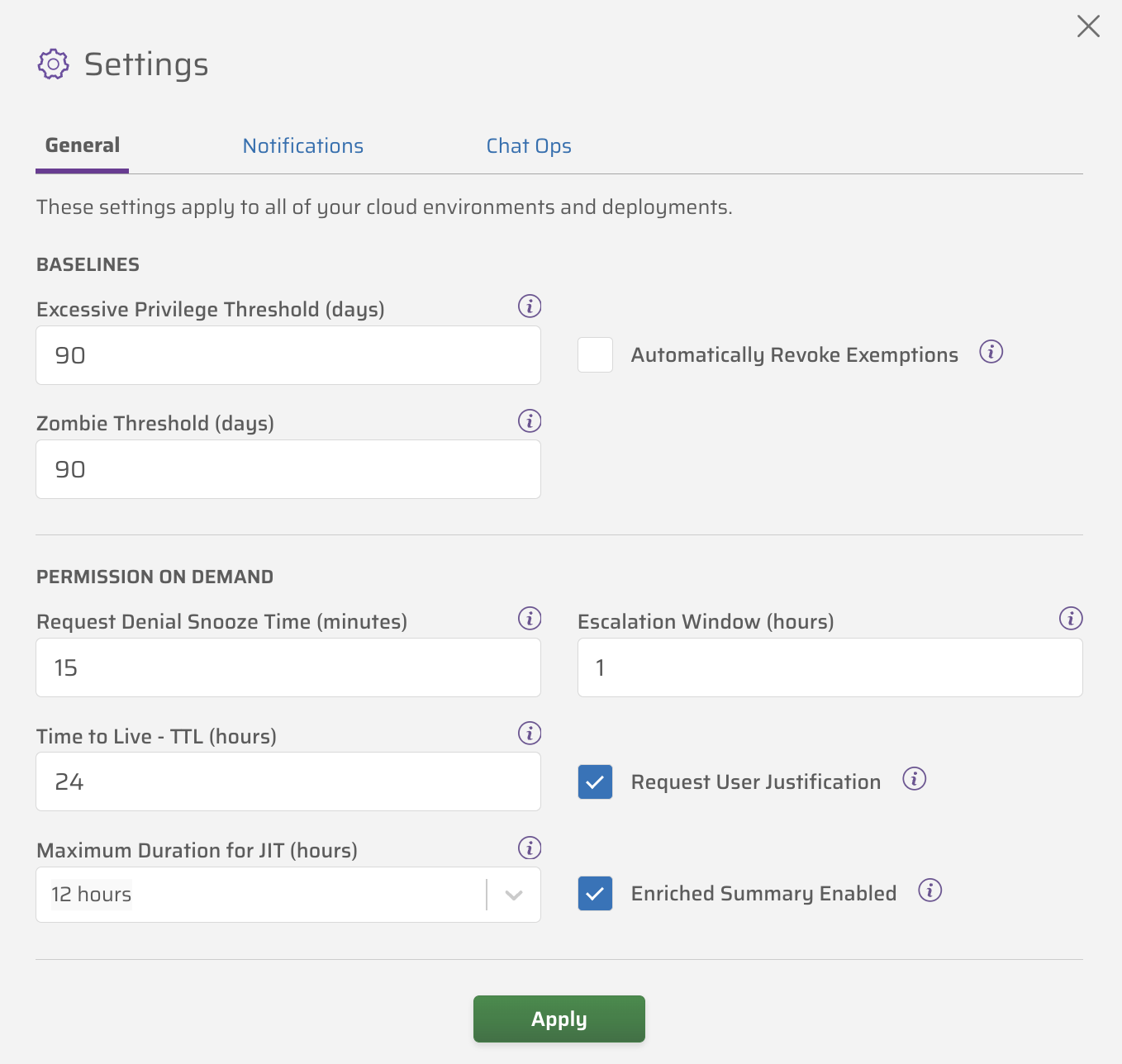
Excessive Privilege Threshold (days) - When an identity has been granted one or more privileged permissions but has not used them for X days, the Cloud Permissions Firewall will tag the identity as having excess privileges. This allows you to identify and restrict unnecessary privileged access before it becomes a risk (default: 90 days). [?]
-
Automatically Revoke Exemptions - Automatically revoke an identity's privileged access exemption if it hasn't been used within the set number of days, ensuring exemptions remain only when justified. [?]
-
Zombie Threshold (days) - When an identity has been unused for X days, the Cloud Permissions Firewall will tag it as a zombie, preventing it from using privileged service permissions (default: 90 days). [?]
Permissions on Demand
-
Request Denial Snooze Time (minutes) - The time to wait (i.e. the snooze duration) before generating an additional Permissions on Demand (PoD) Request after an Approver has denied the initial request (default: 15 minutes).
-
Escalation Window (hours) - The time to wait for an Approver's response to a Permissions on Demand (PoD) Request before escalating to the next list of Approvers in the hierarchical tree (default: 1 hour).
-
Time to Live - TTL (hours) - The number of hours before a Permissions on Demand (PoD) Request will expire (default: 24 hours).
-
Request User Justification - Whether to have your users provide a mandatory justification message with their Permissions on Demand (PoD) Request for privileged service permissions (default: checked).
-
Maximum Duration for JIT (hours) - The maximum length of a Just In Time Session (default: 12 hours).
-
Enriched Summary Enabled - Whether to have your Just In Time Session Summaries be generated by AI (default: enabled).
Notification Settings
-
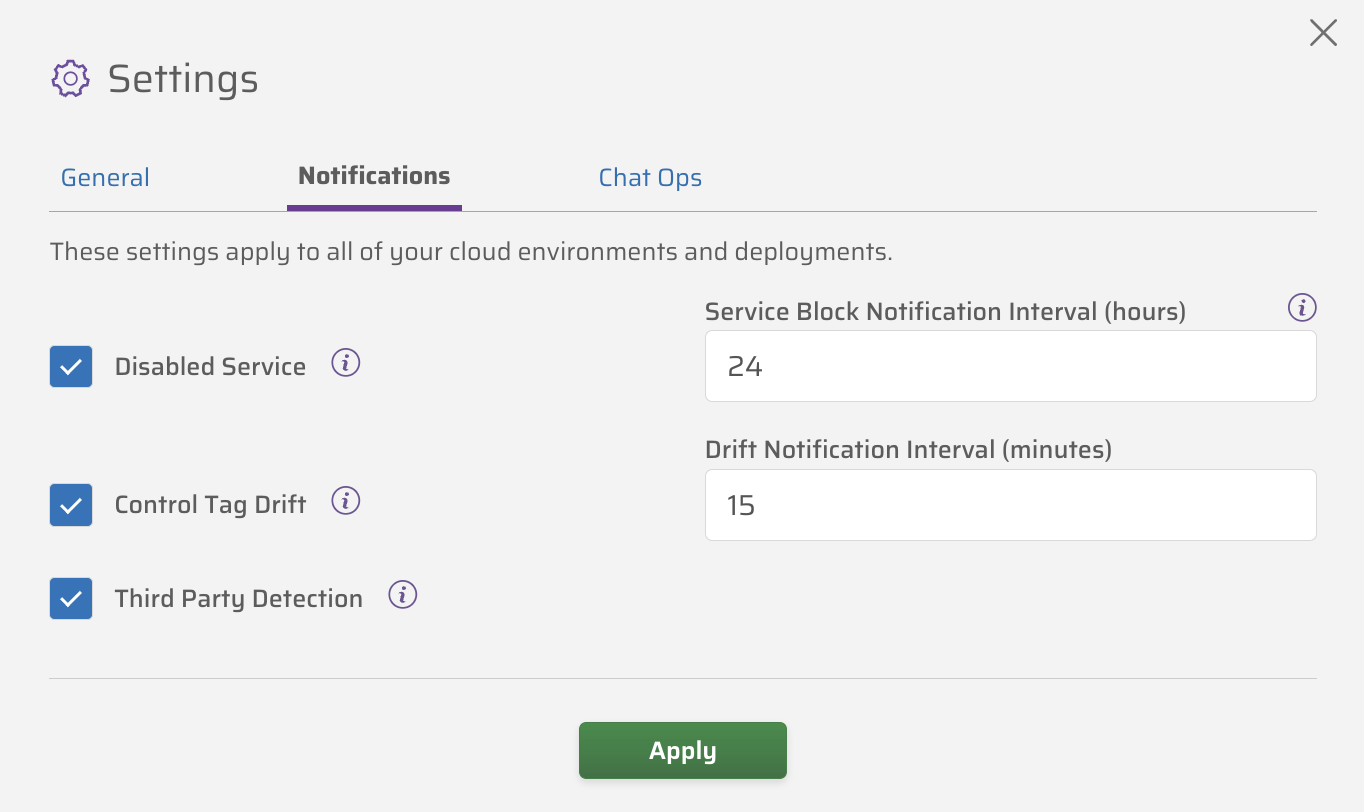
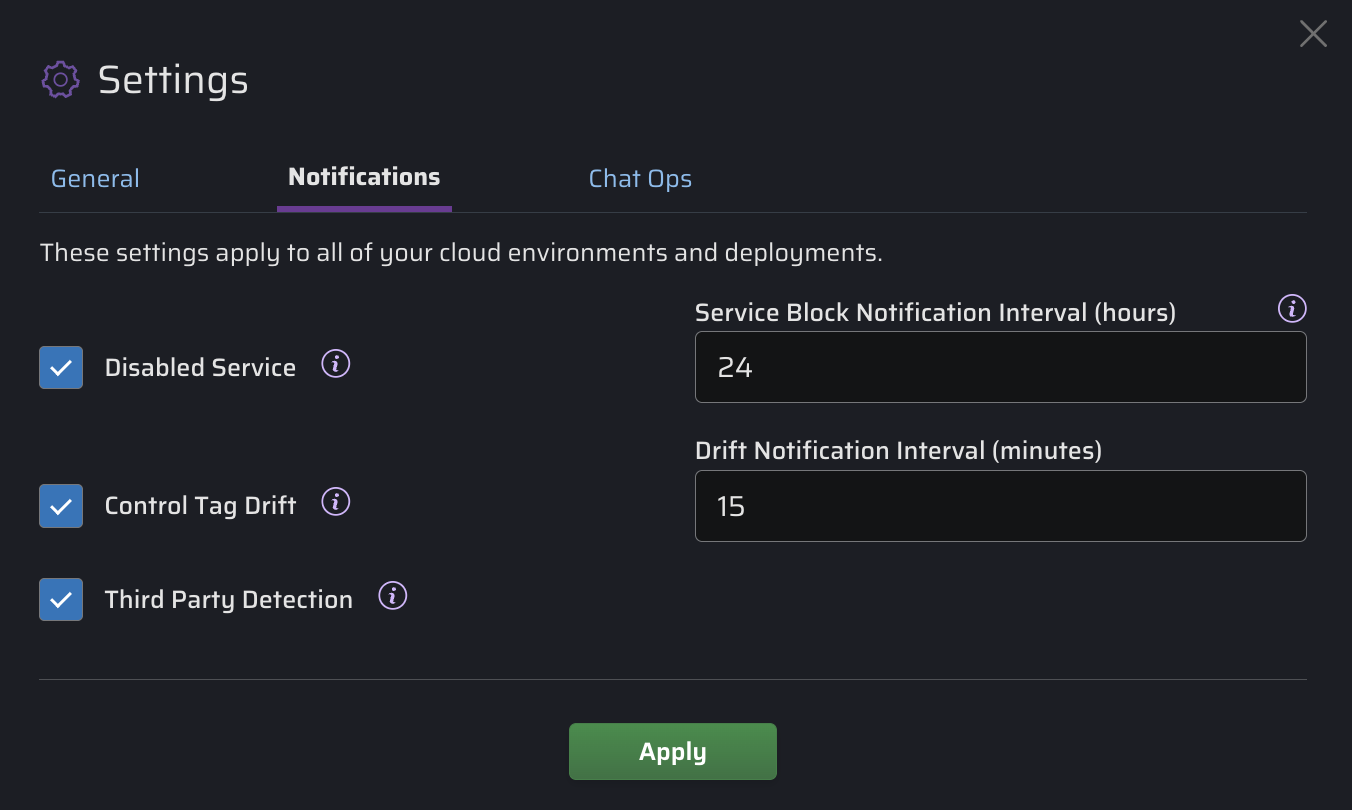
Disabled Service - Whether to notify a Requester through ChatOps that they are attempting to access a service which is blocked by the Cloud Permissions Firewall (default: enabled).
-
Service Block Notification Interval (hours) - The time period for suppressing repetitive notifications to a Requester through ChatOps for attempts to access the same service which is blocked by the Cloud Permissions Firewall (default: 24 hours).
-
Control Tag Drift - Whether to notify an Approver through ChatOps that we have corrected a drift in tags (default: enabled).
-
Drift Notification Interval (minutes) - Whether to have your Just In Time Session Summaries be generated by AI (default: enabled).
-
Third Party Detection - Whether to notify the approver at scope of a newly detected third party (default: enabled). [?]
Chat Ops Settings
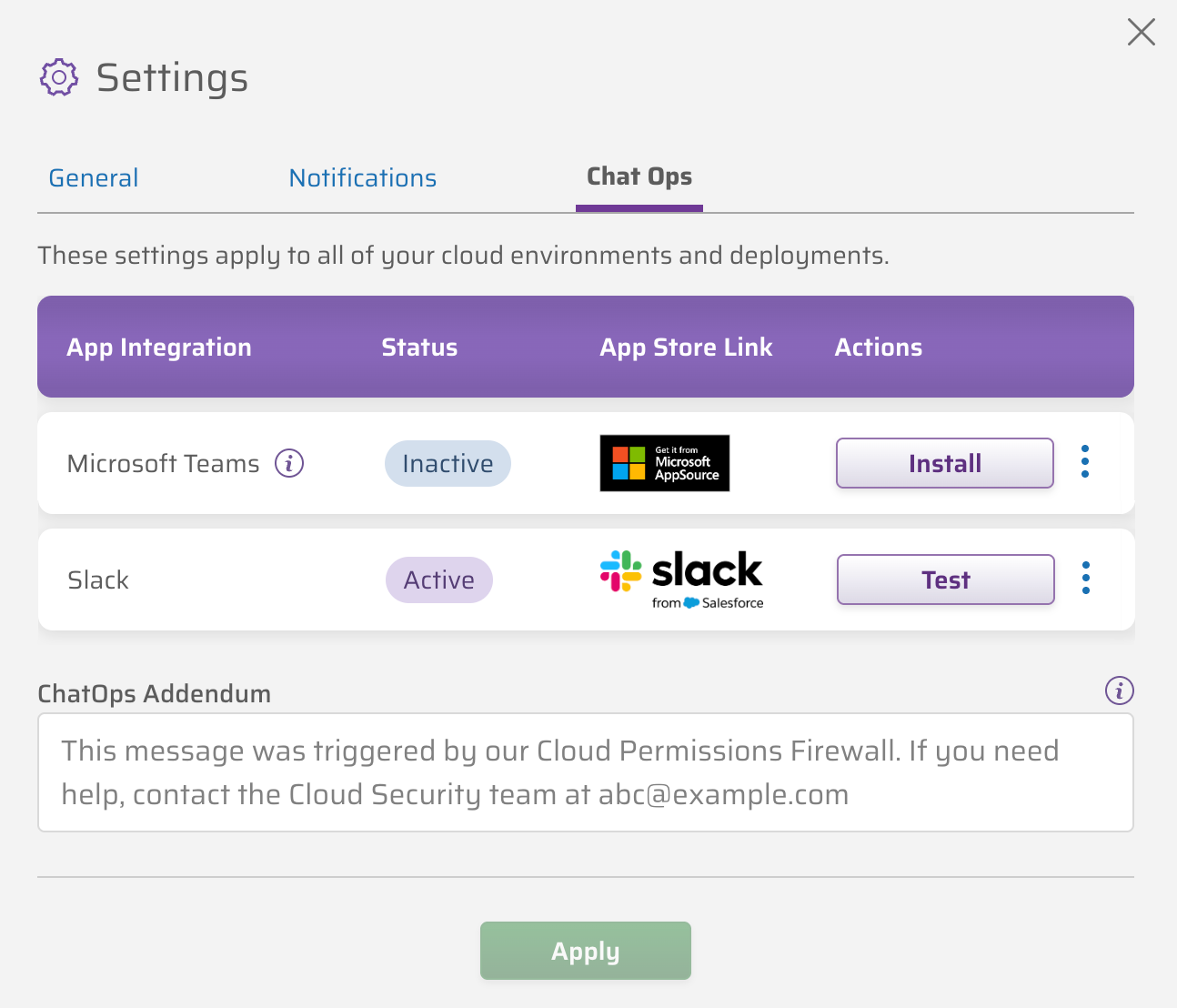
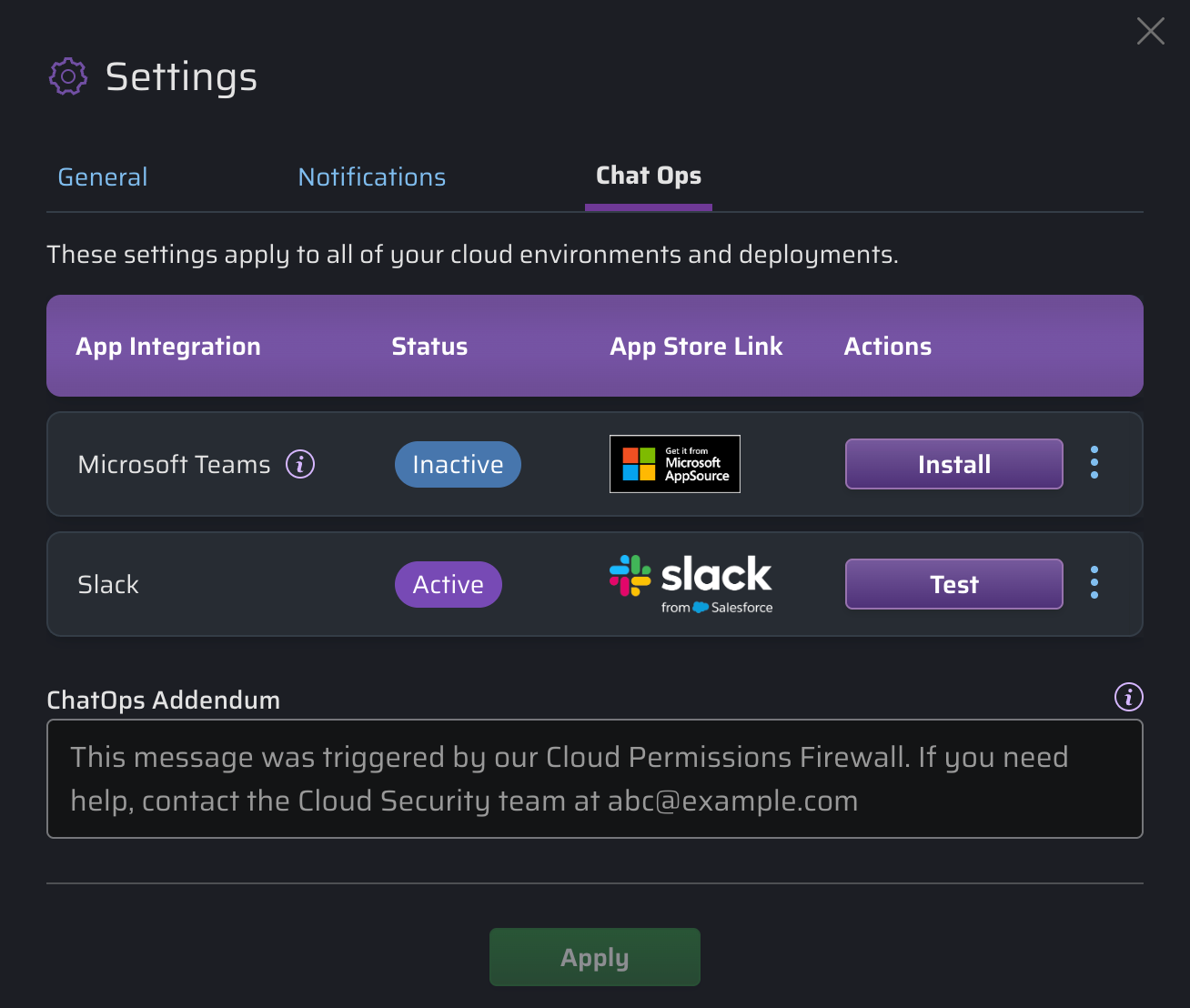
The Chat Ops section shows if you currently have a chat client (Slack or Microsoft Teams) install and connected to your Sonrai deployment.
- Manage ChatOps integrations:
- Click or the appropriate App Store Link to configure your chat client of choice.
- Click to confirm your installed chat configurations are working.
- Select Uninstall from the menu to disable an installed chat client.
- ChatOps Addendum - Append a customizable message (up to 1,200 characters) to supported ChatOps notifications. [?]
→ Learn more about ChatOps integrations.