Navigating Cloud Permissions Firewall

© 2026 Sonrai Security. All rights reserved.
Overview
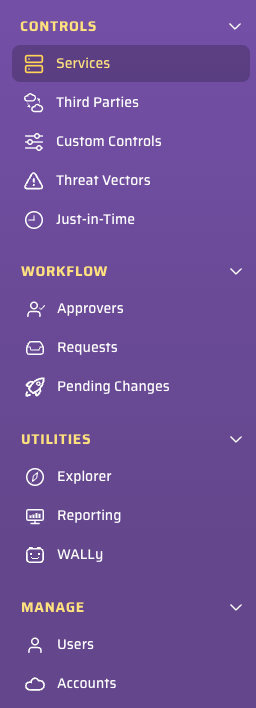
The Cloud Permissions Firewall (CPF) sidebar organizes navigation into four sections, making it easy for you to find the features you need based on what type of work you are doing.
Some actions are accessible from within individual pages rather than directly from the sidebar — see Services Page Menu and User Profile below.
-
Controls — Controls let you view and manage service protections, access controls, and Just-in-Time (JIT) access for identities across your cloud environment.
- Services — View all cloud services; enable, disable, or protect services and manage identity exemptions.
- Third Parties — View and manage access controls for third-party integrations detected in your cloud.
- Custom Controls — Create and manage custom permission control policies.
- Threat Vectors — View and address identified threat vectors in your cloud.
- Just-in-Time — Configure and manage Just-in-Time (JIT) access for temporary privilege escalation.
- Organization Policies — Import, manage, and deploy your own AWS SCPs and RCPs from a single control plane.
-
Workflow — Workflow lets you manage the approval and deployment lifecycle for permission changes requested through CPF.
- Approvers — Add and manage Permissions on Demand (PoD) approvers at each scope.
- Requests — Review and act on incoming Permissions on Demand requests.
- Pending Changes — Review and deploy policy changes staged by CPF.
-
Utilities — Utilities gives you access to reporting tools, an AI assistant, and advanced search capabilities.
-
Manage — Manage lets you administer CPF users and configure the cloud accounts connected to your deployment.
Services Page Menu
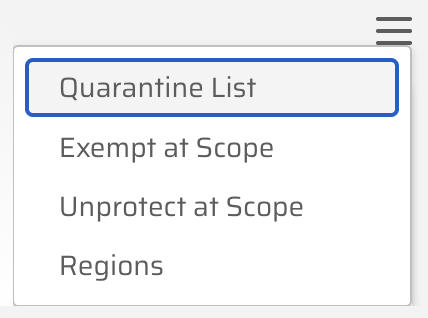
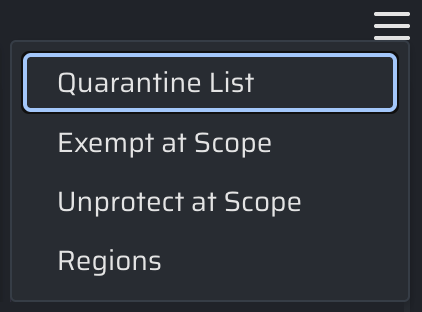
From the Services page, click the menu icon in the upper-right area of the page to access:
- Quarantine List — Review identities currently in quarantine due to zombie or suspicious activity status.
- Exempt at Scope — Add a scope-level exemption for a specific identity.
- Unprotect as Scope — Remove a service protection at a specific scope.
- Regions — View and manage which AWS regions are in scope for your CPF deployment. See Regions for details.
User Profile
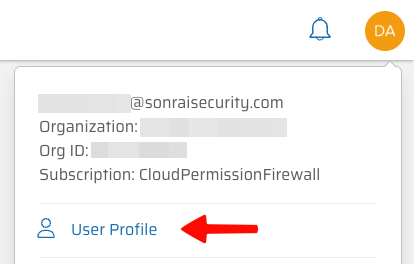
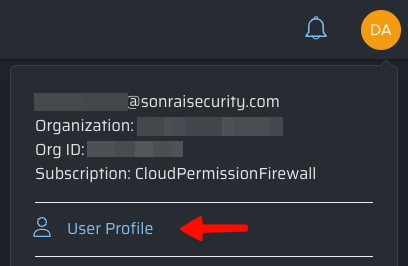
To access your personal account settings, click your user icon in the top-right corner of the CPF interface and select User Profile. See User Profile for details on managing roles, notification exemptions, and account settings.