User Profile

© 2026 Sonrai Security. All rights reserved.
Overview
Your User Profile page lets you manage personal account settings within CPF, including:
- editing your displayed username
- viewing and updating roles assigned to your account
- managing notification exemptions from automated Sonrai messages you receive
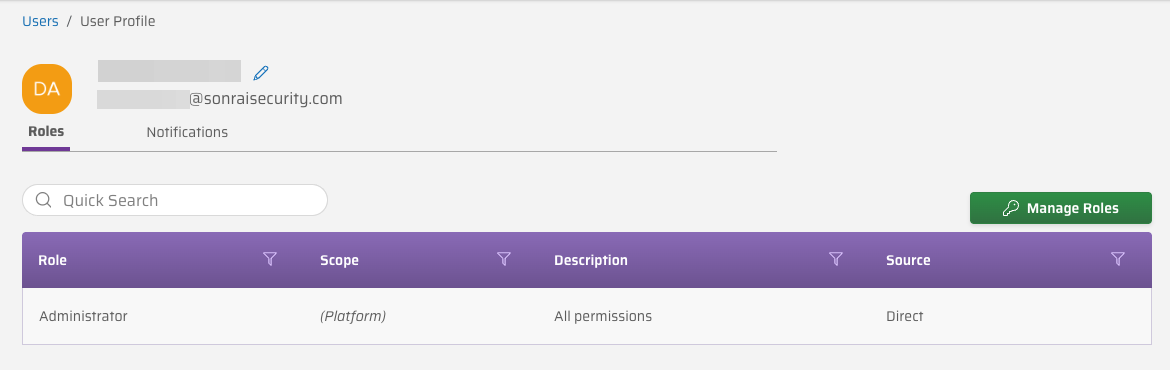
To open your User Profile, click your user icon in the top-right corner of the CPF interface and select User Profile from the menu. This opens the Users > User Profile screen.
![[AI GENERATED] The Sonrai CPF User Profile screen showing the Roles and Notifications tabs.](/cpf-public/img/cpf/manage/users/user-profile/cpf-menu-user-profile-light.png)
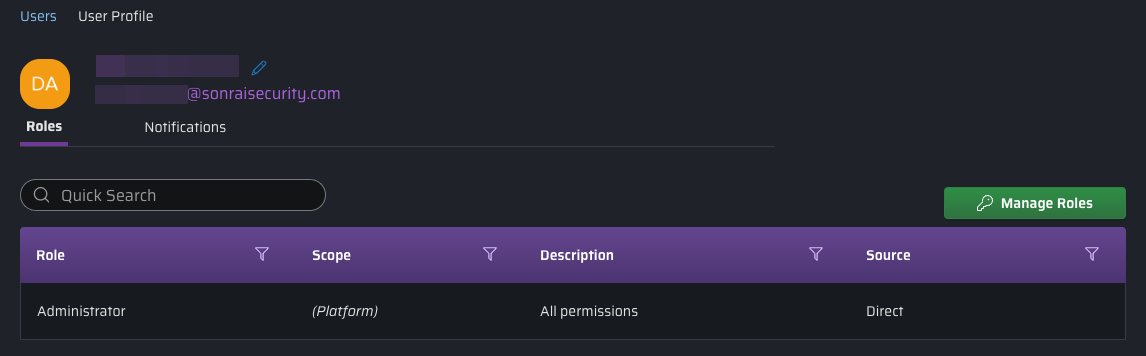
![[AI GENERATED] The Sonrai CPF User Profile screen showing the Roles and Notifications tabs.](/cpf-public/img/cpf/manage/users/user-profile/cpf-menu-user-profile-dark.png)
Roles
The Roles tab displays a table with all roles currently assigned to your account.
Manage Roles
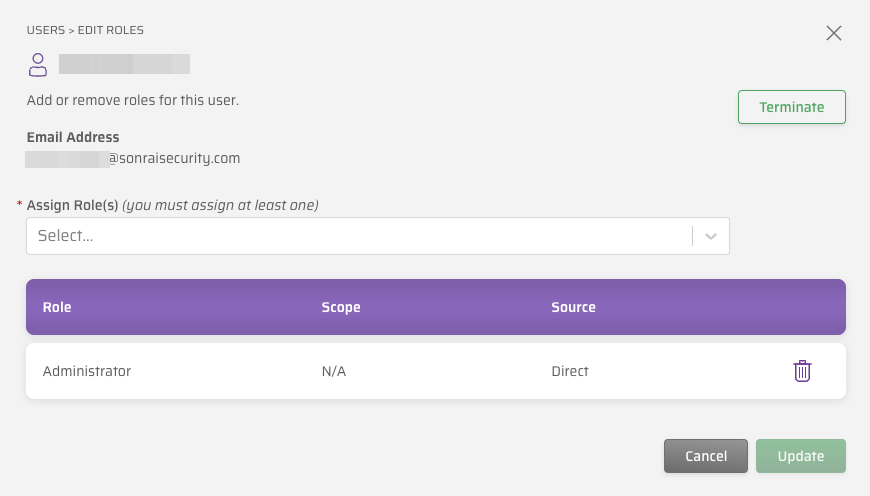
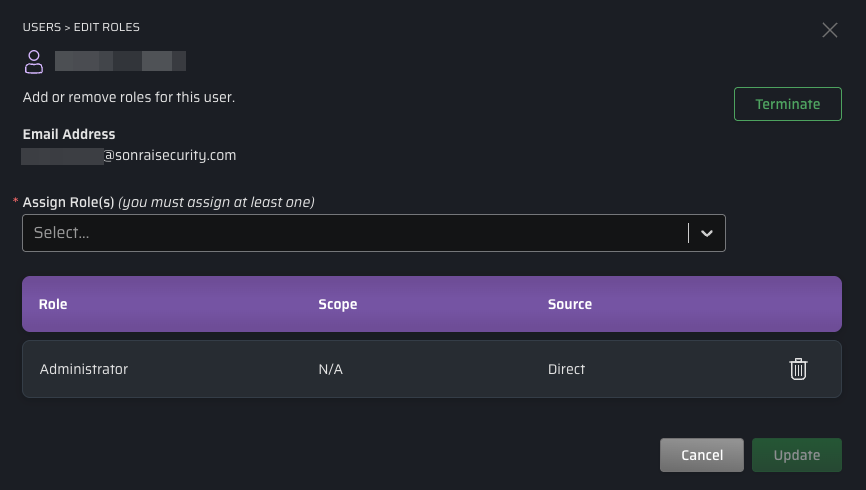
If your account has sufficient permissions, a button is also available from the Roles tab. This opens the Edit Roles dialog for your user (also available from the User Management screen) which allows you to:
- assign additional roles
- remove assigned roles
- terminate your Sonrai user account
Click the button to confirm and apply any changes.
Notifications
Sonrai will automatically send key notifications via email and chat client (if configured) to keep you informed of what's happening in your cloud. However, there may be cases where you want to limit which notifications are sent or avoid getting them in duplicate channels. For example:
- You might want to filter out notifications coming from development OUs in an AWS organization.
- You might use both Slack and Teams, but want CPF notifications to only be delivered via Slack.
The Notifications tab displays any exemptions that are configured for your account, and allows to add or remove notification exemptions — ensuring messages that matter get your attention.
![[AI GENERATED] The Notifications tab of the CPF User Profile screen showing the list of configured notification exemptions and the Add Notification Exemption button.](/cpf-public/img/cpf/manage/users/user-profile/cpf-user-profile-notifications-light.png)
![[AI GENERATED] The Notifications tab of the CPF User Profile screen showing the list of configured notification exemptions and the Add Notification Exemption button.](/cpf-public/img/cpf/manage/users/user-profile/cpf-user-profile-notifications-dark.png)
Add a Notification Exemption
Exemptions are scoped to a specific event pattern, scope, and integration type, so you can tune your notifications precisely without affecting other users on your team.
To get started, click and fill out the fields in the modal that appears.
![[AI GENERATED] The Add Notification Exemption modal in CPF showing the Event Pattern, Scope, and Integration Type fields.](/cpf-public/img/cpf/manage/users/user-profile/cpf-user-profile-add-exemption-light.png)
![[AI GENERATED] The Add Notification Exemption modal in CPF showing the Event Pattern, Scope, and Integration Type fields.](/cpf-public/img/cpf/manage/users/user-profile/cpf-user-profile-add-exemption-dark.png)
- Event Pattern (Required) — Select an event name or pattern that you want to suppress.
- You must select from the list of patterns provided.
- Type into the dropdown to filter which events are shown, making selection easier.
- Event patterns match Webhook Action Events, with wildcards allowing one exception to cover multiple events.
- Important Note: Some notification events cannot be blocked, even if an exemption that would match that event name is created.
- Scope (Optional) — Select a scope where this exemption applies, using the Scope Picker dropdown.
- If no value is selected then the created exemption will apply to all scopes.
- Cascade to child scopes — Specify how broadly the exemption is applied; only applicable when a scope is specified.
- Enabled: This exemption applies to all lower-level scopes underneath the specified scope.
- Disable: This exemption only applies at the specified scope.
- Integration Type (Required) — Choose the notification channel to suppress: Email, Slack, or Teams.
- Each exemption covers one channel; add multiple exemptions to suppress the same event across different channels.
Once done, click to save the exemption.
If you try to save a notification exemption that is identical (event pattern, scope, and integration type) to one that already exists, the attempt fails with an error message: Failed to add exemption.
However, be aware when removing notification exemptions that it is possible for multiple exemptions to overlap if a higher level scope cascades to child scopes where a second notification exception is applied.
Notification Events That Cannot Be Exempted
Some notifications cannot be suppressed by exemptions. For example, Permissions on Demand (PoD) and Just-In-Time (JIT) Access events require human action to be resolved, so CPF always delivers them - regardless of your configured exemptions.
The following events are never exempted:
| Category | Event Names |
|---|---|
| Permissions on Demand (PoD) |
|
| Just-In-Time (JIT) Access |
|