Accounts Overview

© 2026 Sonrai Security. All rights reserved.
Overview
Use the Manage > Accounts screen to onboard additional platforms with Cloud Permissions Firewall (CPF), or to check the status of cloud accounts you have already connected - getting details about potential onboarding issues or updating Sonrai-related roles.
Onboarding New Organizations to CPF
The process of adding a new organization to Cloud Permissions Firewall involves the following steps:
- complete the prerequisites, (both shared, and platform-specific)
- complete the installation steps for your specific cloud provider
Managing Onboarded Accounts
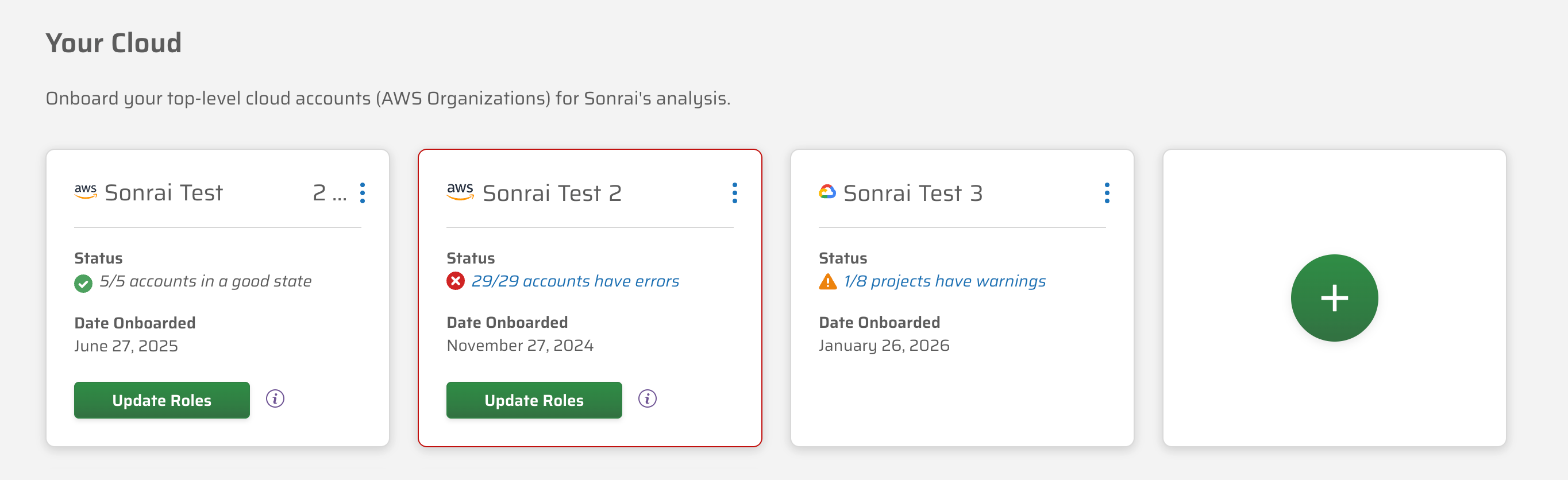
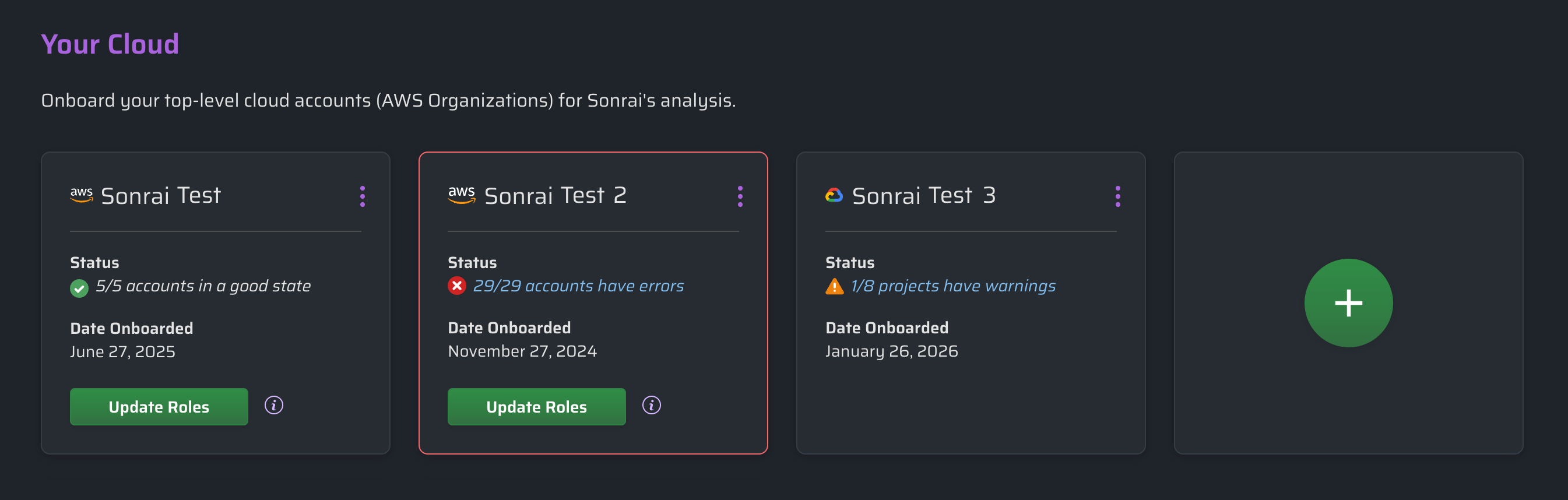
When viewing the Manage > Accounts screen, each organization you have already onboarded appears as a card that includes:
- Platform icon - AWS, GCP, etc.
- Organization name - Determined when CPF connects to your organization.
- Onboarding status - Shows whether CPF can view and work with your platform correctly.
- button - Allows you to redeploy CPF roles using the latest templates, or check which template version you are currently using. (Note: Only visible when an update is available.)
In addition, an empty card with a green button that allows you to add a new account.
Updating Roles
As CPF continues to grow and evolve, you may need to update the Sonrai roles that collect and manage data from your organization. This may involve a change in policies, permissions, or trust relationships defined by new templates for the Sonrai POND or Collector roles.
When this occurs, you are prompted to use the button to deploy the required changes.
When prompted to update your roles, click the info icon to see which version of the Sonrai templates are currently deployed .
Assessing Organization Status
The Accounts screen allows you to quickly understand the status of your connection with CPF:
| Icon | Organization Status | Description |
|---|---|---|
 | Good State | CPF is working correctly with your organization. |
 | Warnings | Adjustments may be required to ensure CPF can perform correctly. For example, you may need to increase API quotas in your GCP projects. |
 | Errors | CPF cannot reach your cloud. For example, if the configured CloudTrail cannot be reached in an AWS organization, requiring you to update your CPF configuration. Reach out to our support team for assistance. |
If you have Warnings or Errors present for onboarded organizations, click the link for a pop-out to see additional information about the problems reported.