GCP Configuration Guide


© 2026 Sonrai Security. All rights reserved.
Overview
Learn how to add accounts to fully enable Sonrai's cloud monitoring capabilities for your GCP organization(s).
Pre-Deployment Prerequisites
Required
Review/implement the required prerequisites before progressing onto Account configuration:
Adding Accounts - Onboarding Your GCP Organization
How do I onboard a GCP organization in the Accounts section of the Cloud Permissions Firewall?
In the left-hand navigation menu, click Manage > Accounts
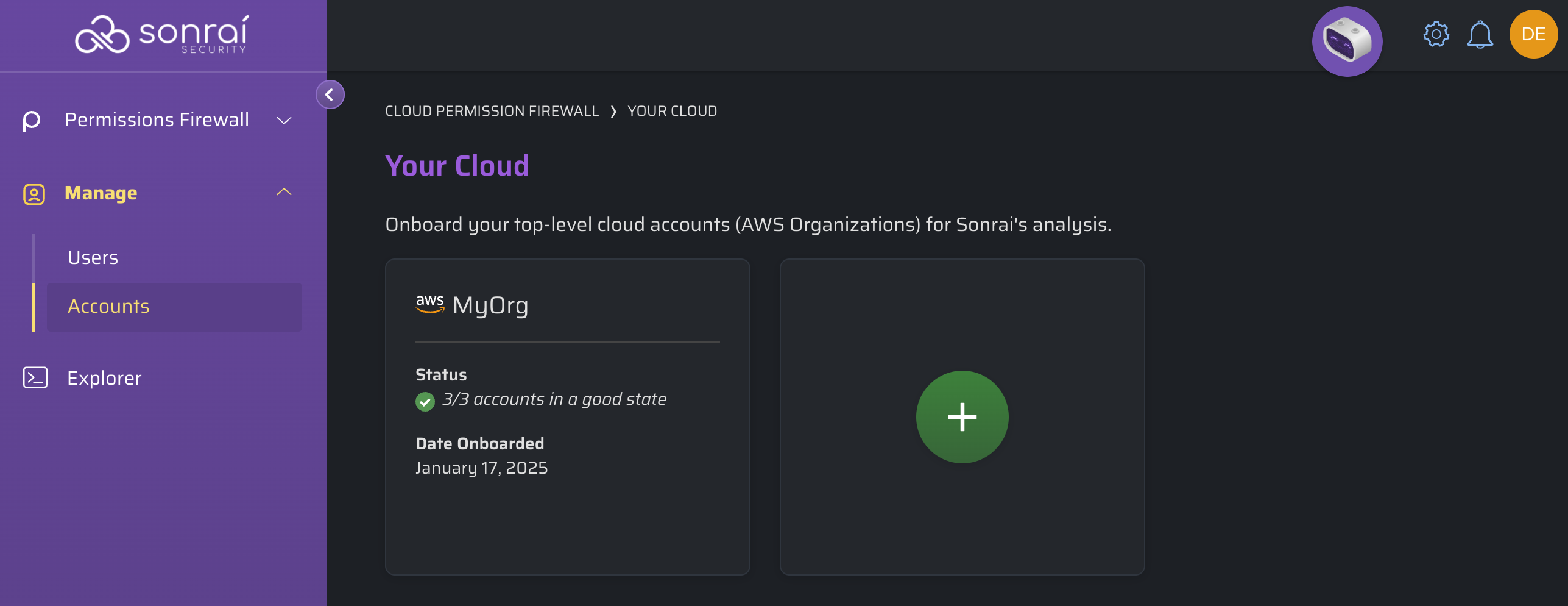
Click to add a new account, and click Google Cloud. The GCP flow is then displayed, ready for you to begin onboading.
 GCP Organizations
The Cloud Permissions Firewall requires a main Service Account that it can impersonate to monitor your cloud. This Service Account is created in a GCP project of your choosing.
During onboarding, Sonrai will bind roles to that Service Account at the Organization-level. This allows convenient discovery and protection of all Projects in your Organization.
Sonrai Service Account Creation
Log in to your GCP Organization.
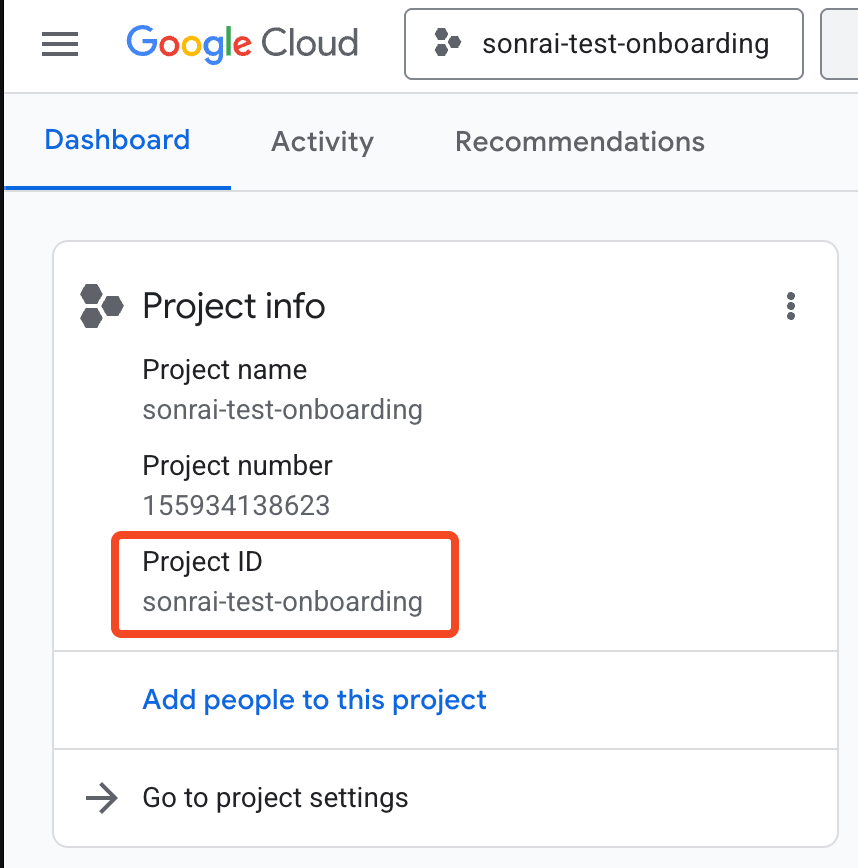
In GCP Console, locate the specific Project ID that will be used for Sonrai onboarding, and copy this value.
We recommend creating a new Project specifically for your Sonrai Service Account configuration.
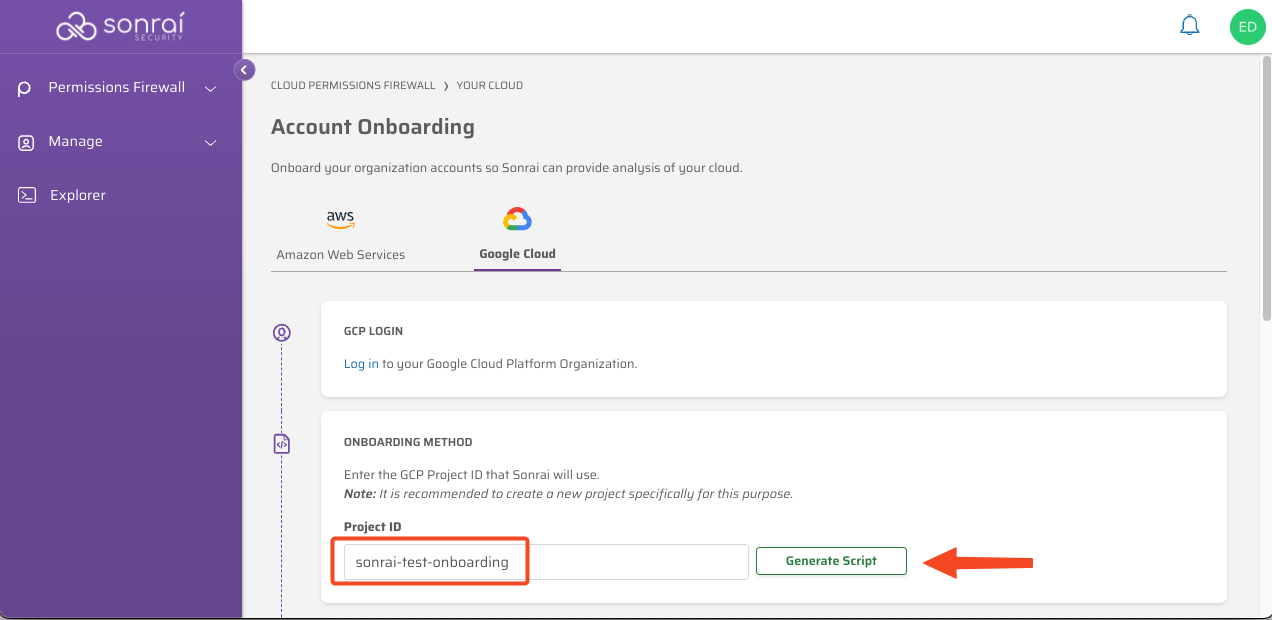
In the Sonrai application, paste the Project ID you copied earlier into the available box and click . CPF will use the value to specified to create a custom script for your Project.
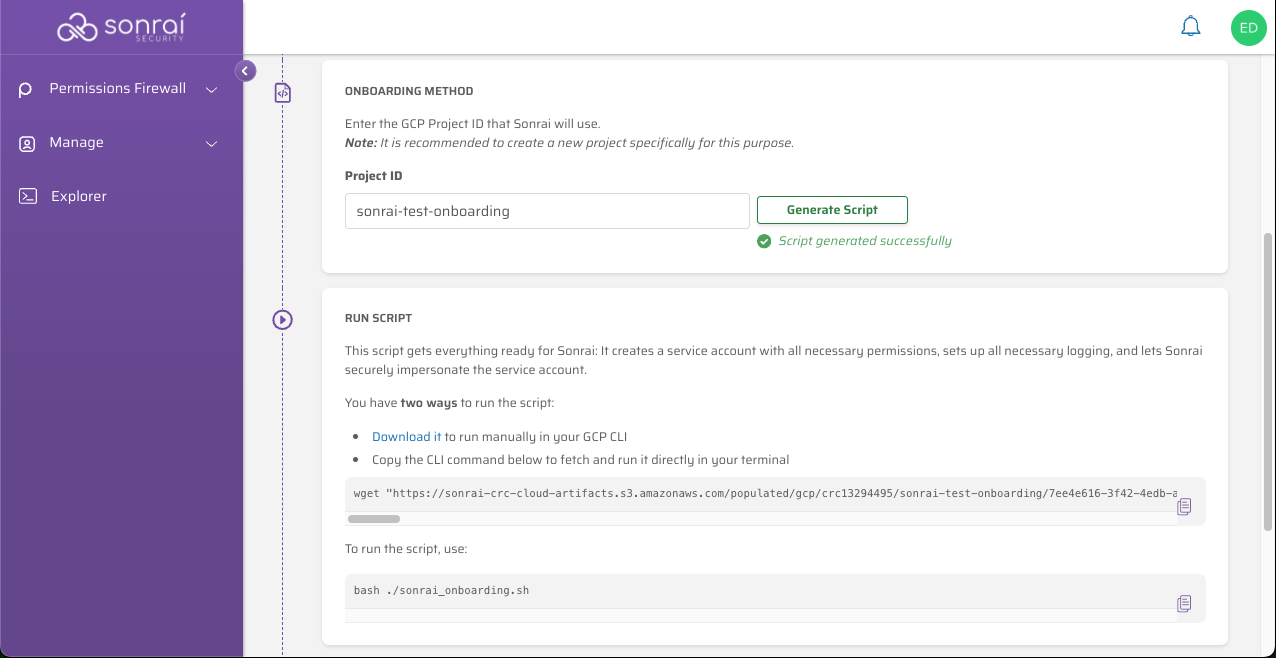
The CLI command to download your customized script for is unique for your organization, and must be copied from the onboarding wizard.
Note that the download location provided isn't permanent; if you don't continue with the configuration process, then you may need to re-generate this script to download the file.
Use one of the following options to run the custom script:
- Click on the link provided in the Sonrai onboarding wizard to download your script, and run it manually using GCP CLI.
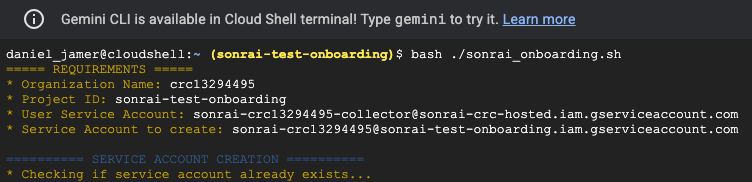
- Use GCP Cloud Shell terminal (inside the Project you created for the Sonrai Service Account), and copy and paste the commands shown by the Sonrai onboarding wizard to automatically download and run the custom script for your organization.
wget "https://sonrai-crc-cloud-artifacts.s3.amazonaws.com/populated/gcp/<... CUSTOMIZED FOR YOUR ORG ...>" -O sonrai_onboarding.sh

bash ./sonrai_onboarding.sh
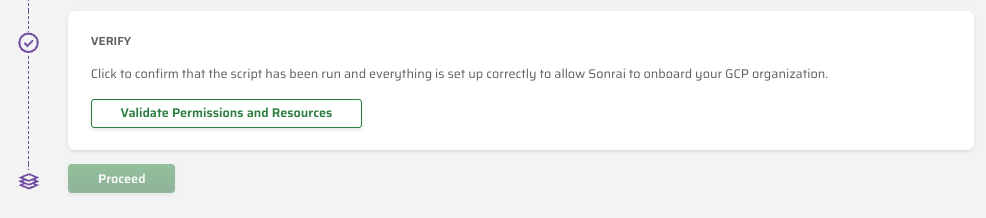
Click to confirm that the script has configured your Service Account correctly, and onboarding is ready to begin.
Click to begin onboarding your GCP Organization.
Post-Deployment
Discovery can take anywhere from 10 minutes to ~24 hours to complete, depending on the size of your GCP Organization and the number of Proejcts added. As information is collected and processed by Sonrai, the Services page will begin to populate entries.