Configuring Insomnia for Sonrai GraphQL API


© 2026 Sonrai Security. All rights reserved.
Overview
The Sonrai GraphQL API library allow users to programatically run GraphQL queries for data and mutations to make updates & configuration changes, similar to the GraphQL commands in use by the user interface which can be run in the CPF application using Advanced Search. You can also use external third-party tools to query the Sonrai GraphQL API library, including:
This page describes configuration steps required to use the Sonrai GraphQL API with Insomnia.
Prerequisites
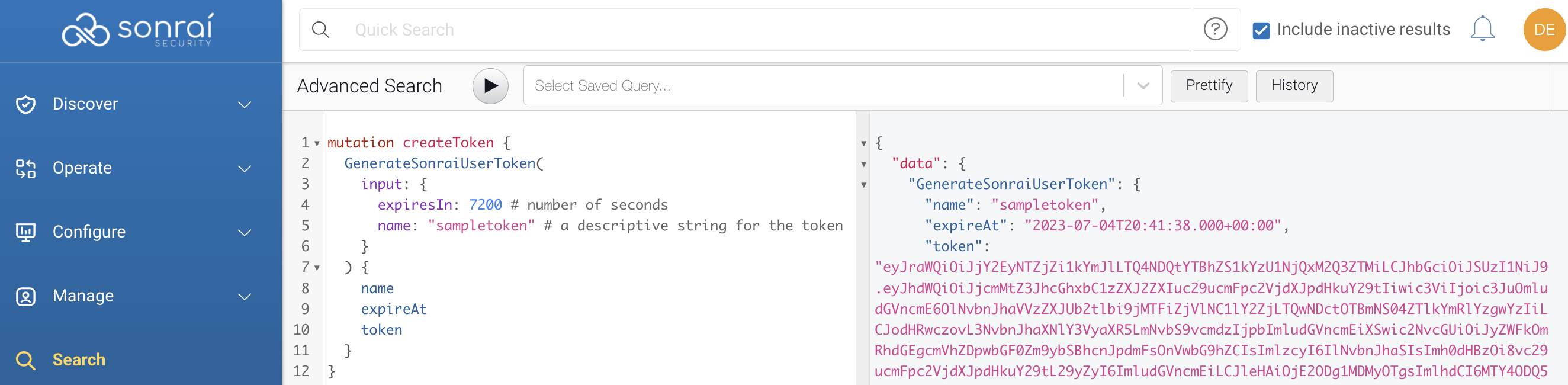
- Create a Sonrai token in the Org you would like to query:
- Retrieve your Sonrai
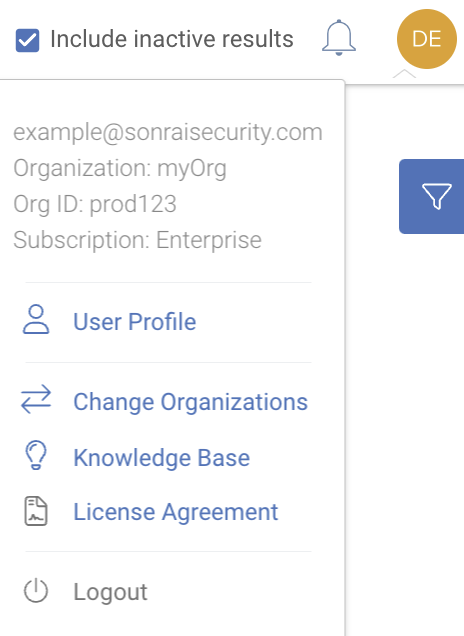
Org Idby clicking the user profile icon on the top right:
Configuring Insomnia
The Insomnia application has the ability to connect to the GraphQL server and run an “introspection” query, enabling documentation and autocomplete to work locally in the application.
To configure Insomnia:
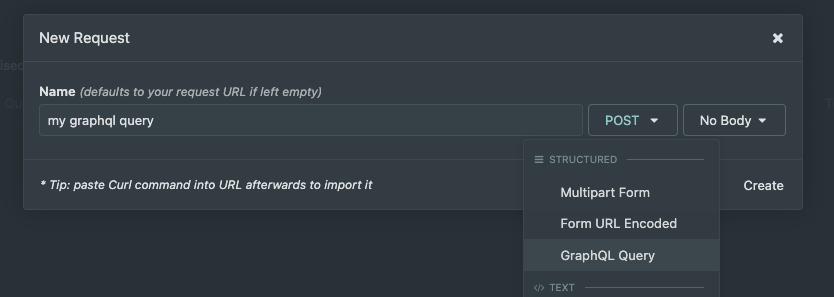
- Create a new request
- Type
POST - Select
graphql
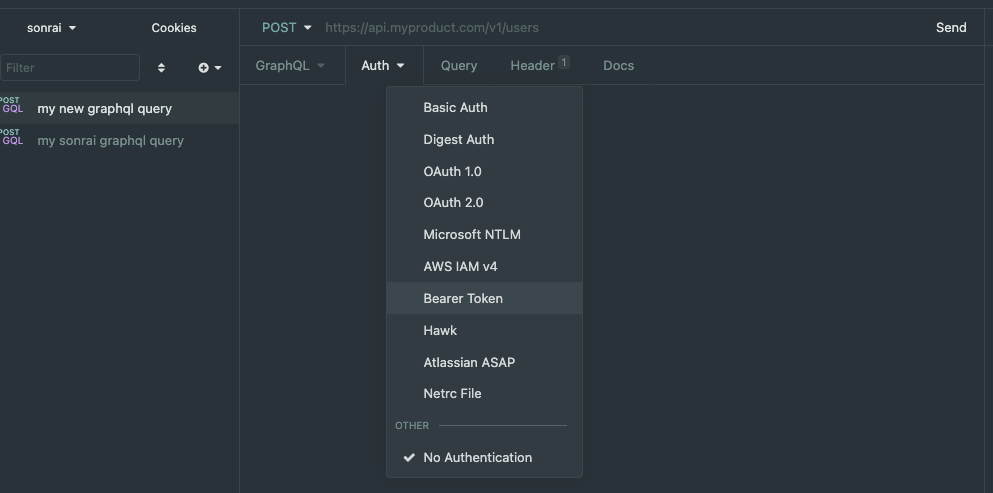
- Select the “Auth” tab and choose “Bearer Token” as the authentication type:
- Input your Org Id into the URL bar to query:
https://<yourOrgID>.sonraisecurity.com/graphql
https://<yourOrganization>.sonraisecurity.com/graphql (*if your Org does not display an Org ID)
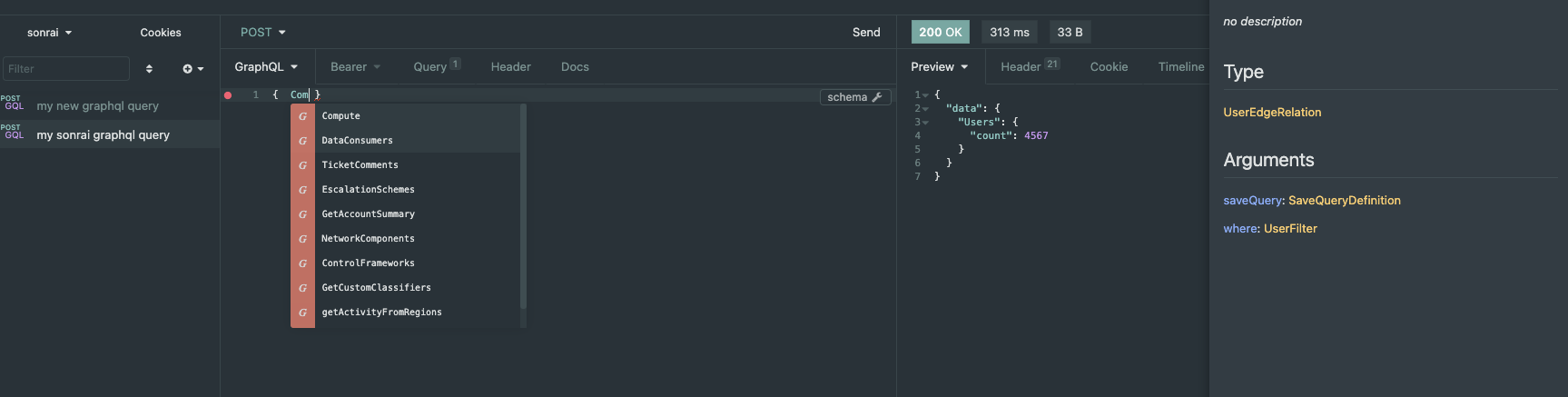
- On the “GraphQL” tab, select the “schema” button and select “Refresh Schema”:
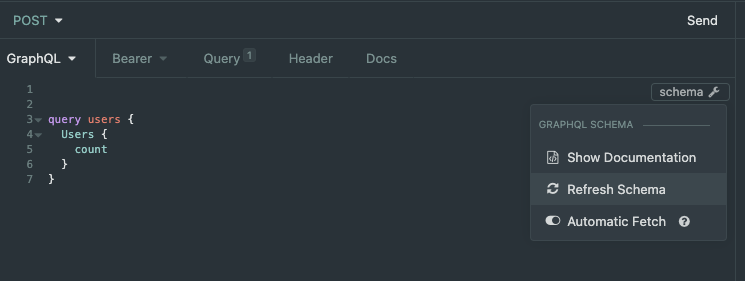

After a couple of minutes, the schema will update:

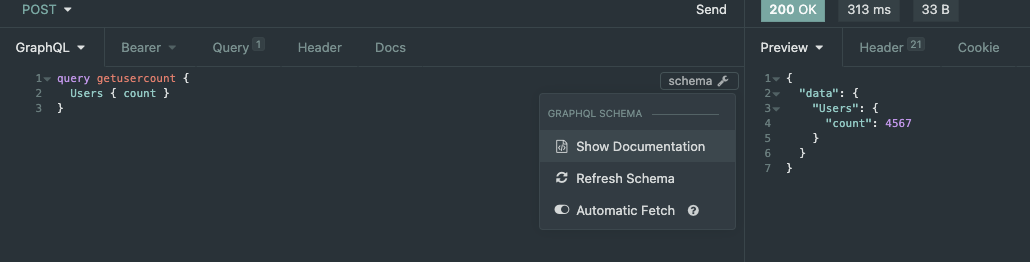
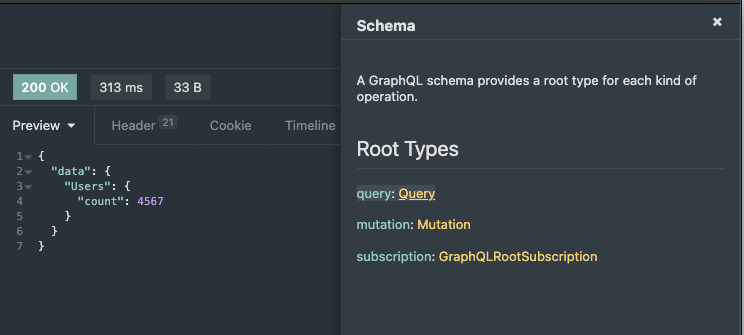
Once the schema updates, select the “Show Documentation” button. The Graphql Schema docs (a) should appear on the right side and autocomplete (b) should now be available:
a)
b)