Request Notifications


© 2026 Sonrai Security. All rights reserved.
Overview
Permissions on Demand (PoD) requests are routed through email and ChatOps (if configured) to the relevant Approvers at scope.
A scope can define conditional exceptions that send particular requests to different approvers — for example routing a specific permission set, or requests raised outside business hours, elsewhere.
- If no action is taken within an hour (i.e. no approval or denial), an additional notfiication is sent to user(s) in the next level up the Approvers tree. This escalation repeats each hour, ensuring that requests don't go unseen.
- If no approval or denial is completed within a 24 hour period, the request expires and will be resubmitted on the user's next unprivileged attempt to use that privileged service permission.
After receiving a request notification, approvers can:
- Email: click the provided link, which opens the Requests page in the CPF web app to review and act on requests
- ChatOps: react directly to this request inside their preferred chat client, approving or denying
What Will Approvers See?
Email
In your email inbox, you will receive an email entitled "Permissions on Demand request via Sonrai Cloud Permissions Firewall".
AWS User / Role view:
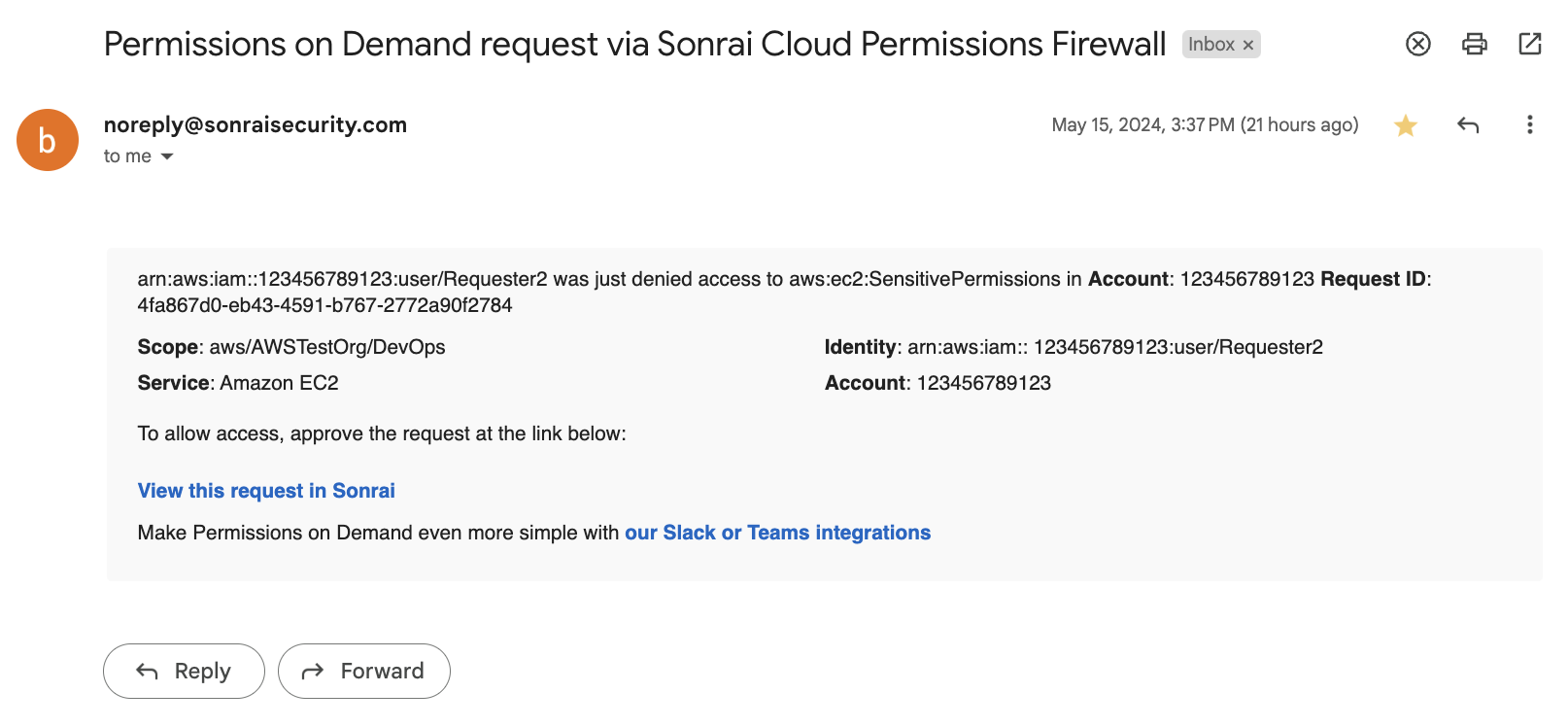
Relevant fields/information within the body content:
- ARN: The ARN of the identity attempting to use a privileged permission for a protected service
- Privileged Permission: The AWS privileged permission the identity has attempted to use
- Request ID: The request ID assigned to the Permissions on Demand request
- Scope: The scope at which the identity attempted to use the privileged permission
- Identity: The identity on which the Permissions on Demand request is based
- Service: The protected AWS service containing the privileged permission that was attempted to be used
- Account: The AWS Account in which to apply the requested permissions
- Click here to view the request: A link to the Cloud Permissions Firewall (CPF) UI > Requests page
Single Sign-On (SSO) view:
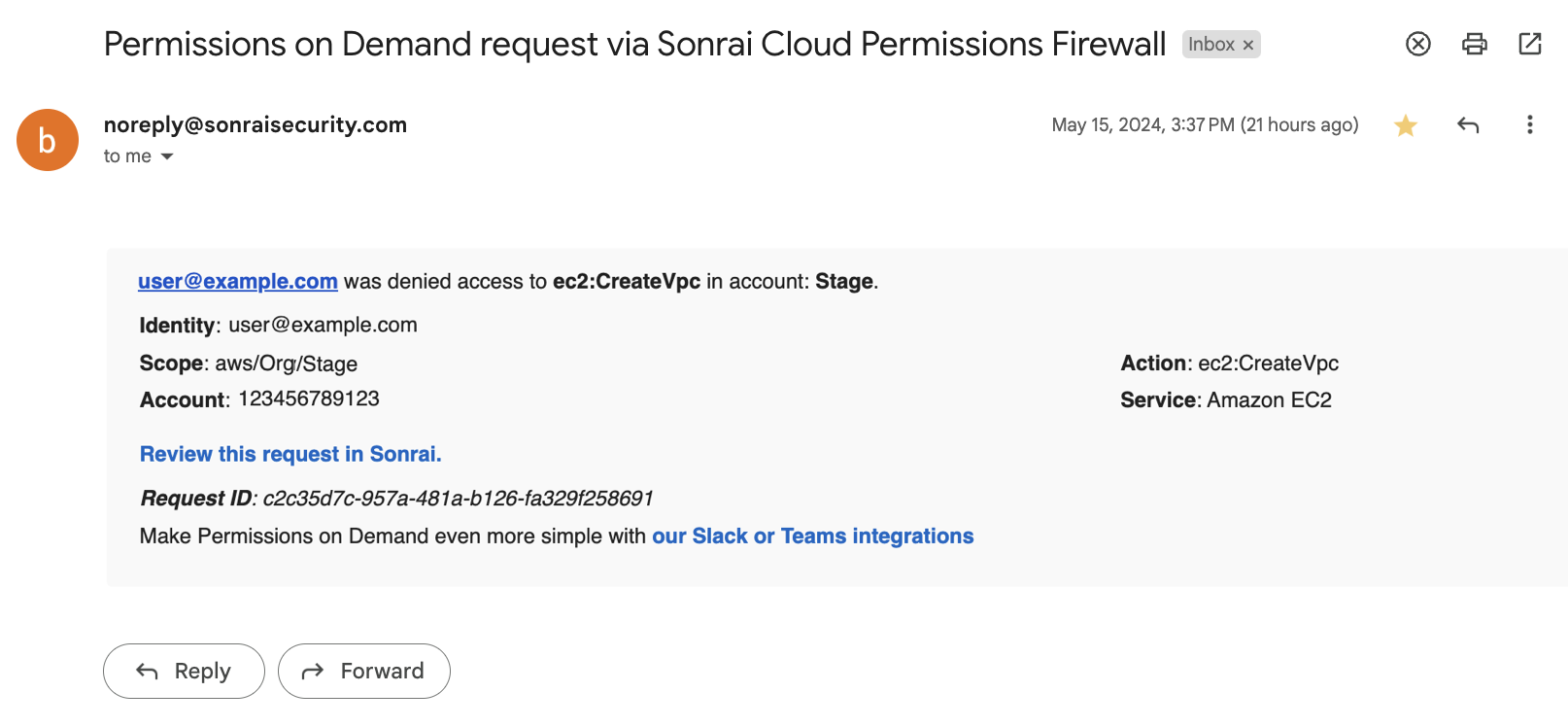
From here, use the link provided in the email to visit the Sonrai UI Requests page, where you can approve, deny, or check the status for this Permissions on Demand request.
ChatOps (Slack or Teams)
If your ChatOps integration is already configured, then you can also act on requests from either:
Learn more about ChatOps here.