Intro: Pending Changes


© 2026 Sonrai Security. All rights reserved.
Overview
Within the "Pending Changes" page, you will see a listing of any changes that are proposed by all members of your organization who are actively working within the Cloud Permissions Firewall (CPF), together with changes that may be required by Sonrai CPF.


While reviewing the pending changes, it can be useful to ask yourself probing questions like:
Did I select a change I'd rather not make after all?
Is this change set at the right scope? (i.e. for this one account rather than my entire organization, or vice versa)
What Kinds of Entries Will I See?
Service Blocks
When you disable a service from use by all identities.
Service Protections
When you restrict the use of a service to identities actively using the permissions.
Identity Exemptions
When you exempt a user from a service protection (Example: new users, break glass accounts, etc.).
Third Party Updates
When you block access from a third party account, or change the default behavior for newly discovered third parties.
Custom Permission Controls
When applying controls to a set of custom permissions, or adding new permissions to an existing custom set that is already protected.
Azure Role-Based Controls
When you protect a role, right-size over-privileged assignments, or remove unused Azure RBAC role assignments.
What is the Process Flow?
The process to make these changes a reality is very straightforward: review the list of pending changes within the Cloud Permissions Firewall UI, and then choose to discard changes (either individually or the entire set) or submit changes to deploy them into your cloud environment.
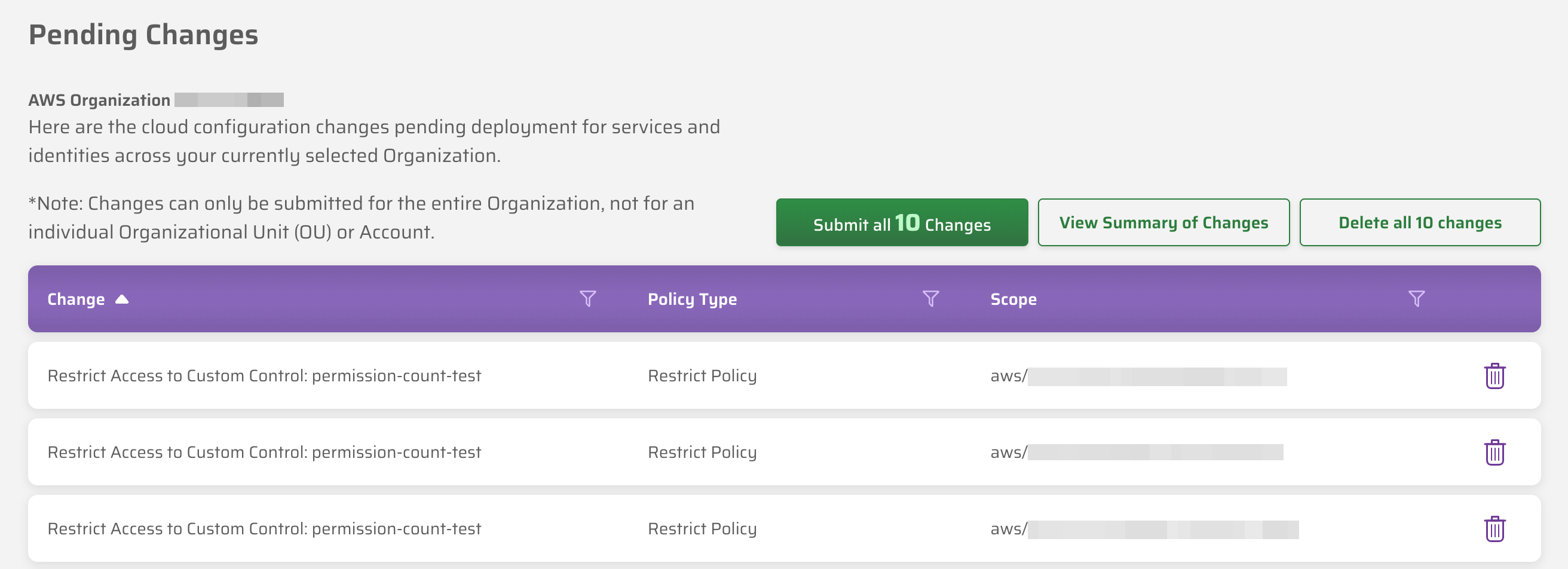
Review Changes
You should always review pending changes before deploying within your cloud:
- See specific changes listed in the table.
- Click a column heading to sort by either ascending or descending order.
- Add filters (
 ) to limit which changes are displayed. Wildcards are supported:
- percent (%) matches any number of characters
- underscore (_) matches any single character
- Click to see an AI-generated summary of pending changes.
- Use the Staged By picker to switch between your own staged changes (listed as You) and those staged by another administrator.
Discard Changes
If you decide that you'd rather not action these changes:
- Click the trash can icon (
 ) to remove individual entries from the "Pending Changes" list.
 - Click the to discard all of the listed pending changes.
Q: Some of my pending changes can't be removed. What's happening?
A: In specific cases (ex: Sonrai updating the list of known third party accounts, or users editing custom permission controls) pending changes must be applied, and cannot be discarded. This is normal, and these changes will be applied the next time you submit changes.
Submit Changes
Once you have reviewed changes, and are ready to deploy, click on to initiate the updates. The specific process for applying changes depends on both the type of changes being made, and the environment where those changes are being applied:
- AWS: Some changes (such as quarantining zombies) are applied directly after you click Submit. Many changes involve creating and deploying a new CloudFormation template, with a pop-up screen walking you through the process. Learn more about deploying CloudFormation templates.
- GCP: Changes are applied programatically, without the need to create or deploy templates. Note that after changes are submitted, GCP requires them to propagate through your environment, which means it can take several minutes before a change is recognized.
- Azure: Changes are applied programmatically through the Sonrai application (service principal), without creating or deploying templates. CPF adjusts your RBAC role assignments directly; allow time for the changes to propagate through your tenant.
Who Deploys and Discards Changes?
Submitting changes deploys every change staged beneath your cloud organization's root — including changes staged by other administrators — so it is an organization-wide action. Submitting changes, and using to reapply your existing controls when new privileged permissions are identified, are carried out by a user with the Administrator role.
A Scope Administrator works within their assigned scope. They stage changes there, review what is pending, and discard changes they staged themselves. Discarding the changes staged by another administrator reaches across scopes, so that is done by an Administrator.
The options available on this page reflect the role and scope of the user viewing it, so two people may see a different set of actions on the same set of pending changes.
WALLy can also answer questions about Pending Changes in your organization, and can also add or remove changes to the list at your request. WALLy will not submit changes though - you need to do that yourself!