Managing Permissions on Demand Request Approvers


© 2026 Sonrai Security. All rights reserved.
Overview
Permissions on Demand requires a defined listing of Approvers. This list provides a means to allow your organization to extend permission approval to those who have suitable authority and knowledge to authorize usage.
The list of Approvers defined within the Cloud Permissions Firewall are not required to have any associated privileges within your cloud estate to mutate the respective Cloud Controls or change any cloud access, this is simply about change management!
To route requests to different approvers depending on the permission set, request type, or time of day, see Conditional Approvers.
Prerequisites
Assigning and removing Approvers is done by a user with the "Administrator" RBAC role, or by a "Scope Administrator" within their assigned scope.
Adding Approvers
You can assign approvers at any scope within your cloud hierarchy — from the top of the hierarchy down to individual AWS accounts, GCP projects, or Azure subscriptions.
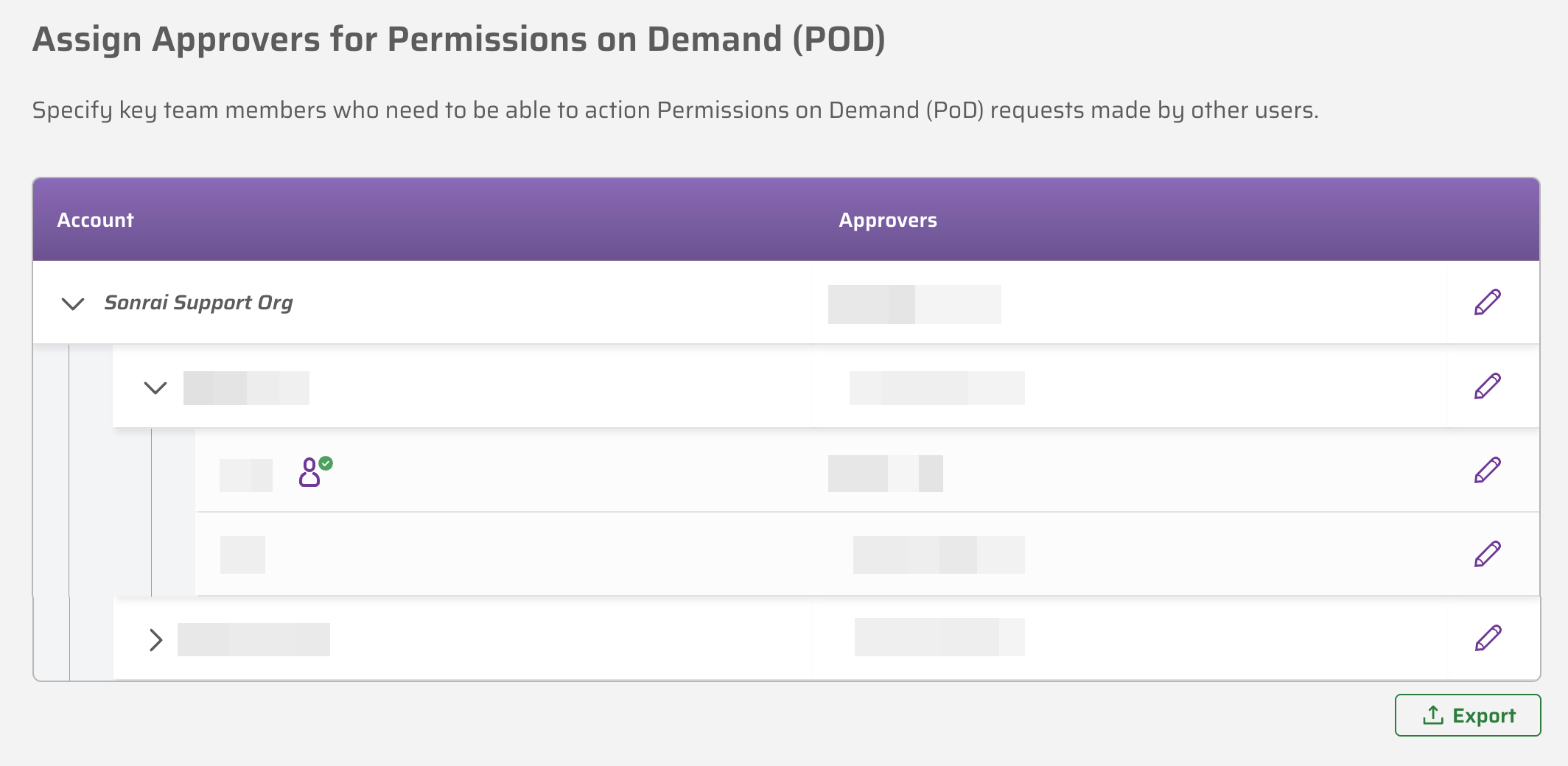
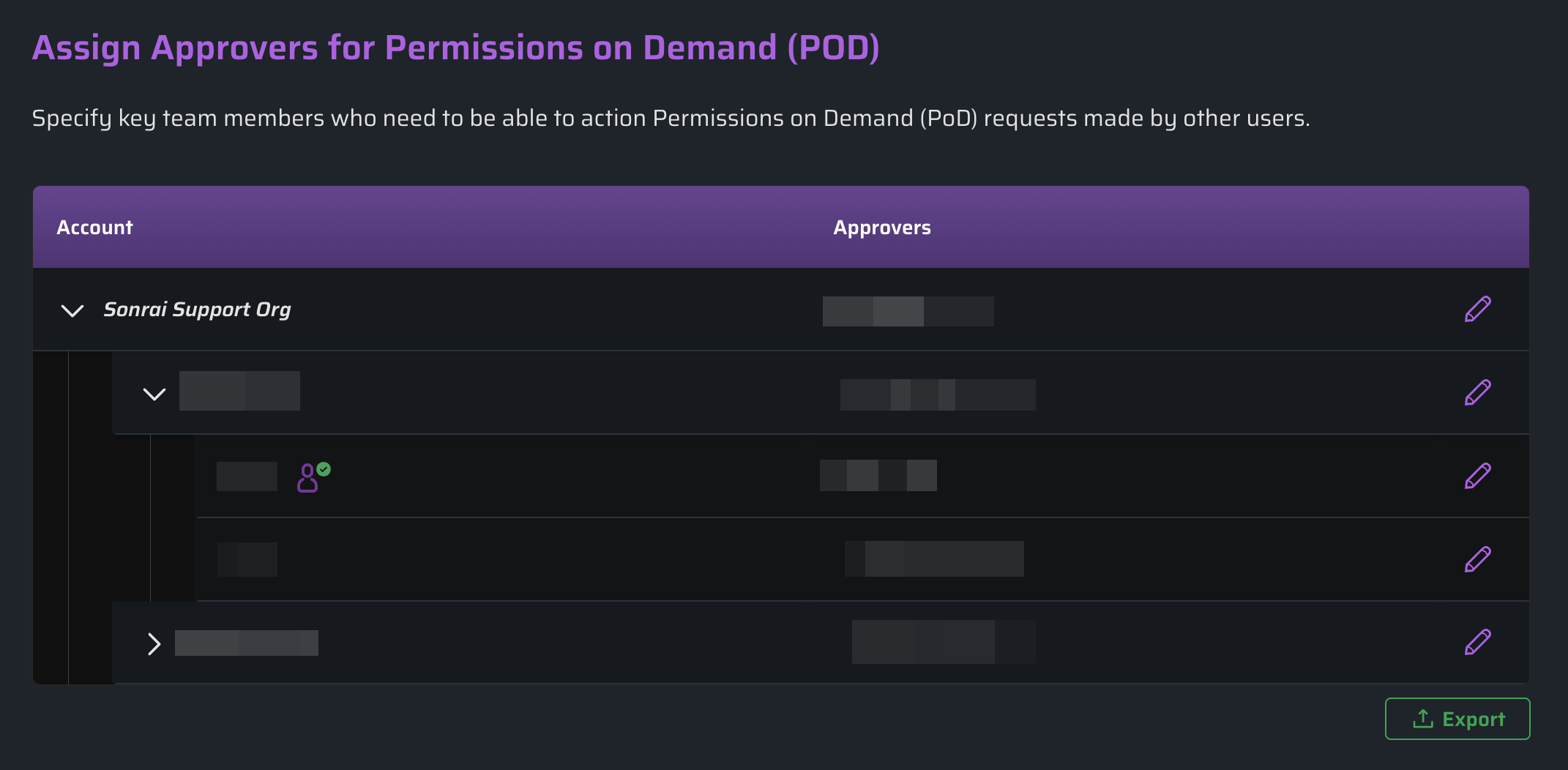
The Approvers page lists your scopes in two columns:
| Column | Shows |
|---|---|
| Scope | The scope name and type. Scopes with children expand and collapse. |
| Approvers & Conditions | Who approves at that scope (Approved by), whether approvers may also approve their own requests, any warnings about the current configuration, and an n exception chip that expands to list the scope's conditional exceptions |
Select the edit icon at the end of a scope's row to open its Approvers & Conditions panel.
Two other controls sit on the page:
- Show technical condition details — switches the exception summaries between plain English ("when permission set is AdministratorAccess") and the raw attribute, operator, and value.
- Export — downloads the approver configuration as a CSV.
The Approvers & Conditions panel is organized into sections:
| Section | Purpose |
|---|---|
| Summary | A plain-language restatement of the scope's configuration |
| Default policy → Approvers | The scope's default approvers |
| Default policy → Self-approval | Whether a requester may approve their own request |
| Exceptions | Conditional rules that route particular requests elsewhere — see Conditional Approvers |
| Test a request | Evaluates a hypothetical request to show where it would land |
Approvers and Self-approval are grouped together under Default policy — the behaviour that applies to any request no exception matches.
Assigning Approvers
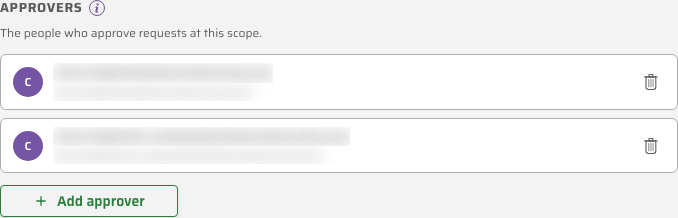
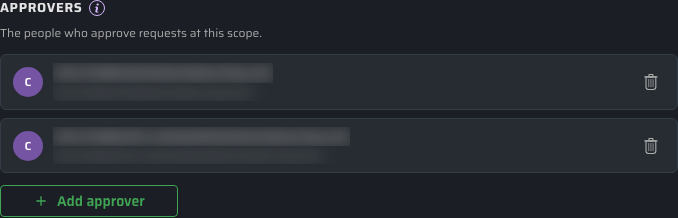
The Approvers section holds the scope's default approvers — "The people who approve requests at this scope." Any request that no exception routes elsewhere is sent to them.
Select Add approver and search by name, email, or group. Both individual identities and groups can be approvers; groups are marked with a Group label and show their member count where CPF knows it. To remove an approver, select the remove control beside their name.
Select Save to apply your changes. If you close the panel with unsaved edits, CPF warns you before discarding them.
How Inheritance Works
Approver settings cascade down the scope tree. A scope with nothing set of its own uses the configuration of its nearest ancestor that does, and the panel tells you where that comes from, naming the ancestor scope it is currently inheriting from.
Open a scope that is inheriting and the panel is read-only. Its Approvers and Self-approval sections are labelled Inherited · read-only, and a notice at the top of the panel names the ancestor and summarizes what comes from it — how many approvers, the self-approval level, and how many exceptions.


To give the scope a configuration of its own, choose one of the two controls in the notice:
| Control | What it does |
|---|---|
| Copy & customize | Keeps the inherited approvers, self-approval level, and exceptions as a starting point, and makes them editable. |
| Start fresh | Clears the inherited configuration and resets self-approval to No self-approval, so you build the scope up from nothing. |
Either choice replaces the notice with an Overriding ancestor bar and a Revert to inherited control, which discards what you have entered and puts the scope back to following its ancestor. Nothing is applied until you select Save.
To hand a scope that already has its own configuration back to its ancestor, remove its approvers and exceptions and select Save — the scope resumes inheriting.
Assigning approvers at a scope applies to that scope. What happens below it depends on whether each descendant has approvers of its own:
- A descendant with nothing set of its own keeps inheriting, so it picks up your change automatically.
- A descendant that defines its own approvers keeps them. Your change does not overwrite a configuration set further down the tree.
There is no option to force a scope's approvers onto descendants that have their own — to change those, edit them at the scope where they are set.
Allowing Self-Approval
By default, users cannot approve their own PoD or JIT access requests. Self-approval allows you to change this behaviour on a scope-by-scope basis, reducing friction for trusted users while preserving full audit visibility.
The Approvers list states each scope's self-approval behaviour in words, beneath that scope's approvers.
Where a scope takes its approvers from an ancestor, the row also says inherited from that scope.
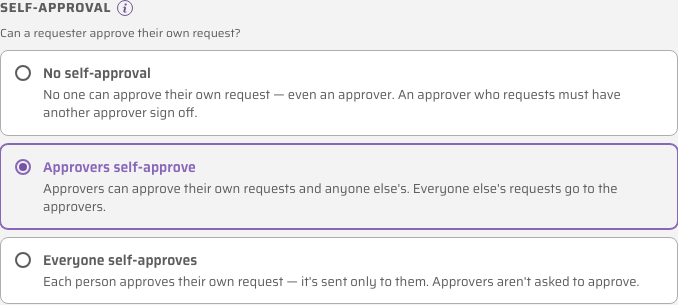
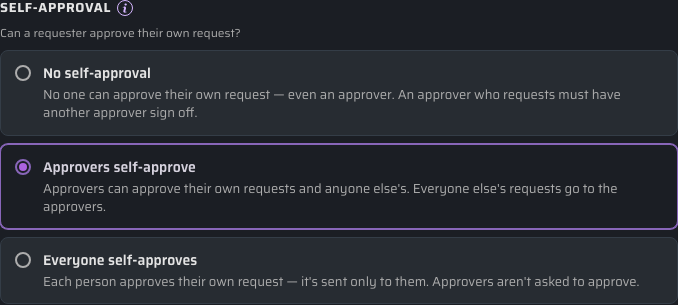
Self-approval is configured from the Self-approval section of the Approvers & Conditions panel, which answers the question "Can a requester approve their own request?" Settings are inherited down the scope hierarchy from the level at which they are applied.
The self-approval setting is checked at the moment a request is created, based on the originating scope. Self-approval status then applies to that request for its lifetime.
If a request escalates to a higher scope, the self-approval mode from the originating scope applies — escalation does not change the self-approval status for this request.
Self-Approval Modes
Choose one of three Self-approval level options:
| Self-Approval Level | Who Can Self-Approve? |
|---|---|
| No self-approval | No one, not even an approver. An approver who raises a request must have another approver sign it off. (Default) |
| Approvers self-approve | Approvers can approve their own requests and anyone else's. Everyone else's requests go to the approvers. |
| Everyone self-approves | Each person approves their own request — it is sent only to them. The scope's approvers are not asked to approve. |
CPF never silently relaxes the level you choose. Instead it warns you when a combination would leave requests with no approver:
| Situation | Why it is a problem |
|---|---|
| No self-approval, no approvers set | No request at the scope can ever be approved. |
| No self-approval, a single approver | That approver's own requests have no one to sign them off. |
| No self-approval, the only approver is a one-member group | That member's requests have no one to sign them off. |
| No self-approval, the only approver is a group of unknown size | If the group ever has one member, that person's requests have no one to sign them off. |
| Approvers self-approve, no approvers set | The level has nothing to apply to, so no request can be approved. |
Resolve a warning by adding another approver, choosing a different level, or adding an exception that routes the affected requests to someone else.
An exception overrides the self-approval setting, so exceptions are how you escalate higher-risk requests to a named approver even at a scope where self-approval is otherwise permitted. See Conditional Approvers.
Notifications
When a request is self-approved or self-denied, email and ChatOps notifications reflect the action accordingly:
| Event | Requester receives | Approvers receive |
|---|---|---|
| Approved by another | You were approved access… | Approved by [approver] |
| Self-approved | You self-approved access… | Self-Approved by [requester] |
| Denied by another | You were denied access… | Denied by [approver] |
| Self-denied | You denied access… | Self-Denied by [requester] |
You can also check the Detailed Audit Log tab from the Reporting page to see when requests were self-approved:

