Conditional Approvers


© 2026 Sonrai Security. All rights reserved.
Overview
By default, every approver assigned at a scope is notified about — and can act on — every request raised at that scope. Conditional approvers let you narrow that behaviour, so a request is routed to the people who should actually decide it.
Two common cases:
- Route by permission set. An account has several permission sets under Just-In-Time (JIT) Access. Requests for
AdministratorAccessgo to your security lead; everything else goes to the account's usual approvers. - Route by time. Requests raised during business hours go to the daytime approvers; requests raised overnight go to the on-call approver.
You configure this from the Approvers page, in the Approvers & Conditions panel for a scope.
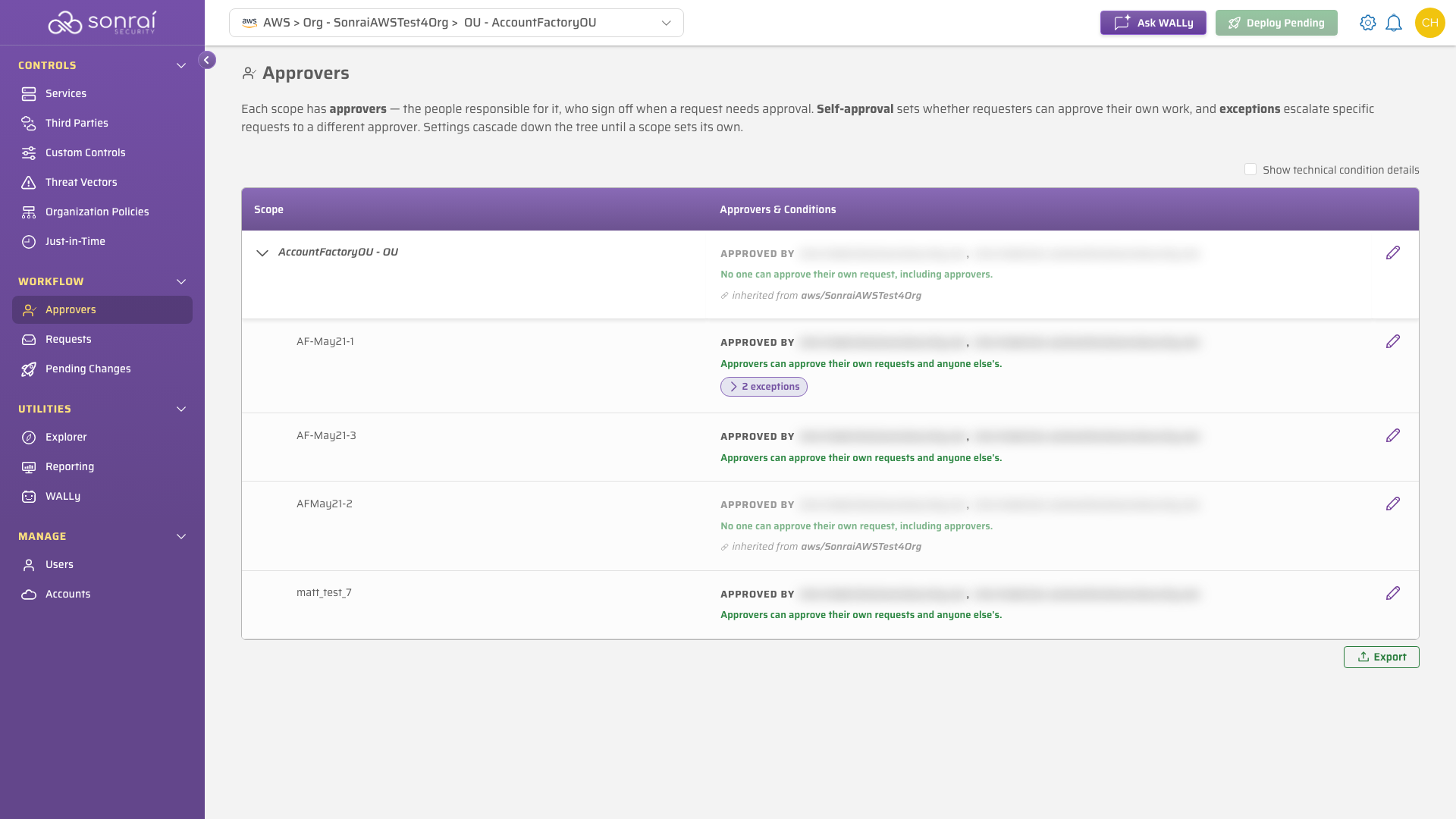
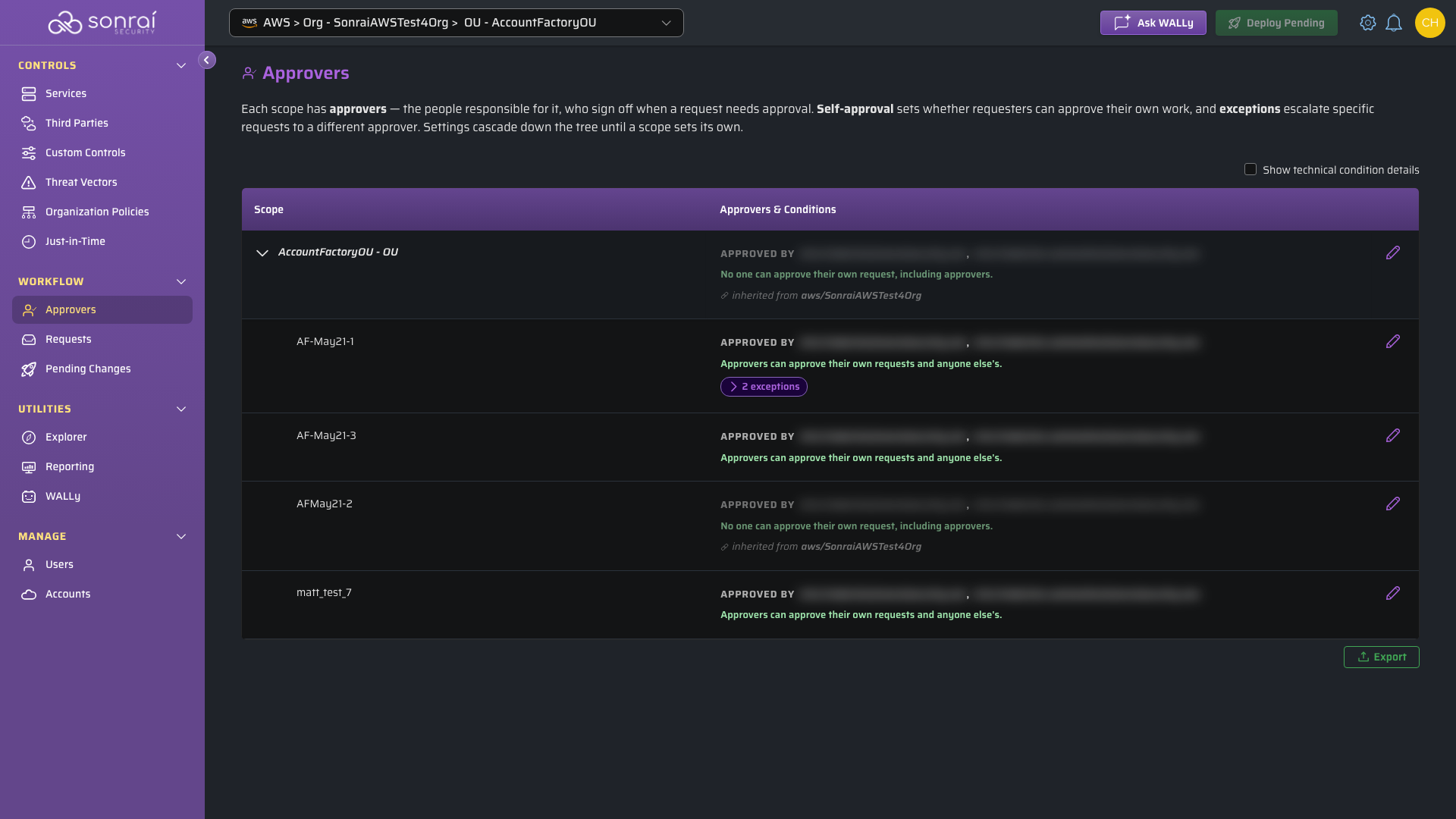
Conditional approvers build on the approver model described in Managing Permissions on Demand Request Approvers. Read that page first if you have not assigned approvers before.
Prerequisites
Changing approver configuration is done by a user with the "Administrator" RBAC role, or by a "Scope Administrator" within their assigned scope.
How Routing Is Decided
Each scope holds three settings that together decide where a request lands.
| Setting | What it controls |
|---|---|
| Approvers | The scope's default approvers. A request that matches no exception goes here. |
| Self-approval | Whether a requester may approve their own request. |
| Exceptions | Ordered, case-by-case rules that override the default routing when a request matches. |
When a request is raised, Cloud Permissions Firewall (CPF) evaluates the scope's exceptions from top to bottom:
- The first exception whose conditions all match takes over routing. Later exceptions are not considered.
- If no exception matches, the request goes to the scope's approvers, subject to the self-approval setting.
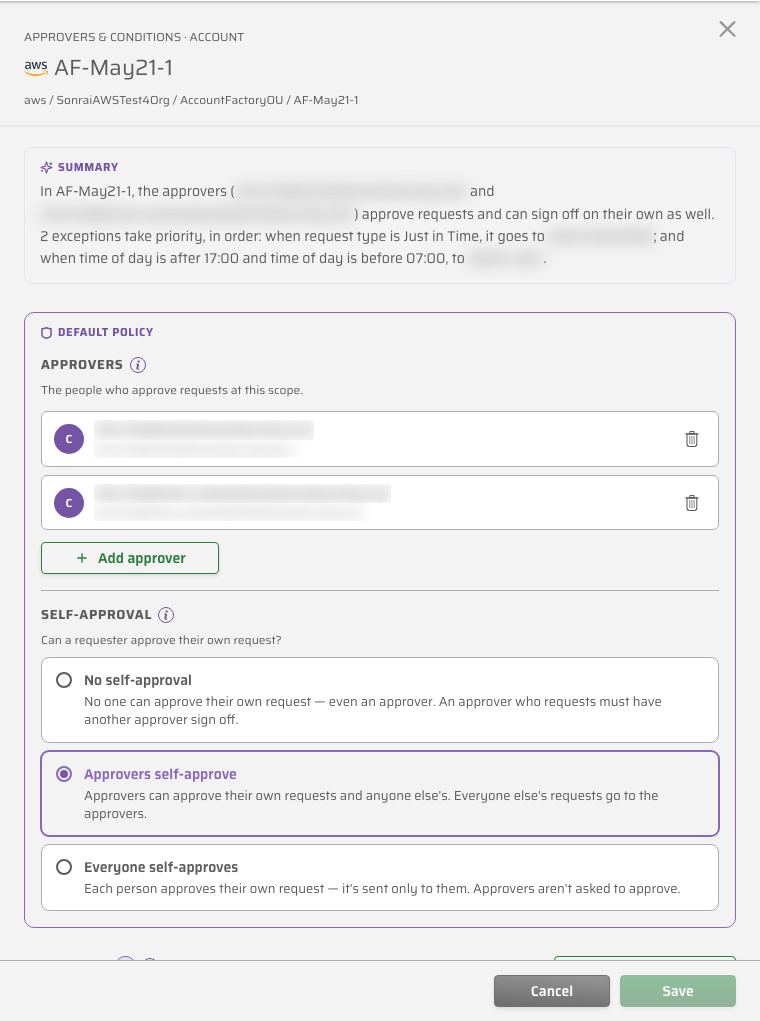
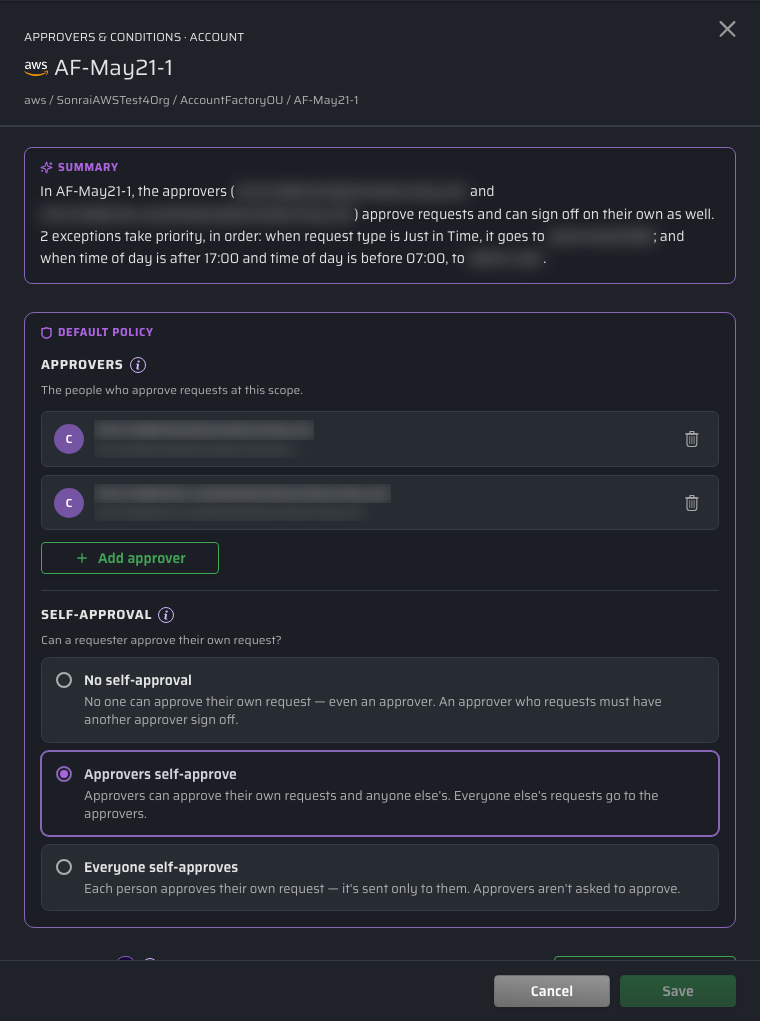
An exception also overrides self-approval. This makes exceptions the mechanism for escalating higher-risk requests to a named approver at a scope where requesters would otherwise sign off on their own — a requester who could normally self-approve is still sent to the exception's approvers when their request matches.
Exception order matters. A broad exception placed above a narrow one will match first and the narrow one will never be reached. Each exception shows Priority n of total — checked in this order so you can confirm the sequence.
Default Approvers
The Approvers section holds the scope's default approvers, described in the UI as "The people who approve requests at this scope." Any request that no exception routes elsewhere goes to them.
Select Add approver and search by name, email, or group. Both individual identities and groups can be approvers; groups are marked with a Group label and show their member count where CPF knows it.
Approvers cascade down the scope tree. The Approvers page shows, per scope, who approves there and whether that setting is assigned at the scope itself or inherited from an ancestor. See Managing Permissions on Demand Request Approvers for how inheritance works.
Self-Approval
The Self-approval section answers the question "Can a requester approve their own request?" There are three levels:
| Level | Who can self-approve |
|---|---|
| No self-approval | No one, not even an approver. An approver who raises a request must have another approver sign it off. (Default) |
| Approvers self-approve | Approvers can approve their own requests and anyone else's. Everyone else's requests go to the approvers. |
| Everyone self-approves | Each person approves their own request — it is sent only to them. The scope's approvers are not asked to approve. |
No self-approval can leave a scope with no one able to act. If the scope has no approvers, or a single approver who is also the requester, requests deadlock. CPF warns you when it detects this — including when the only approver is a group whose size it cannot determine. CPF never silently relaxes the level to resolve a deadlock; fix it by adding another approver or choosing a different level.
Exceptions
An exception is a routing rule: when a request matches these conditions, send it to these people instead. The Exceptions section describes them as "Case-by-case routing rules."
To add one, select Add exception, then:
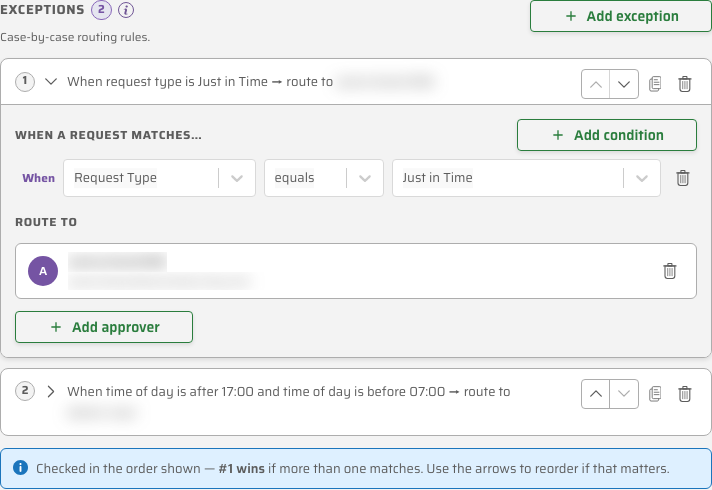
- Under When a request matches…, select Add condition and choose an attribute, an operator, and a value.
- Add further conditions if needed. Conditions on one exception are AND-ed — all of them must match.
- Under Route to, add the approvers this exception should send the request to.
Use the up and down controls to reorder exceptions, and the duplicate control to copy one as a starting point for another.
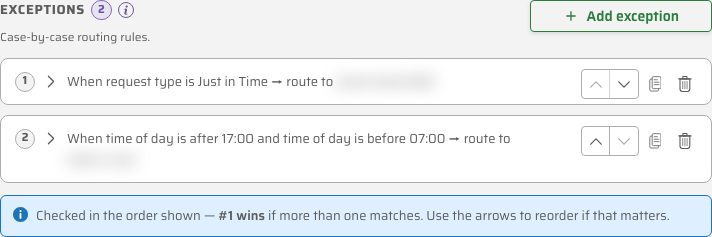
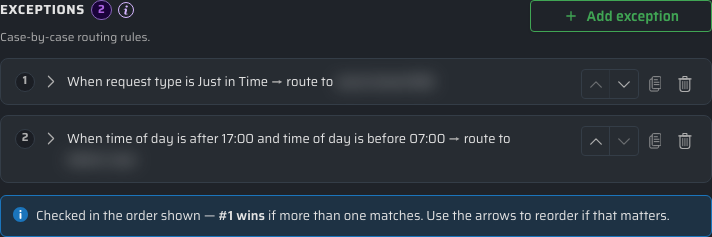
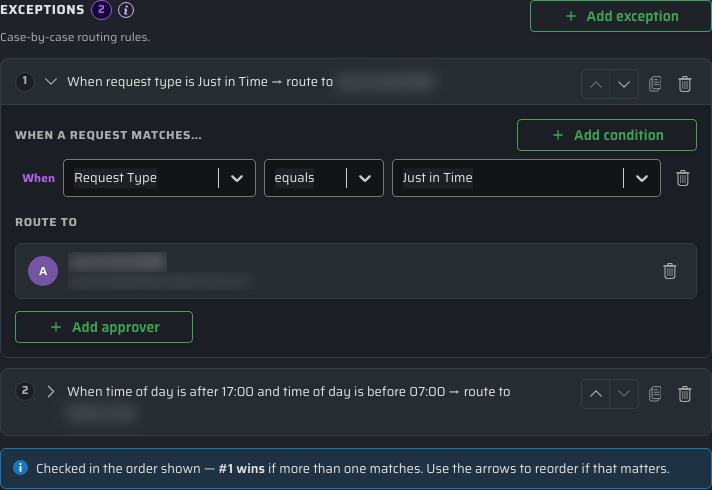
Expanding an exception reveals its condition rows and the approvers it routes to. Each additional condition is joined with and. When a scope has more than one exception, a note under the list confirms the ordering: "Checked in the order shown — #1 wins if more than one matches."
Conditions Are AND-ed
All conditions on a single exception must match. There is no OR within an exception — to express alternatives, create a second exception with the same Route to approvers. This matters for overnight time windows; see Route after-hours requests to an on-call approver.
Condition Reference
The attributes available depend on the cloud the scope belongs to.
| Attribute | Applies to | Operators | Value |
|---|---|---|---|
| Request Type | All clouds | equals, is not, is one of, is none of, matches pattern, matches pattern (any case) | A request type offered for the scope's cloud |
| Permission Set | AWS only | equals, is not, is one of, is none of, matches pattern, matches pattern (any case) | A permission set available at the scope |
| Role Definition Name | Azure only | equals, is not, is one of, is none of, matches pattern, matches pattern (any case) | An Azure role definition name |
| Day of Week | All clouds | equals, is one of, is none of, before, on or before, after, on or after | Mon–Sun |
| Time of Day | All clouds | equals, before, at or before, after, at or after | A time in 24-hour HH:MM form |
Notes on values and matching:
- Permission Set and Request Type values are read from your environment — the picker offers the permission sets that exist at the scope and the request types valid for its cloud, rather than a fixed list. See Just-in-Time Access for AWS for how AWS permission sets are defined, and Intro: Azure Role-Based Controls for Azure role definitions.
is one ofandis none ofaccept several values; the request matches if the attribute is (or is not) any one of them.matches patternaccepts SQL wildcards —%for any sequence of characters,_for a single character.matches pattern (any case)behaves the same but ignores capitalisation.- Time of Day and Day of Week are evaluated in UTC, not the requester's local time or your browser's time zone. Convert your intended local time to UTC before entering it.
- Time of Day has no between operator. Bound a window with two conditions on one exception, or — for a window crossing midnight UTC — two exceptions.
- An attribute that does not apply to a request does not match. A Permission Set condition never matches an Azure request, for example, so the exception is skipped rather than treated as satisfied.
Walkthroughs
Route AdministratorAccess Requests to a Security Lead
In a production account, send requests for the AdministratorAccess permission set to your security lead, leaving everything else with the account's usual approvers.
Example:
- From the Approvers page, find the production account row and select the edit icon to open its Approvers & Conditions panel.
- Confirm the Approvers section lists the people who should handle ordinary requests.
- In the Exceptions section, select Add exception.
- Select Add condition and set:
- Attribute: Permission Set
- Operator:
equals - Value:
AdministratorAccess
- Under Route to, add your security lead.
- Select Save.
The exception now reads When permission set is AdministratorAccess, it goes to …. Requests for any other permission set continue to the scope's default approvers.
To cover several sensitive permission sets with one exception, use is one of and add each name — for example AdministratorAccess and PowerUserAccess.
Route After-Hours Requests to an On-Call Approver
Time windows need care, because conditions on an exception are AND-ed. How you build the rule depends on whether the window crosses midnight.
A window inside one day — business hours, 08:00 to 20:00 UTC — is a single exception with two conditions:
Example:
- Open the scope's Approvers & Conditions panel and select Add exception.
- Add a condition: Time of Day —
at or after—08:00. - Add a second condition: Time of Day —
before—20:00. - Under Route to, add your daytime approvers.
- Select Save.
Both conditions must hold, so the exception matches only between 08:00 and 20:00 UTC.
A window crossing midnight — after hours, 20:00 to 08:00 UTC — cannot be one exception. A single rule would require at or after 20:00 AND before 08:00, which no time satisfies. Create two exceptions routing to the same approver:
Example:
- Add an exception with one condition: Time of Day —
at or after—20:00. Under Route to, add your on-call approver. - Add a second exception with one condition: Time of Day —
before—08:00. Under Route to, add the same on-call approver. - Select Save.
Together the two exceptions cover the whole overnight window. Because each is evaluated independently, a request at 22:00 matches the first and a request at 03:00 matches the second.
To limit an exception to weekdays as well, add a Day of Week condition using is one of with Mon, Tue, Wed, Thu, and Fri.
Time of Day and Day of Week are evaluated in UTC. An overnight window expressed in local time shifts once converted — check the boundaries against UTC before saving, and re-check after a daylight-saving change.
Test a Request
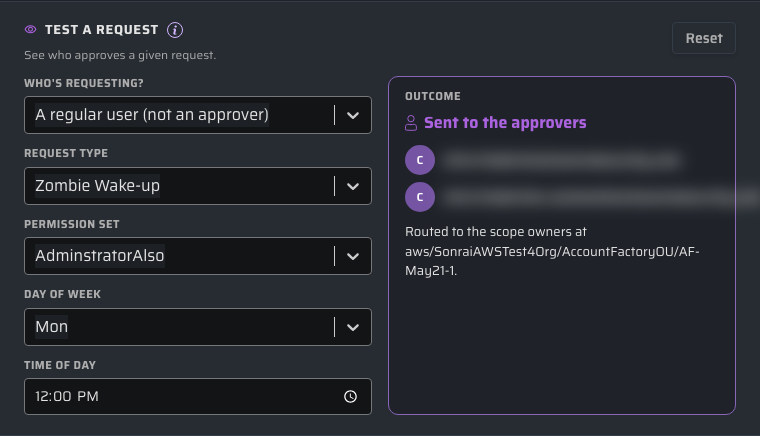
The Test a request section — "See who approves a given request." — evaluates a hypothetical request against the scope's current configuration, including unsaved edits. Use it to confirm an exception behaves as intended before you rely on it.
Select Try a request, choose who is requesting under Who's requesting?, and fill in the request details. Only the attributes your exceptions actually reference are shown.
The Outcome reports one of:
| Outcome | Meaning |
|---|---|
| Self-approved | The requester approves their own request. |
| Sent to the approvers | No exception matched; the request goes to the scope's default approvers. |
| Sent to the other approvers | Routed to the scope's approvers excluding the requester, because self-approval is off. |
| Sent to the approver (Exception n) | An exception matched; the outcome names which one. |
| Blocked — no one can approve | No one is able to act on the request. Add an approver or change the self-approval level. |
The outcome also names the scope the approvers came from, which makes it the reliable way to confirm what a scope inherits.
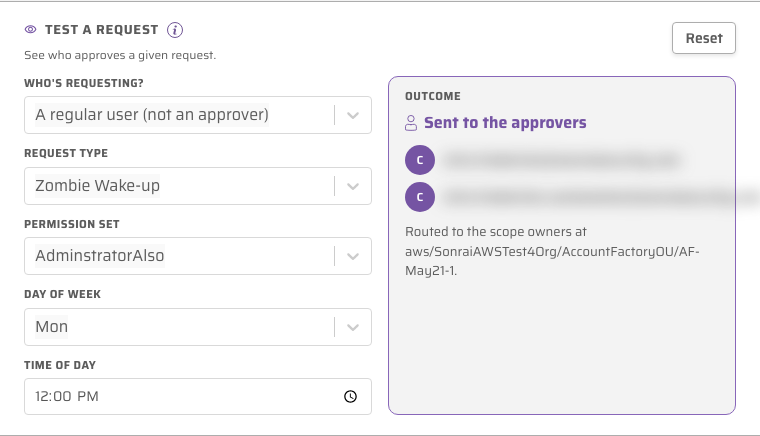
Test a request evaluates the configuration in front of you. It does not create a request, notify anyone, or change any existing request.
Reading the Summary
The Summary section restates the scope's configuration in plain language, and updates as you edit. It names the approvers, the self-approval behaviour, and each exception in priority order — for example:
In Production, requests need sign-off from the approvers (Dana Reyes, Sam Okafor), and no one may approve their own. 2 exceptions take priority, in order: when permission set is AdministratorAccess, it goes to Priya Raman; when time of day is at or after 20:00, to the on-call group.
When a scope inherits its configuration rather than defining its own, the summary says so and names the scope it comes from.


Validation
CPF validates exceptions as you build them and blocks a save it cannot honour:
- Every exception needs at least one condition and at least one approver. An exception missing either is rejected with a message naming what to fix.
- Each condition needs a value. A condition left blank is incomplete.
- Operators are constrained to those valid for the attribute, so an unsupported combination cannot be selected.
- Changing an attribute or operator clears the value, because the set of valid values changes with it. Re-enter the value after switching.
Reference: See Approving/Denying Requests for how approvers act on a routed request, Request Notifications for what recipients receive, and System Settings for the Escalation Window, which still applies once a request has been routed.