Custom Permission Controls


© 2026 Sonrai Security. All rights reserved.
Overview


What if you want to protect some permissions that Sonrai doesn't define as privileged? Or allows some permissions from a pre-defined service in CPF, while blocking others? Or group individual permissions from across multiple cloud services into a single permission set that can be managed together?
Custom Permission Controls let you build custom sets of permissions and then apply service controls — ie: protect or disable — the same way that CPF manages built-in privileged permission sets. These controls integrate natively with Permissions on Demand (PoD) functionality, so users can request just-in-time access through the same Slack or Teams workflow they already know.
Common use cases include:
Internal Application Teams
Define permission groups tailored to the exact access requirements of a specific internal application team, without being constrained by service boundaries.
Business-Unit-Specific Access
Enforce least-privilege access for business units with unique requirements that aren't covered by Sonrai's built-in permission sets.
AWS
Custom Permission Controls use full permission names when protecting or disabling services. This consumes additional Service Control Policy (SCP) space, and may duplicate existing Sonrai-defined protections.
If you do not have enough SCP space available, CPF will not let you deploy additional controls.
To improve efficiency:
- Use standard CPF-defined services whenever possible, instead of creating custom permission sets.
- Only include the specific permissions required for your use case.
- Apply controls at scope where possible, rather than to individual accounts.
GCP
Protecting or disabling a GCP Custom Permission Control deploys a GCP IAM Deny Policy at the protected scope, naming the denied permissions explicitly. Deny policies are subject to GCP's platform limits per policy:
- Maximum 2,300 principals
- Maximum 400 rules
- Maximum 45,000 bytes policy size
If a deployment would exceed these limits, CPF will not let you deploy additional controls.
Create a Custom Permission Control
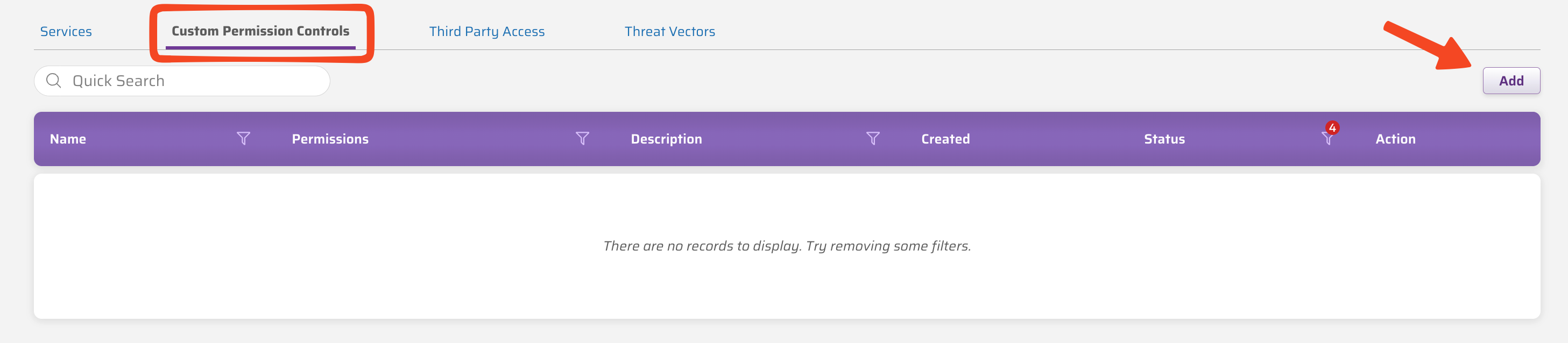
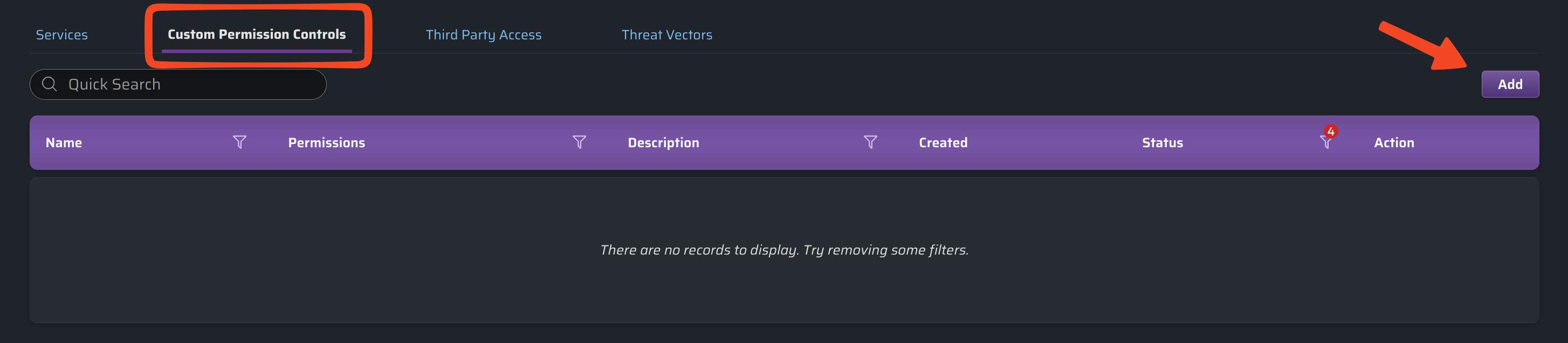
From the Services screen, view the Custom Permission Controls table and click to open the Create Custom Permissions Control table — a built-in tool for selecting and organizing the exact set of permissions you want included for your new control.
Use the Create Custom Permissions Control screen to build a new set of permissions you will apply controls to:
- AWS permissions use the
service:actionformat — for example,ec2:runinstances. - GCP permissions use the
service.googleapis.com/resource.actionformat — for example,compute.googleapis.com/backendBuckets.create.
| Adding Custom Permission Controls | ||
|---|---|---|
| 1 | Name | A unique identifier for the custom permission control. (Required) |
| 2 | Description | A brief explanation of what the control is intended to restrict or allow. |
| 3 | Filter permissions | Filters the list of avaiable permissions. |
| 4 | Show unaudited permissions | Specify whether unaudited permissions are listed. Learn more about unaudited permissions. |
| 5 | Available permission list | A list of available permissions you can select from, including a Used By link that shows which identities are using that permission. |
| 6 | Selected permissions | A list of the selected permissions for this Custom Permission Control. (Required) |
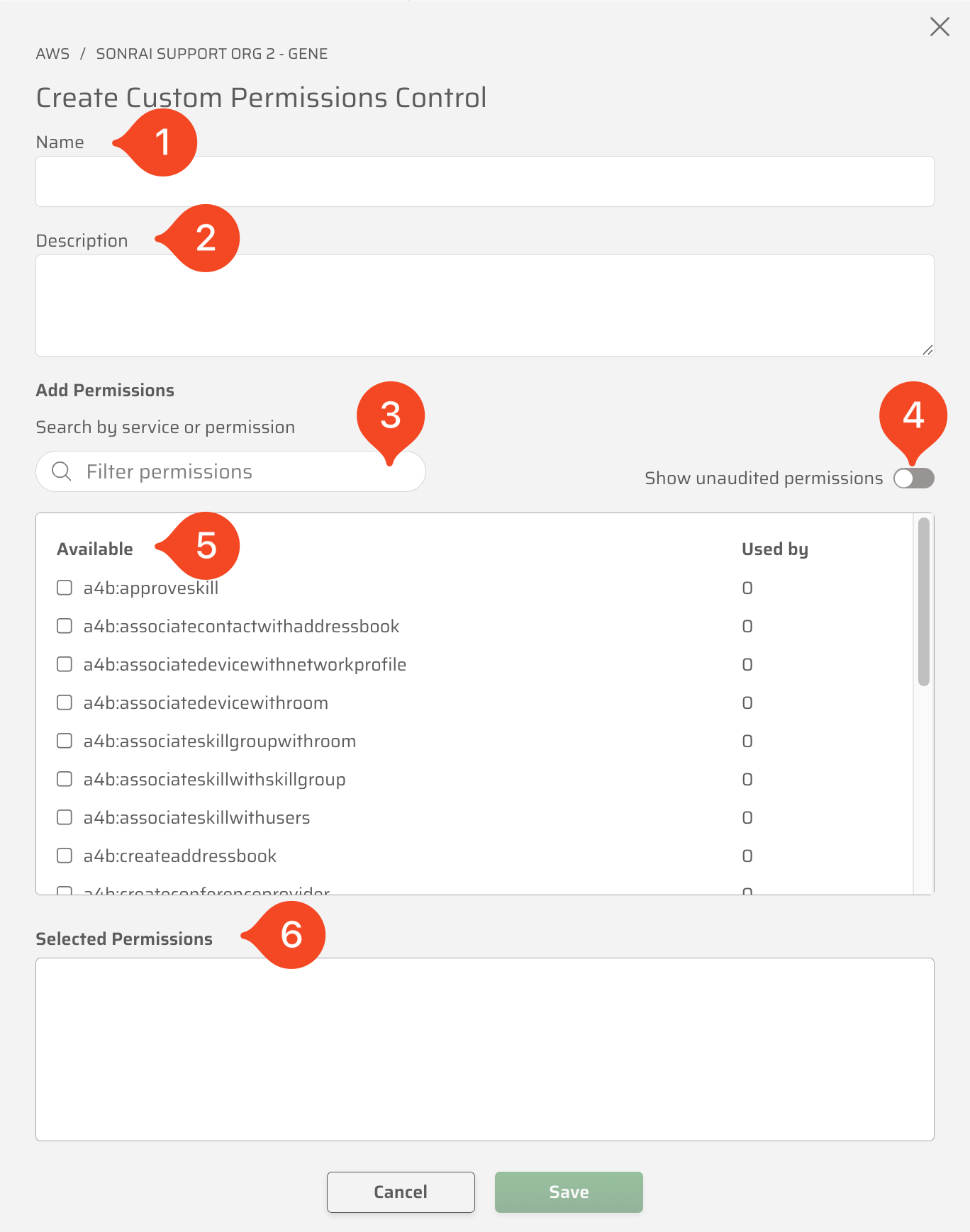
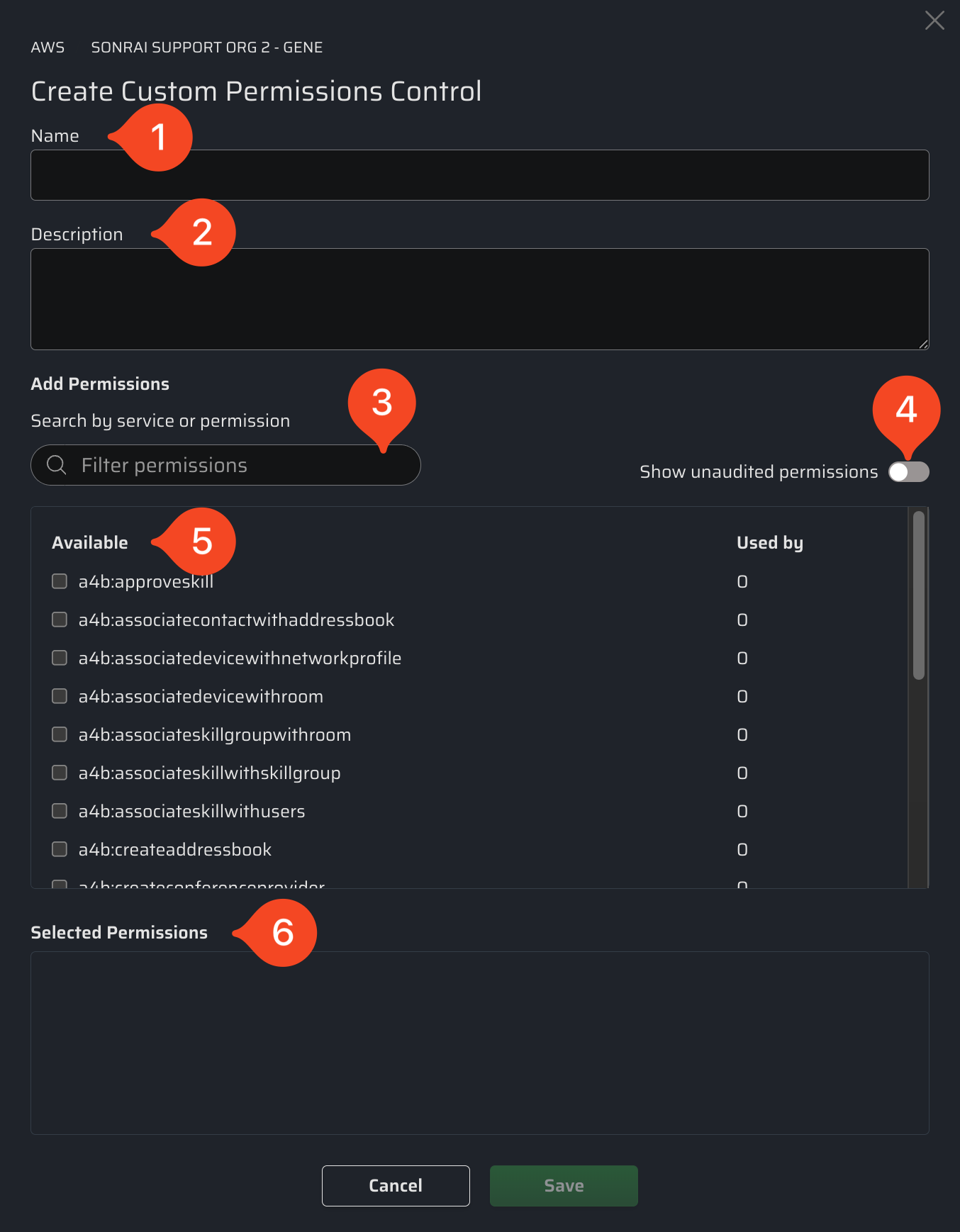
After providing a Name and choosing at least one Selected Permission, you can click to create the new Custom Permission Controls - which then appears in the table ready to have CPF protections applied.
You cannot change the Name of your Custom Permission Controls once it is created.
To adjust the name of a custom permission set, first create a new Custom Permission Control with the same permissions selected, apply any desired protections, and finally use the menu to Delete the original control.
compute.googleapis.com/backendBuckets.createcompute.googleapis.com/storagePools.setIamPolicyaccessapproval.googleapis.com/requests.listaiplatform.googleapis.com/tensorboards.create
Selecting permissions this way lets you group access exactly to your use case, regardless of which GCP service each permission belongs to — the same as combining permissions across AWS services in a single control.
Key Concepts When Creating Controls
While creating new Custom Permission Controls is easy, you might want to keep the following concepts in mind:
Using Filters
A limited number of permissions are shown initially - but scrolling to the bottom of the available list will load more permissions until they've all been loaded. With thousands of cloud permissions available, finding the right ones can be daunting.
Avoid endless scrolling. Use a filter to quickly narrow the list of available permissions by service or keyword!
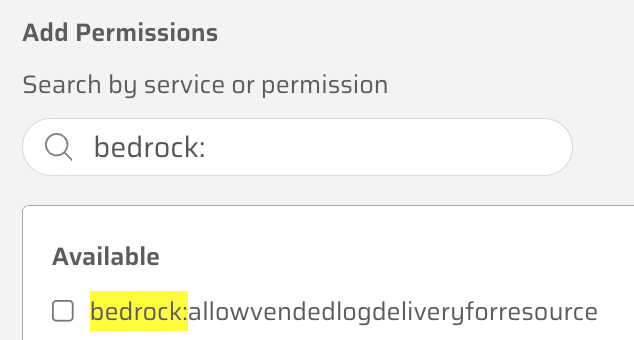
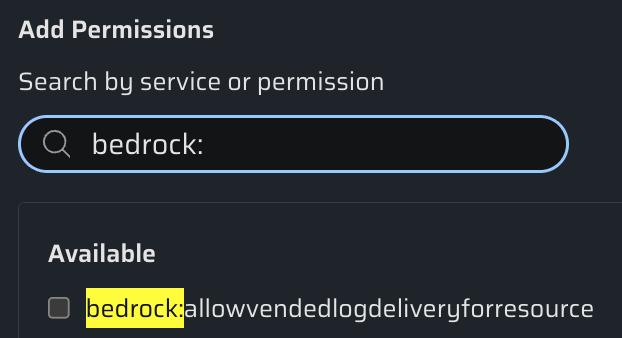
Some tips to keep in mind when using filters:
- Partial Matches: Filters match any part of the string — e.g., on AWS, "ec2" returns
cloud9:activateec2remote; on GCP, "compute" returns permissions likecompute.googleapis.com/backendBuckets.create. - Case Insensitive: Filters are not case-sensitive.
- No Wildcards: Wildcards (e.g.,
*or.) are not supported.
Audited vs. Unaudited
Custom Permission Controls can include both audited and unaudited permissions.
- AWS
- GCP
AWS
Audited permissions:
- Traceable using CloudTrail logs.
- CPF can see if and when attempts are made to use those permissions.
Unaudited permissions:
- Do not create CloudTrail logs.
- CPF cannot see or react to attempts to use those permissions.
GCP
Audited permissions:
- Usage is visible through Google Cloud's Audit Logs.
- CPF can see if and when attempts are made to use those permissions.
Unaudited permissions:
- Do not produce Audit Log entries CPF can read for usage data.
- CPF cannot see or react to attempts to use those permissions.
Reference: See Just-in-Time Access for GCP for more on GCP audit log configuration.
Understanding this distinction matters when adding permissions to a control, because it limits what actions can effectively be applied when Protecting or Disabling that set of permissions:
| Audited Permissions | Unaudited Permissions | |
|---|---|---|
| Supports Permissions on Demand (PoD)? | ✅ | ❌ |
| Supports Just-in-Time (JIT)? | ✅ | ❌ |
| Can be disabled? | ✅ | ✅ |
If a control includes a mix of audited and unaudited permissions, PoD will still function for audited permissions within that control. Only unaudited permissions are excluded from PoD.
When adding unaudited permissions to a control, CPF clearly indicates which are unaudited:
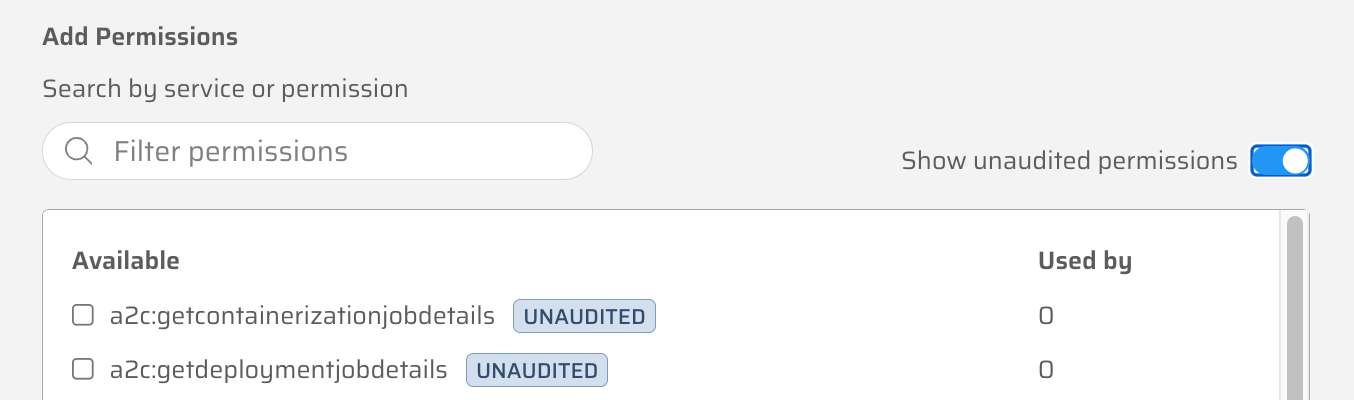
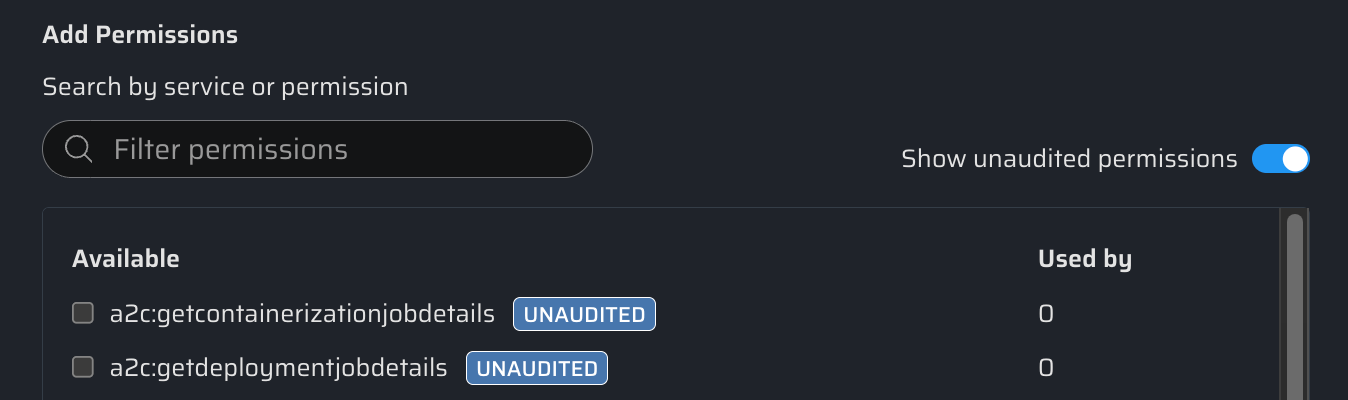
Which Permissions Are In Use?
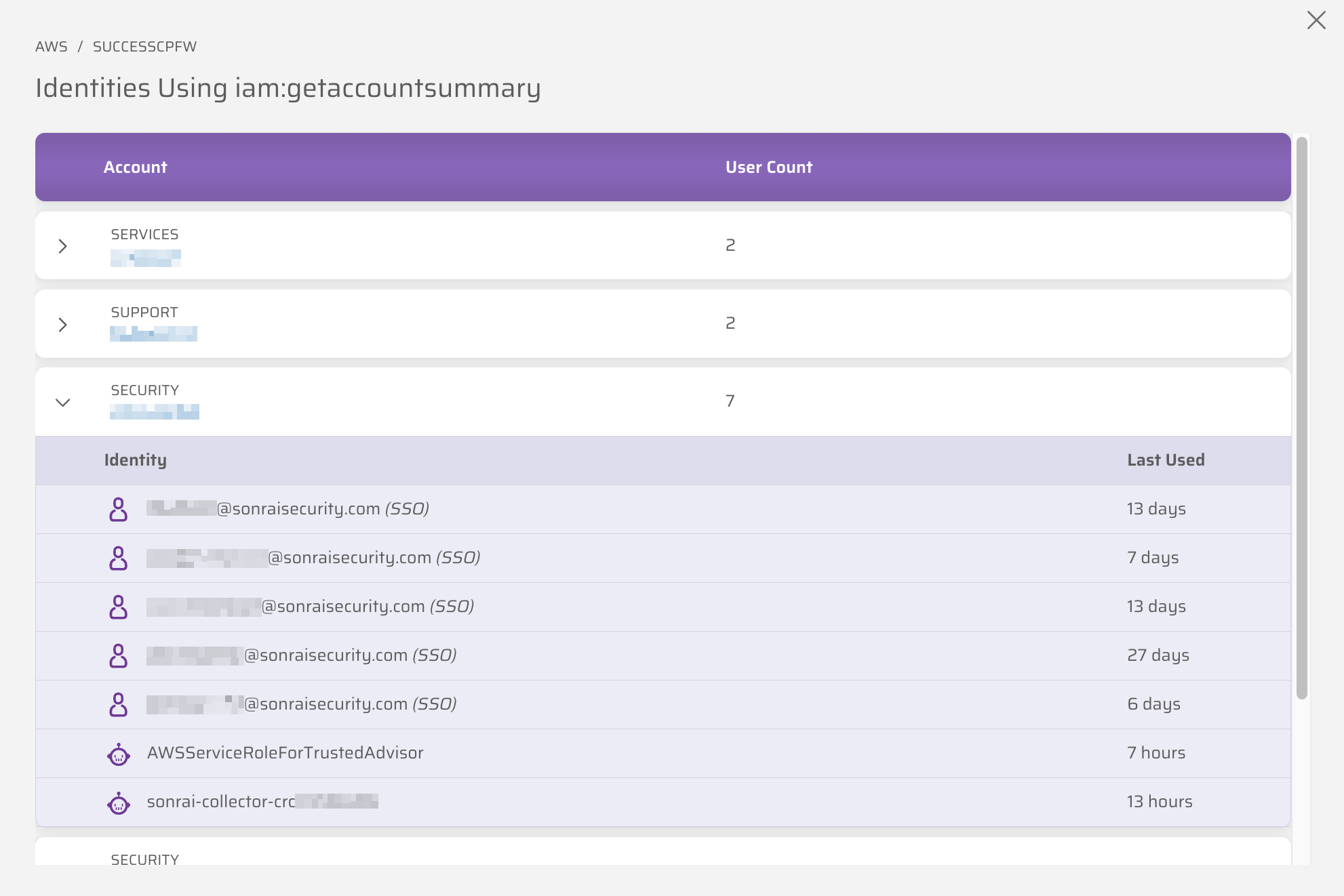
When creating or editing a Custom Permission Control, click the Used By number in the list of available permissions.
A new screen appears, showing which accounts have identities using that permission. Expand the account, and you can get even more detail - including the identity name and last used date.
This information is only available for audited permissions.
Use Your Custom Permission Controls
Once you have created Custom Permission Controls, CPF treats them just like the pre-defined sets of privileged permissions in the Services table:
Protect
Protecting a control restricts access to the defined permission set to only those identities that require it — using the exact same protect logic as service-level controls. On AWS this deploys a Service Control Policy (SCP); on GCP this deploys a GCP IAM Deny Policy.
Click on the control's row to add this control to your Pending Changes screen.
You can protect services at scope when applicable — note that scope inheritance behaves differently for AWS OUs than for GCP folders/projects; see that section for details.
Reference: See Protecting Services & Exempting Identities for more information.
Disable
Disabling a control completely removes access to the defined permission set at the selected scope. Use this when the permissions in the control should not be available to anyone.
Click on the menu on the control's row, and select Disable to add this control to your Pending Changes screen.
You can disable services at scope when applicable.
Reference: See Disabling Services for more information.
Permissions on Demand
For audited permissions within a Custom Permission Control, Permissions on Demand (PoD) works identically to standard service-level controls. Users can request just-in-time access with one-click approval via Slack or Teams, with a full audit trail and automatic expiry.
- One-click access requests: Users request access directly from Slack or Teams. Approvers receive a notification and can grant access with a single click.
- Consistent configuration: The same scope limits, time bounds, and approval workflows available for service-level controls apply to Custom Permission Controls.
- On GCP, approving a request adds the requesting identity as an exception principal on the live GCP IAM Deny Policy for that control; the exception is automatically removed once the grant window closes, restoring the deny.
Reference: See Permissions on Demand for full details on the PoD workflow.