Google Chat App Configuration


© 2026 Sonrai Security. All rights reserved.
Overview
Our Google Chat application enables you to approve or deny cloud access requests from the convenience of Google Chat.
The Sonrai Cloud Permissions Firewall (CPF) slashes the permissions attack surface by protecting access to privileged permissions, unused services and cloud regions, and quarantining dormant identities.
Access needs are granted seamlessly through Permissions-on-Demand and just-in-time workflows that integrate with the best ChatOps tools out there — Google Chat included.
When an identity tries to use a restricted permission or quarantined identity, an automated message is routed via Google Chat to predetermined approvers. The message details the account, identity, service, permission, and timeframe, allowing the approver to either approve or deny the request.
Sonrai Google Chat App Functionalities
Slash Commands
/sonrai-help- Display the list of available slash commands./sonrai-jit- Initiate a just-in-time workflow for the current user./sonrai-entitlement- Request an Azure entitlement (identity, scope, and role) for the current user.
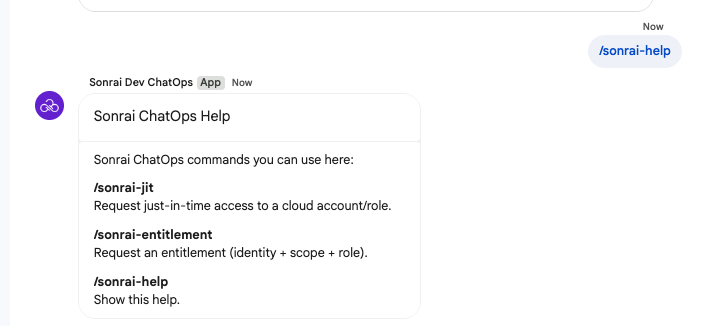
Registering and unregistering Google Chat is done from the Sonrai CPF web app, not from chat. See App Registration and App Removal.
Event Subscriptions
Sonrai App for Google Chat responds to the below events:
- Added to a space - When the app is added to a direct message or a space, it sends a "Welcome to Sonrai ChatOps" message.
- Messages - Messages sent to the app in a direct message, or messages that mention
@Sonraiin a space, are sent to WALLy.
Where Sonrai Delivers Messages
Sonrai delivers Google Chat requests and notifications in a direct message between the user and the Sonrai app. Users don't need to open or install the app themselves first: using the domain-wide delegation you grant during Workspace Administrator Authorization, Sonrai opens the direct message on the user's behalf the first time it has something to send them.
Requests and notifications are not posted to group spaces.
Sonrai only delivers Google Chat messages to email addresses in the primary domain you register (for example, example.com). Messages are not delivered to:
- Addresses in an alias or secondary domain of your Workspace (for example,
example.co), even if they reach the same Google Chat user. - Users outside your Google Workspace.
Make sure the email addresses your approvers and requesters use in Sonrai are their primary-domain Google Workspace addresses. Otherwise, they will NOT receive Permissions on Demand or JIT requests through Google Chat.
App Installation
Installing the Sonrai Google Chat app is a two-step process, usually completed by two people:
Google Workspace Administrator
Makes the Sonrai Chat app available in your Workspace and authorizes Sonrai's domain-wide delegation client ID.
Registers your Google Workspace with Sonrai from the CPF web app.
This configuration process only needs to be completed once per Google Workspace. After registration, every user in your primary domain can start using the app.
Workspace Administrator Authorization
- Make the Sonrai Chat app available to the users in your Google Workspace.
- Copy the client ID from your CPF tenant. In the CPF web app, open Settings > Chat Ops, click Install in the Google Chat row, and click the copy button next to Sonrai domain-wide delegation client ID.
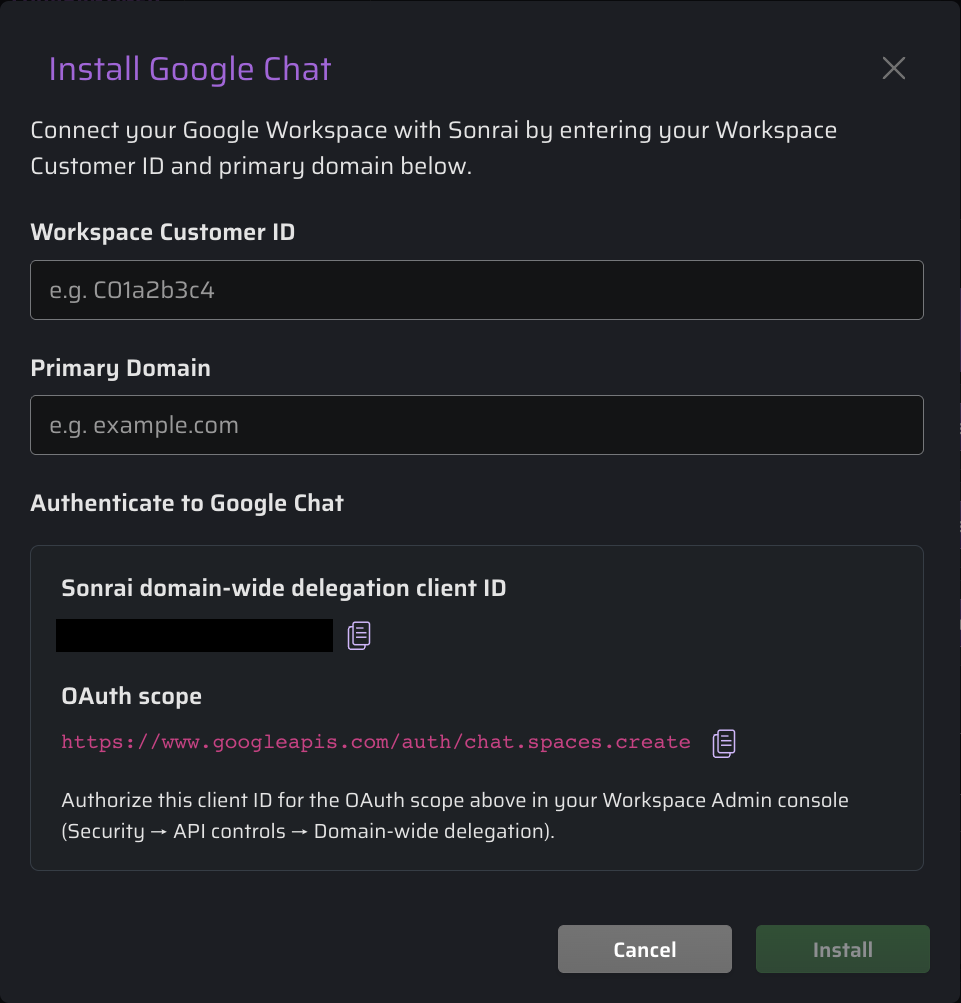
Always copy the client ID from your own CPF tenant. Do not reuse a client ID from another source or screenshot; a client ID that doesn't match your tenant won't work.
- In the Google Admin console, go to Security > Access and data control > API controls > Manage Domain Wide Delegation, then click Add new.
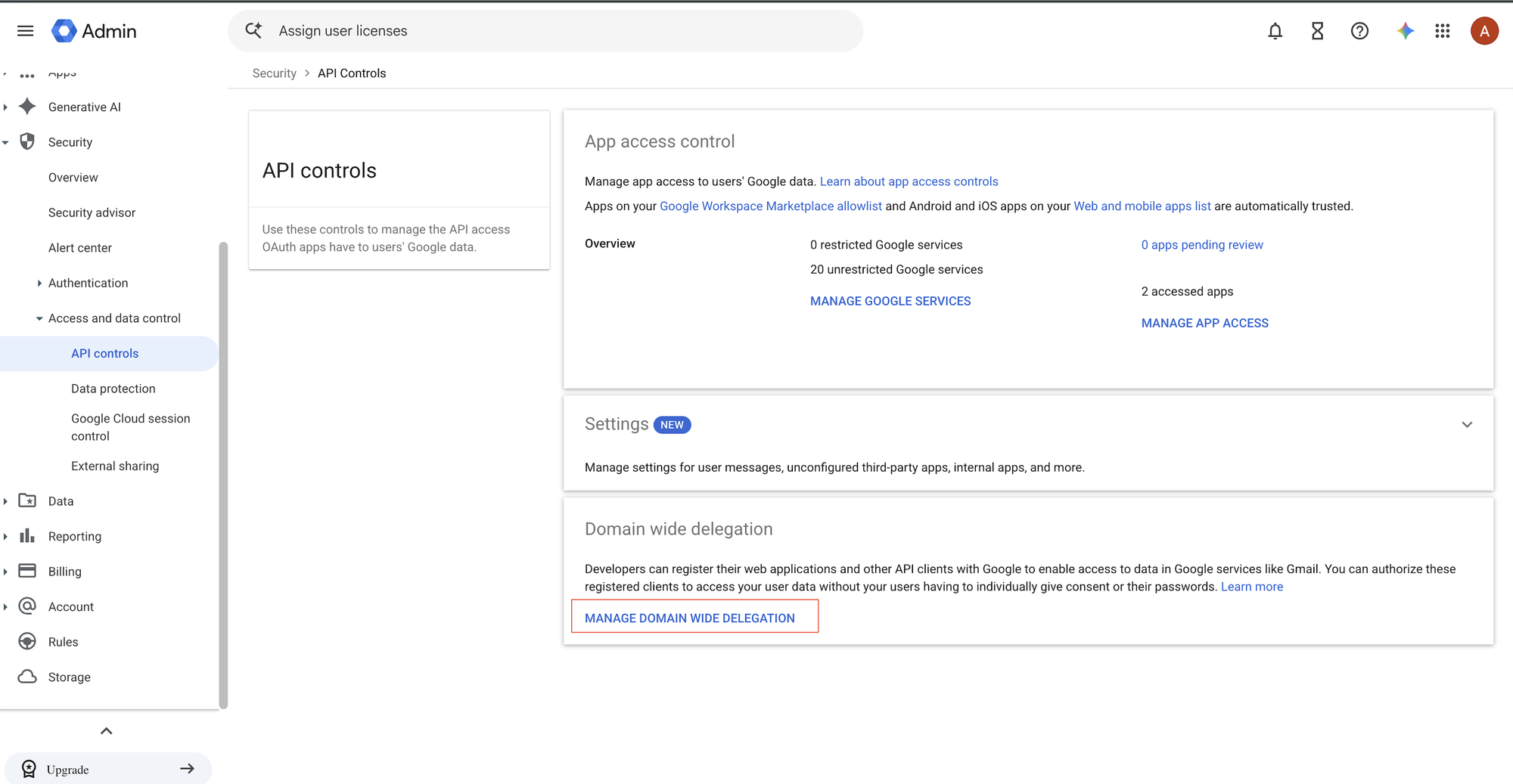
- Paste the client ID you copied from your CPF tenant, and enter this OAuth scope (you can also copy it from the OAuth scope field in the Install Google Chat dialog):
https://www.googleapis.com/auth/chat.spaces.create
- Click Authorize.
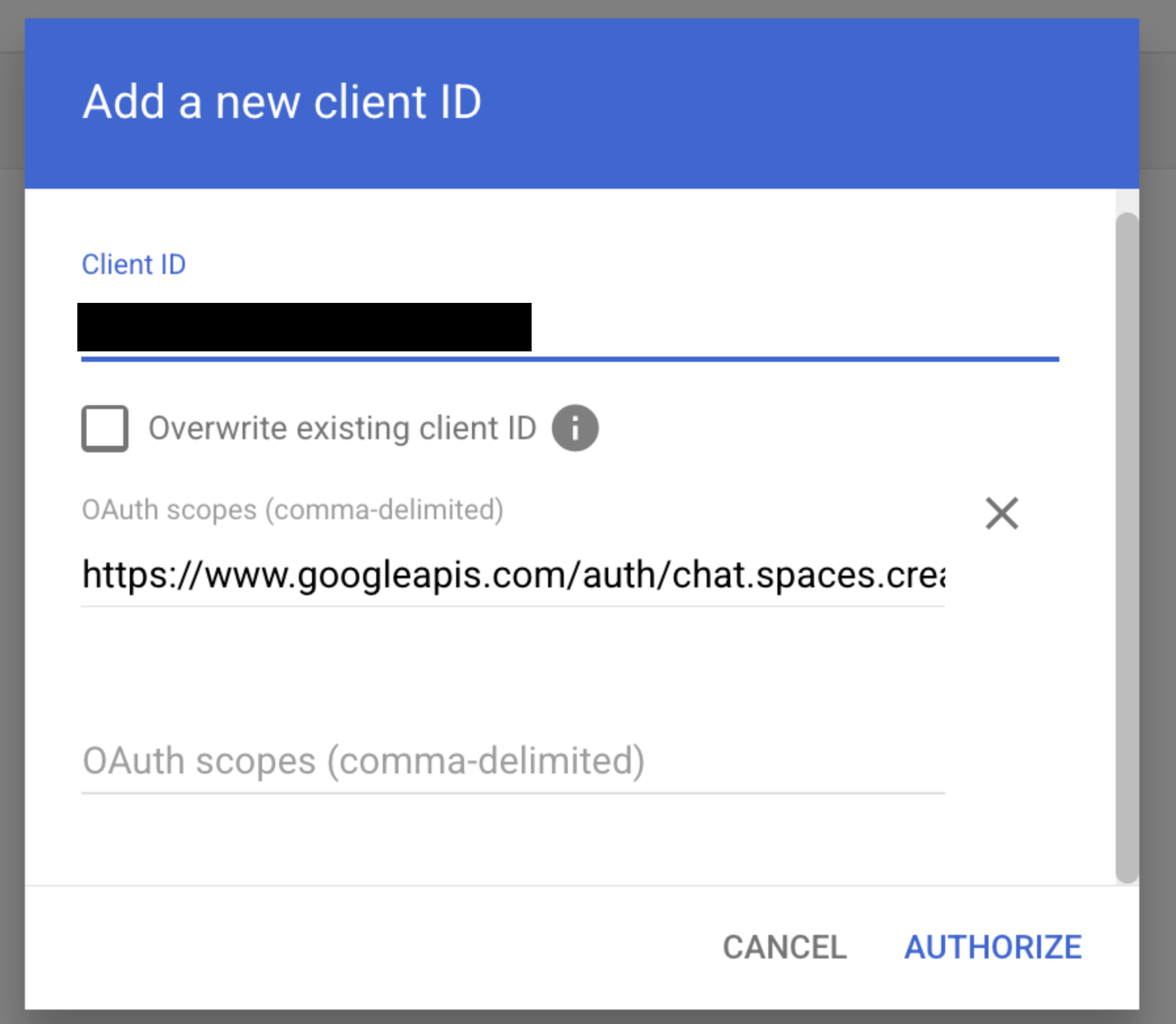
chat.spaces.createis the only scope Sonrai needs. Sonrai uses it to open a direct message between the app and a user in your Workspace.- Google can take some time to apply a new domain-wide delegation grant (usually minutes, occasionally up to 24 hours). Until it applies, Sonrai can't open direct messages with your users.
App Registration
The Primary Domain you register must match the domain of the email address you use to log in to the Sonrai Cloud Permissions Firewall. Otherwise, you will NOT be able to register Google Chat.
-
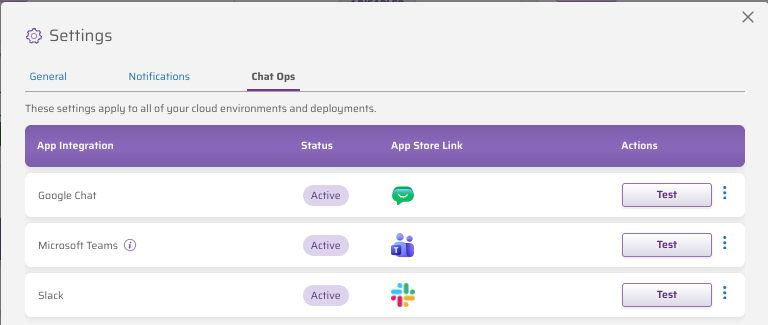
Open Settings and navigate to the Chat Ops tab. In the Google Chat row, click Install.
-
In the Install Google Chat dialog, fill out the following fields:
| Field | Description |
|---|---|
| Workspace Customer ID | Your Google Workspace customer ID (for example, C01a2b3c4). Find it in the Google Admin console under Account > Account settings. |
| Primary Domain | Your Google Workspace primary domain (for example, example.com). It must match the domain of your Sonrai email address. |
The dialog also shows the Sonrai domain-wide delegation client ID and the OAuth scope, each with a copy button. Copy them for your Google Workspace Administrator (see Workspace Administrator Authorization).
-
Click . When registration succeeds, the message "Google Chat integration installed successfully" appears and the integration is listed as Google Chat (your domain).
-
Optionally, click in the Google Chat row to send yourself a test message in Google Chat.
App Removal
Uninstall Google Chat (for your entire Workspace)
- Open Settings and navigate to the Chat Ops tab.
- In the Google Chat row, select Uninstall from the menu. The message "Integration uninstalled successfully" appears.
Uninstalling removes your Google Workspace registration from Sonrai, including its domain mapping, so that the domain and customer ID can be registered again later.
Uninstalling in Sonrai doesn't change anything in your Google Workspace. To fully remove access, have your Google Workspace Administrator also:
- delete the Sonrai client ID from Security > Access and data control > API controls > Manage Domain Wide Delegation, and
- remove the Sonrai Chat app from your Workspace.